
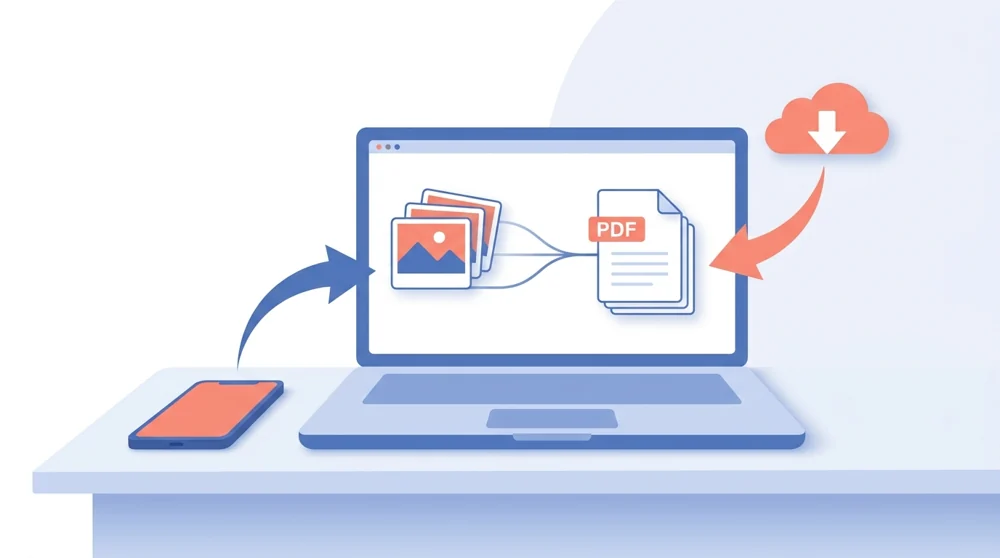
The format your iPhone loves and everyone else fights
Apple switched to HEIC because it keeps photos small without losing detail, and on an iPhone it works beautifully. The trouble starts the moment you send those photos somewhere else. A coworker on Windows double-clicks the file and gets an error. An Android friend cannot preview it. A web form rejects the upload. HEIC is a great way to store a photo and a frustrating way to share one. Turning it into a PDF clears the whole problem in one step. Here is where people reach for this most:
- Sending photos of a document or receipt to someone who does not use an iPhone.
- Uploading to a portal or form that only accepts PDFs and refuses image files.
- Emailing several shots at once, where one ordered PDF beats a scattered pile of attachments.
- Archiving photographed paperwork, so a stack of snapshots becomes one file you can actually find later.
The common thread is reach. A PDF opens on anything, prints in a predictable shape, and keeps your photos in the order you set.
The full guide to convert iPhone HEIC photos to PDF covers the Settings tweaks that stop HEIC being created at all.
Quality stays, and your photos stay yours
| What you upload | What you get |
|---|---|
| One or many HEIC photos | A single clean PDF |
| Full iPhone resolution | Same sharpness, now portable |
| Files travel over secure HTTPS and are processed automatically with no human review. They are saved to your private file manager; free-account files are removed 30 days after their last activity, and you can delete them sooner. |
Your iPhone already compressed the HEIC photo when it was taken. The standard tool is free; free PDF output includes a small PDFBEAR free-version badge, while Premium output is clean. Your HEIC photos go in at the quality you captured and come out looking like themselves, just bound into pages instead of stuck in a format nobody else can open. Files travel over secure HTTPS and are processed automatically with no human review. They are saved to your private file manager; free-account files are removed 30 days after their last activity, and you can delete them sooner.
Once your photos are a PDF, the rest of your toolkit is right there. If a batch of full-resolution shots ends up too heavy for email, a quick pass through Compress PDF brings it down to size. Snapping pictures of paper documents instead? Scan to PDF is built for exactly that. Already have your images as JPGs or PNGs? JPG to PDF and PNG to PDF handle those the same easy way.
HEIC to PDF, free and ready to share
The conversion is the simple part, and it stays free with a 50 MB limit per file and no account to create. Whether you are clearing an upload that keeps getting rejected or sending iPhone photos to someone on a different device, HEIC to PDF gives you one shareable file that opens everywhere.
For best results, keep the original iPhone photo rather than a compressed preview, especially when the PDF needs to show receipts, IDs, or small printed details clearly.
 Continue with Google