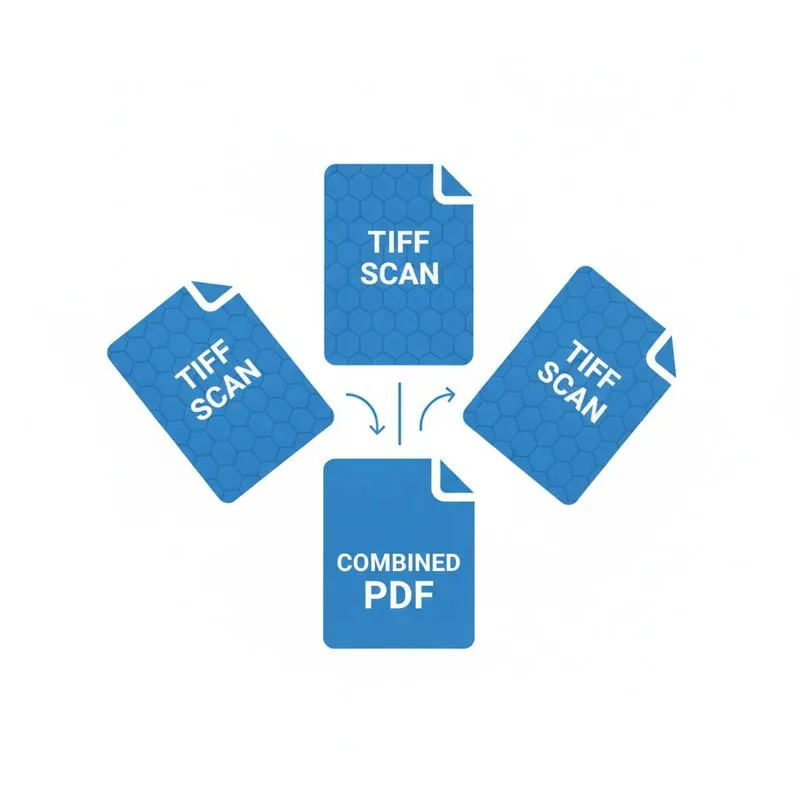
Office scanners and legacy archives often produce multi-page TIFF files that no one wants to read in a TIFF viewer. Convert them to PDF with PDFBEAR - Either directly or via a two-step TIFF-to-PDF then merge workflow.
- TIFF is a lossless format favored by scanners, fax machines, and archival systems - Not built for everyday sharing
- Multi-page TIFF is a single file containing dozens or hundreds of scanned pages
- PDFBEAR's TIFF-to-PDF tool handles both single-page and multi-page TIFF files
- For separate TIFF scans, use TIFF-to-PDF then Merge PDF to combine into one document
From fax archives to legal case files - Turn your TIFF scans into a single, searchable, shareable PDF.
What Is TIFF and Why Do Scanners Use It?
TIFF - Tagged Image File Format - Has been the gold standard for scanned documents since the 1980s. Unlike JPEG, TIFF is lossless: every pixel in the original document is preserved exactly, with no compression artifacts. This makes it the preferred format for:
- High-volume office document scanners (Fujitsu, Canon, Kodak Alaris, Xerox)
- Medical imaging systems (radiology, pathology)
- Legal discovery and court record digitization
- Fax-to-email services (faxes are commonly stored as TIFF Group 4)
- Government and archival scanning workflows
- Print prepress and publishing workflows
The key property that makes TIFF ideal for scanning: it's a container format, and it supports multiple pages in a single file. A 50-page contract scanned on a sheet-fed scanner can be saved as a single .tiff file containing all 50 pages in sequence. This multi-page TIFF capability is not obvious - The file looks like a single image, but it contains an entire document stack.
The problem: TIFF is not a document exchange format. Unlike PDF, most email clients, browsers, and document management systems cannot display TIFF files directly - Especially multi-page ones. Converting multi-page TIFF to PDF gives you a universally readable, shareable, and printable document.
Single-Page vs Multi-Page TIFF - What's the Difference?
Not all TIFF files work the same way. Understanding the distinction matters when planning your conversion:
| TIFF Type | Contents | Common source | Conversion approach |
|---|---|---|---|
| Single-page TIFF | One scanned page per file | Flatbed scanners, smartphone scan apps | Convert each TIFF to PDF, then Merge |
| Multi-page TIFF | Multiple pages in one file | Sheet-fed office scanners, fax systems | Convert directly - All pages become PDF pages |
| Group 4 TIFF (fax) | Bilevel (black & white) compressed pages | Fax machines, fax-to-email services | Convert directly via TIFF-to-PDF |
If you received a single TIFF file from a colleague or a scanner, open it in any image viewer and check whether the page counter shows more than one page. If it does, you have a multi-page TIFF. PDFBEAR's TIFF to PDF tool handles both types.
TIFF Compression Types Explained
TIFF supports multiple internal compression algorithms, which affects file size and compatibility:
| Compression | Type | Typical use | File size |
|---|---|---|---|
| None (Uncompressed) | Lossless | Archival, prepress, maximum compatibility | Very large |
| LZW | Lossless | Color and grayscale document scans | Medium |
| Group 3 (CCITT) | Lossless (bilevel only) | Fax transmission standard | Small |
| Group 4 (CCITT) | Lossless (bilevel only) | High-quality fax, legal scanning | Very small |
| JPEG-in-TIFF | Lossy | Color scans where file size matters more than perfect quality | Small |
Group 4 (CCITT T.6) is by far the most common TIFF type you'll encounter in legal and government scanning environments. It's bilevel (pure black and white, no gray), which is why faxed and scanned text documents look crisp at high resolution. PDFBEAR supports all of these compression types.
Two Ways to Convert TIFF Scans to a Single PDF
PDFBEAR gives you two approaches depending on what you're starting with:
Option 1: Multi-Page TIFF → PDF Directly
If your TIFF file already contains multiple pages (common from sheet-fed scanners and fax systems), go straight to TIFF to PDF:
- Open PDFBEAR TIFF to PDF in your browser.
- Upload your multi-page TIFF file.
- PDFBEAR converts each page in the TIFF to a corresponding page in the PDF - Maintaining page order and resolution.
- Download the resulting PDF. Done.
This is the fastest path when you have a single TIFF file from an office scanner that scanned a whole document in one pass.
Option 2: Multiple Single-Page TIFFs → Merge into One PDF
If you have a batch of individual TIFF files (one per page), the workflow is two steps:
- Step 1 - Convert: Upload all your single-page TIFF files to TIFF to PDF. PDFBEAR will convert each one to a separate PDF.
- Step 2 - Merge: Take the resulting PDFs to Merge PDF. Upload them in order and merge them into one multi-page PDF document.
The Merge PDF tool lets you drag to reorder files before merging, so you can correct the scan order if needed. This two-step approach gives you full control over page sequencing.
Real-World Scenarios Where This Matters
Legal Case Files
Law firms receive evidence and discovery documents as multi-page TIFFs from opposing counsel, courts, or e-discovery platforms. TIFF-to-PDF conversion is a daily workflow task for litigation support teams. The resulting PDF can then be annotated, redacted, and shared via secure document portals - Workflows that PDF handles natively and TIFF does not.
Fax Archive Conversion
Older businesses - Healthcare, legal, real estate - Still rely heavily on fax. Fax-to-email services store incoming faxes as Group 4 TIFF files. Converting these archives to PDF makes them searchable, indexable, and compatible with modern document management systems.
Medical Records
Hospital imaging departments and records teams often work with TIFF scans of patient intake forms, referral letters, and consent documents. PDF is the expected format for patient records in most electronic health record (EHR) systems.
Legacy Document Archives
Digitization projects from the 2000s and early 2010s often produced TIFF archives. Government agencies, universities, and corporations sitting on decades of scanned TIFF files increasingly need to convert them to PDF for online portals and modern access systems.
After Converting: Tools to Refine Your PDF
Once your TIFF scans are a unified PDF, PDFBEAR's full 50+ tool suite lets you polish the document further:
The OCR PDF tool (available with PDFBEAR Premium) is especially valuable for scanned documents: it applies optical character recognition to make the text in your scanned TIFF-converted PDF searchable and copyable - Transforming an image-only scan into a fully functional text document. This is critical for legal discovery, medical records, and compliance workflows where full-text search is required.
Ready to consolidate your TIFF scans? Start with TIFF to PDF, then Merge PDF - Two tools, one clean document, no software to install.
Compare PDF tools
 Continue with Google