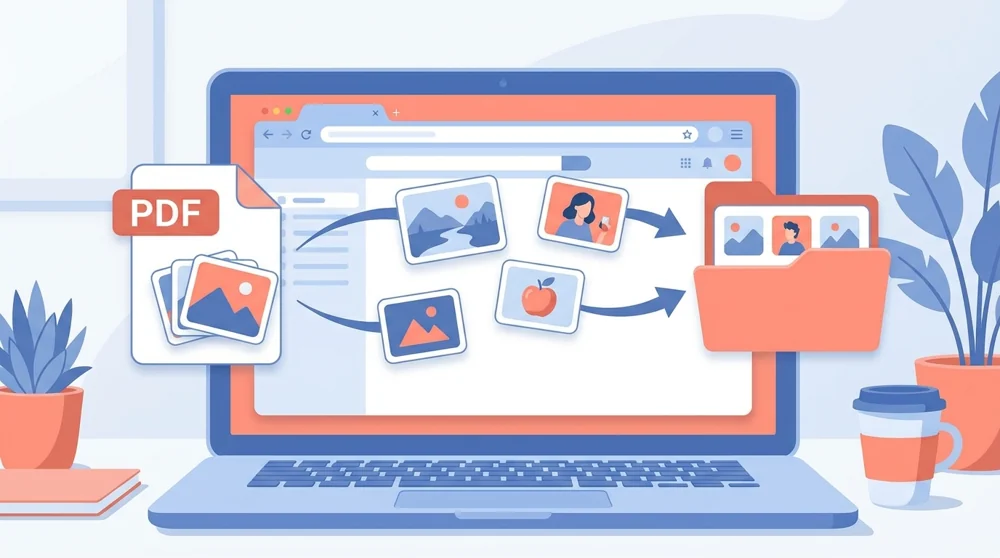
Extract Images from PDF

Pull every image out of a PDF and download them as a single zip file.

Secure HTTPS upload - your files stay private and are saved to your file manager.
How to use Extract Images from PDF

How to extract images from PDF

  1. Upload your PDF file from your computer or phone.
  2. Click the button to start pulling out the images.
  3. Wait a few seconds while we gather every picture.
  4. Download the zip file with all your images inside.

Why use PDFBEAR for Extract Images from PDF?

Extract images at no cost

Extract images from as many PDFs as you like with no signup, no watermark, and no hidden costs.

Your PDFs stay confidential

Your PDF is sent over a secure HTTPS connection and auto-deleted shortly after processing.

Pull images from any browser

Use it in any browser on a phone, tablet, or computer with nothing to install.

Images keep their embedded resolution

Every picture comes out at its embedded resolution, so your images stay crisp and clear.

Every picture in one zip

We bundle every image into a single zip file, so one click downloads them all at once.

Extract images without any download

The whole job runs in your browser, with no app or software to download or set up.

Extract every embedded image from a PDF and download them in one zip file with PDFBEAR

Pull every picture out of a PDF and save them in one zip

A PDF can hide dozens of photos and logos you would otherwise screenshot one by one. This pulls every embedded image out at full quality and bundles them into a single zip, so you can reuse graphics in slides, posts or designs in seconds.


Get the Pictures Out of a PDF Without the Hassle

Extracting images from a PDF saves you from screenshots and cropping when you just want the original pictures back.


The problem with pictures trapped in a PDF

A PDF can hold dozens of photos, logos, charts, and scanned figures, but getting them back out is rarely simple. People resort to screenshots, which lose quality, or they crop pages one by one, which takes forever. Extracting images from a PDF skips all of that. The tool reaches into the file, finds every embedded picture, and hands them back to you at their original resolution, packed into one zip.

That matters when you are rebuilding a slide deck, reusing product photos, grabbing diagrams for a report, or saving artwork from a brochure. Instead of fighting with each page, you download one zip and have all the images ready to use.

How many images can a PDF hold

What you upload What you get back
A photo-heavy brochure Every photo as a separate image file
A scanned document The scanned page images, ready to reuse
A report with charts Each chart and figure pulled out cleanly

Files up to 50 MB are welcome, the whole thing is free, and your upload is auto-deleted shortly after processing over a secure connection. Most PDFs finish in just a few seconds, even ones packed with pictures.

Pair it with the right tool

Extracting images is about the pictures hidden inside a PDF. If you would rather turn whole pages into images, PDF to JPG or PDF to PNG render each page as a single picture. And if your extracted images come out large, run them through Compress PDF after placing them back into a document to keep your file lean. Each of these tools is free and runs right in your browser.

Embedded Images vs Page Images

Extract Images from PDF is different from turning each PDF page into a picture. This tool looks for image objects stored inside the file, such as product photos, logos, diagrams, scans, or figures, and exports those pictures separately. If you need a screenshot-like image of every full page, use PDF to JPG or PDF to PNG instead.

The quality of the result depends on what was embedded in the original PDF. A high-resolution brochure photo can come out sharp, while a tiny compressed image will stay small because the PDF does not contain more detail to recover. Some scanned PDFs store each page as one large image; others break a page into many pieces, masks, or background layers, so the number of extracted files can vary.

Use this tool when you want reusable assets from inside the document. Use PDF to Text when you need the words, OCR PDF when scanned pages need searchable text, and Compress PDF after rebuilding a document if image-heavy pages make the final PDF too large. A quick review of the zip before publishing helps you catch duplicates, icons, or decorative images you do not actually need.

Get your images back

When the pictures you need are locked inside a PDF, Extract Images from PDF is the fastest way to free them all in one clean download.


Extract Images from PDF formats, fidelity & use cases

Input formats
PDF
Output format
ZIP of images
Maximum file size
50 MB
Processing time
a few seconds
What is preserved
  • Embedded image quality where available
  • Separate image assets
  • Original visual content from the PDF
  • A downloadable collection of images
  • Photos, diagrams, logos, and figures
What changes
  • Images are removed from the PDF container
  • The output is a zip archive
  • Whole-page rendering is not the goal
  • Decorative or duplicate image fragments may also be extracted

Popular use cases

Recover brochure photos
Pull product images from a catalog
Extract charts and diagrams
Reuse logos from a PDF
Save scanned page images
Collect visual assets for slides or reports

Extract Images from PDF file requirements and limits

Pages handledUp to 500
Free file size50 MB
Only raster images actually embedded in the PDF are pulled out; logos or charts drawn as vector paths or live text aren't stored as picture files and won't appear in the zip.

Common Extract Images from PDF problems and how to fix them

Why is my zip empty when the PDF clearly has pictures?

Why it happens: The graphics on the page are vector artwork or text rendered as paths, not embedded raster image objects, so there are no stored picture streams to pull.

Fix: Render the pages to flat image files instead of extracting embedded objects, then keep the page images you need. PDF to JPG →

Why did I get one big image per page instead of the separate photos?

Why it happens: The PDF was built from a scan, so each page is a single full-page image rather than individually placed photos and logos.

Fix: Accept the one-image-per-page output, or if you only want a few pages first trim the document down before extracting. Extract Pages from PDF →

Why does the zip contain duplicate or tiny junk image fragments?

Why it happens: Background tiles, repeated header logos, and sliced image strips are each stored as their own embedded object, so they all extract as separate files.

Fix: Delete the unwanted fragments after unzipping, or extract from a smaller page range so fewer decorative assets are included. Split PDF →


Extract Images from PDF vs Taking a screenshot of each image on screen

The manual alternative is opening the PDF and screenshotting each picture, versus pulling the stored image objects straight out into a zip.

DimensionExtract Images from PDF (PDFBEAR)Taking a screenshot of each image on screen
Formatting fidelityOriginal embedded resolutionLimited to screen pixels
Batch / multiple filesEvery image at once in a zipOne capture at a time
SpeedWhole document in secondsSlow scroll-and-crop per image
Install neededRuns in the browserBuilt-in screenshot tool

Who uses Extract Images from PDF?

Graphic designer
Reclaims the original high-resolution product photos from a client-supplied brochure PDF instead of screenshotting blurry on-screen versions for a redesign.
E-commerce catalog manager
Pulls every product shot out of a supplier's PDF price list in one zip to bulk-upload them to the online store.
Real estate agent
Extracts the property photos embedded in a listing PDF so they can be reposted to a property portal without re-shooting the home.
Academic researcher
Lifts the figures, charts, and microscopy images out of a journal article PDF to cite and reuse them at full quality in a literature review.
Marketing coordinator
Recovers the brand logos and infographics from an old campaign PDF when the original source files are lost.
Print production operator
Separates the embedded artwork from a customer's PDF proof to check each image's resolution before sending the job to press.

Extract Images from PDF — Frequently Asked Questions

Yes, it is completely free. There is no signup, no watermark, and no limit on how many PDFs you can pull images from.

Yes, it is safe. Your PDF is uploaded over a secure HTTPS connection and auto-deleted shortly after processing, so your images stay private.

The maximum file size is 50 MB per file. If your PDF is bigger, try compressing it or splitting it before you upload.

No, you do not need to install anything. The tool runs in your web browser on any device, with no app or software to download.

The images come out in their original embedded format, usually JPG or PNG, all bundled together inside one zip file for an easy download.

No, the images keep their original embedded resolution, so they stay as crisp as they were inside the PDF with no quality loss.

No account is needed to pull images from a PDF as a guest, just upload your file. A free account is optional and saves your downloads; guests get 5 free files before one is suggested.

Most PDFs are processed and zipped up in just a few seconds, even those with many images.

No. The images come out exactly as they were embedded in the PDF, with no watermark or logo added.

When to use Extract Images from PDF

A PDF can hide dozens of photos and logos you would otherwise screenshot one by one.

Best for

  • Recover brochure photos
  • Pull product images from a catalog
  • Extract charts and diagrams
  • Reuse logos from a PDF
  • Save scanned page images

Useful next steps

Convert from PDF workflow

Extract editable documents, tables, slides, images and text from PDF files when the PDF is no longer the final step.

Explore all convert from pdf tools