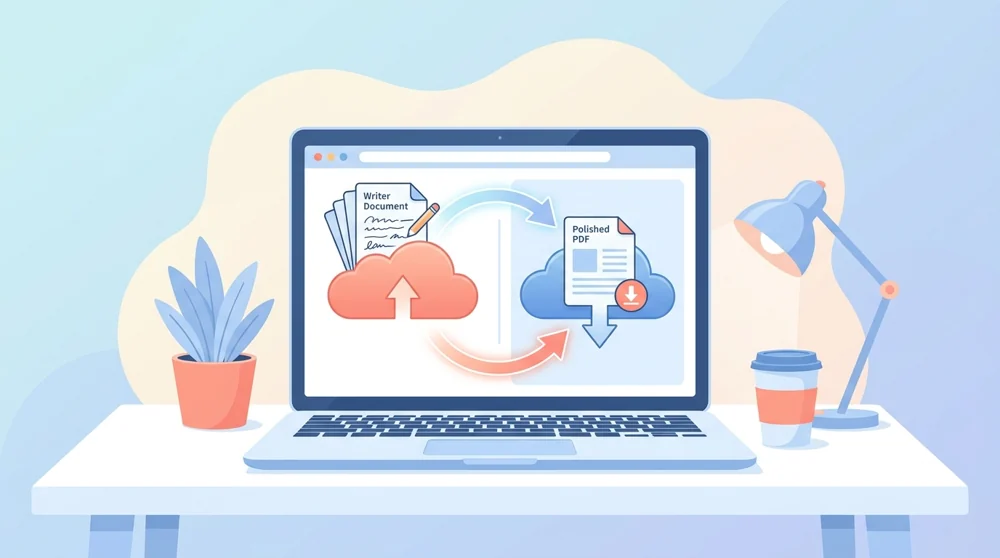
Convert ODT to PDF

Convert OpenDocument (Writer) .odt files into clean PDF documents online.

Secure HTTPS upload - your files stay private and are saved to your file manager.
How to use Convert ODT to PDF

How to convert ODT to PDF

  1. Upload the .odt file you want to convert.
  2. Let our converter read and process your document.
  3. Wait a few seconds for the PDF to be built.
  4. Download your finished PDF, or save it to your device.

Why use PDFBEAR for ODT to PDF?

Convert every ODT free

Convert as many ODT files as you need at no cost, with no signup and no watermark added to your PDF.

ODT uploads deleted after export

Files are uploaded over a secure HTTPS connection and deleted from our servers shortly after the conversion is done.

Convert ODT from any device

Convert from a phone, tablet, laptop, or desktop using any modern browser, with no app to install.

OpenDocument layout stays intact

Page setup, fonts, tables, and images stay faithful to your OpenDocument original so the PDF looks right.

ODT to PDF in seconds

Most ODT files turn into a PDF within a few seconds, so you are not left waiting.

No LibreOffice or plugin needed

The converter runs fully online in your browser, with no software, plugin, or extension to set up.

Convert an OpenDocument Writer ODT file into a clean, shareable PDF online with PDFBEAR

Turn OpenDocument Writer files into clean, shareable PDFs

ODT is the native format of LibreOffice and OpenOffice Writer, and it often opens as a jumble elsewhere. Convert it to PDF and your headings, tables and images arrive intact for anyone, on any device, with no compatibility headaches.


From Open-Source Office to a Universal PDF

ODT is the open standard behind free office suites, and converting it to PDF makes your work readable for absolutely everyone.


What an ODT file really is

If you have ever written a document in LibreOffice, OpenOffice, or another free office suite, you have probably saved an ODT file. ODT stands for OpenDocument Text, an open standard built so your writing is not locked inside one company's software. That openness is a real strength, but it has a downside in the real world: not everyone has an app that opens .odt files cleanly, and the layout can drift between programs.

Converting ODT to PDF solves that gap in one step. A PDF is the closest thing the document world has to a universal language. Once your OpenDocument file becomes a PDF, the fonts, margins, tables, and images are fixed in place, so what you send is exactly what your reader sees on screen or in print.

If your file is Try this tool
A LibreOffice .odt ODT to PDF (this page)
A Microsoft Word .docx Word to PDF
A Rich Text .rtf RTF to PDF

The practical wins are easy to picture. A student submitting an assignment, a freelancer sending an invoice, or a volunteer sharing a flyer can all hand over a PDF without worrying about which office suite the other person uses. You can upload a file up to 50 MB, convert it for free, and rest easy knowing your upload is deleted from our servers shortly after the PDF is ready.

LibreOffice and OpenOffice Tips

ODT documents can include page styles, headers, footers, footnotes, tables, embedded images, and custom fonts. Before converting, scan the first and last page, any tables, and any image-heavy sections so you know the source layout is ready. If the document contains tracked changes, comments, or hidden notes, accept, remove, or resolve them before making the PDF if they are not meant for the reader.

A PDF is ideal when the document is finished and needs to look the same for a teacher, client, employer, or public upload. If you are collaborating on the wording, keep the ODT as the editable master and share the PDF as the stable version. Use Word to PDF for DOCX files, RTF to PDF for older rich-text documents, and PDF to Word when you need to recover editable text from a PDF later.

Keeping your OpenDocument work shareable

A PDF is usually the final, polished version of a document, but it does not have to be the end of the road. After converting, you can sign the file, merge it with other pages, or archive it as a stable copy. And if you later need to rework the text, PDF to Word can turn it back into an editable document. ODT keeps your work open and free of vendor lock-in, while PDF makes sure it reaches your readers looking exactly the way you intended.


ODT to PDF formats, fidelity & use cases

Input formats
ODT
Output format
PDF
Maximum file size
50 MB
Processing time
a few seconds
What is preserved
  • LibreOffice and OpenOffice layout
  • Headings and page styles
  • Tables and embedded images
  • Margins and page breaks
  • Final document appearance
What changes
  • Editable ODT content becomes a fixed PDF
  • Office-suite dependency is removed
  • Comments and tracked changes should be resolved before export
  • The recipient gets a stable read-only copy

Popular use cases

Submit OpenDocument assignments
Send LibreOffice invoices
Share OpenOffice reports
Create vendor-neutral final copies
Prepare files for printing
Archive ODT documents as PDFs

ODT to PDF file requirements and limits

Pages handledUp to 300
Free file size50 MB
Fonts used in the ODT but not embedded in the file are substituted with the converter's nearest match, so any LibreOffice-specific or locally-installed typeface can shift line breaks unless you embed it in Writer first.

Common ODT to PDF problems and how to fix them

Why do my fonts look different in the PDF than in LibreOffice?

Why it happens: The ODT references fonts installed only on your machine, and ODT does not embed them by default, so the server substitutes a fallback face that reflows text.

Fix: In LibreOffice Writer open File > Properties > Font and tick 'Embed fonts in the document', save, then re-convert so the original typeface travels with the file.

Why are my tracked changes and comment bubbles showing up in the exported PDF?

Why it happens: ODT stores edit history and margin comments as live markup, and the converter renders the document in its current 'show changes' state rather than the clean final view.

Fix: Accept or reject all tracked changes and delete comments in Writer (Edit > Track Changes > Accept All) before converting so the PDF contains only the finished text.

Why does my converted ODT open as a fixed PDF I can no longer edit?

Why it happens: Conversion is one-directional: the editable OpenDocument structure is flattened into a print-ready PDF page layout, which is the intended read-only output.

Fix: Keep your original .odt as the master copy for edits, or if you only have the PDF and need to change wording, send it back to an editable Word file. PDF to Word →


ODT to PDF vs LibreOffice Writer's built-in 'Export as PDF'

The closest manual route is opening the file in LibreOffice Writer itself and using File > Export as PDF, which we compare against this browser-based converter.

DimensionODT to PDF (PDFBEAR)LibreOffice Writer's built-in 'Export as PDF'
Install neededNothing to install, runs in browserRequires LibreOffice installed locally
Formatting fidelityKeeps layout, embedded-font dependentHighest fidelity, uses your local fonts
File privacyUploaded then auto-deleted afterStays entirely on your own machine
SpeedUpload, convert, download in secondsInstant once the suite is already open

Who uses ODT to PDF?

University student on a LibreOffice-only laptop
Turns an .odt thesis chapter into a PDF because the assignment portal rejects OpenDocument and only accepts PDF submissions.
Freelance bookkeeper
Exports LibreOffice Writer invoices to PDF so clients receive a locked, tamper-evident bill that opens identically without an office suite installed.
Open-source project maintainer
Converts .odt release notes and contributor guides into PDFs for GitHub releases so readers without LibreOffice can still view the formatting.
Municipal clerk in a public-sector office
Renders OpenDocument council minutes into vendor-neutral PDFs for the public records archive, since ODT is the mandated open standard but PDF is what citizens download.
NGO field coordinator
Produces PDF grant reports from .odt drafts written on free Writer so donors get a stable read-only copy regardless of which software they use.
Self-published author drafting in OpenOffice
Converts an .odt manuscript to PDF to send a print-ready proof to a copy shop that cannot open OpenDocument files.

ODT to PDF — Frequently Asked Questions

Yes, it is completely free. There is no signup, no watermark, and no cap on how many ODT files you convert to PDF.

Yes. Your file is uploaded over a secure HTTPS connection and is automatically deleted from our servers shortly after your PDF is created.

You can upload an ODT file up to 50 MB. If your file is bigger, try compressing images or splitting the document first.

No. Everything runs online in your browser, so there is nothing to download, install, or keep updated on your device.

In most cases, yes. Page setup, fonts, tables, and images stay close to your original, though very unusual styling may shift slightly.

Yes. The tool works in any modern browser on phones, tablets, laptops, and desktops, with no app needed.

No account is required to convert ODT to PDF as a guest, just upload and download. A free account is optional and keeps your files; guests can convert 5 files before one is offered.

Most ODT files turn into a PDF within a few seconds, so you are not left waiting around.

It converts an OpenDocument Text (.odt) file from Writer into a standard PDF file you can download.

No. The output PDF carries no watermark or logo, so it looks exactly like your original document.

When to use ODT to PDF

ODT is the native format of LibreOffice and OpenOffice Writer, and it often opens as a jumble elsewhere.

Best for

  • Submit OpenDocument assignments
  • Send LibreOffice invoices
  • Share OpenOffice reports
  • Create vendor-neutral final copies
  • Prepare files for printing

Useful next steps

Convert to PDF workflow

Turn documents, spreadsheets, slides, images and web pages into clean PDFs without installing software.

Explore all convert to pdf tools