Plain-text TXT files look different on every machine and every printer. Converting your TXT file to PDF with PDFBEAR locks in a clean, consistent layout - Proper font, margins, and pagination - That looks identical everywhere.
- TXT files carry zero formatting data - Font, margins, and line wrapping are decided by whatever app opens the file
- PDF locks in the layout: what you see is exactly what the recipient sees, on any device
- Encoding mismatches (UTF-8 vs Windows-1252) can turn TXT files into garbled text - PDF eliminates this risk
- PDFBEAR's TXT to PDF tool converts plain text to a clean, paginated PDF in seconds, free, no watermark
A TXT file is raw data. A PDF is a finished document. PDFBEAR bridges the gap in seconds.
The Problem with Sharing Plain-Text TXT Files
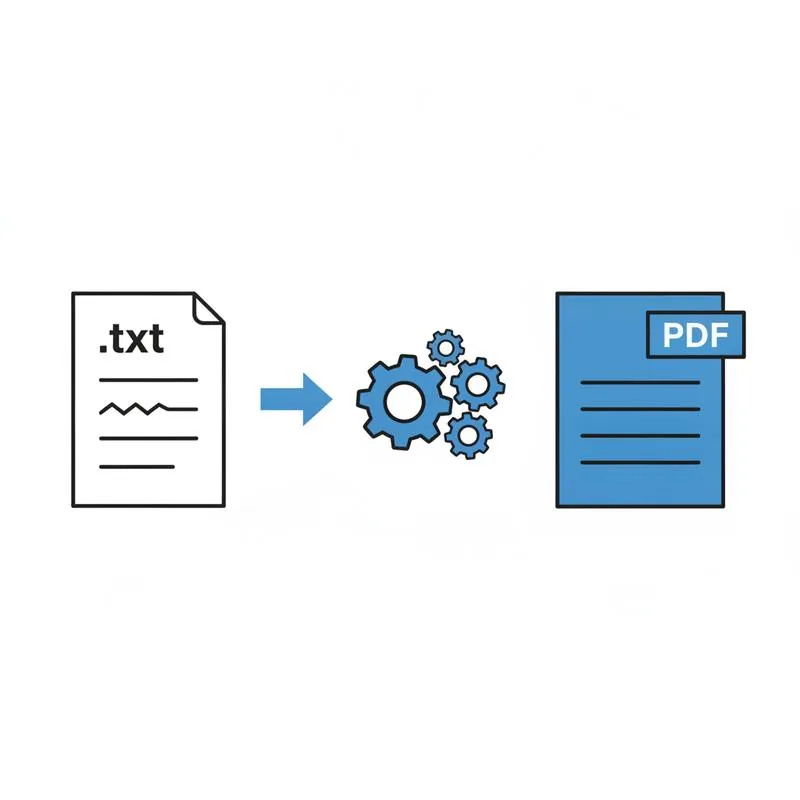
At first glance, a .txt file seems like the simplest possible document format - It's just text, right? In practice, plain-text files are one of the most unpredictable formats to share with someone else, because a TXT file contains only raw character data. There is no information about font, font size, line spacing, margins, page breaks, or text encoding stored in the file itself. Every single one of those decisions is made at the moment the file is opened - By whichever application the recipient happens to use.
Open a TXT file in Notepad on Windows and you get one rendering. Open it in TextEdit on Mac and you get another. Open it in a Linux terminal with less and you get yet another. Print it directly and you'll likely get something different from all three. If the file contains special characters - Accented letters, curly quotes, em dashes, or anything outside basic ASCII - There's a significant risk of encoding-related garbling (more on that below).
PDF solves all of this. A PDF document embeds its own fonts and layout instructions, so it looks identical on every device, every OS, every printer, and every PDF viewer in the world. Converting your TXT to PDF is the single best way to turn raw text into a finished, professional document.
TXT vs DOCX vs PDF: Which Format Should You Use?
| Format | Formatting | Universal Compatibility | Editable | Best For |
|---|---|---|---|---|
| TXT | None - Raw text only | Yes, but looks inconsistent | Yes | Code, logs, simple notes |
| DOCX | Full (fonts, styles, images) | Requires Microsoft Word or compatible app | Yes | Editable documents, reports |
| Fixed layout, embedded fonts | Yes - Every device, every OS | Read-only by default | Sharing, printing, archiving |
If you need the recipient to edit the document further, DOCX is the right choice - And PDFBEAR's Word to PDF tool can convert it for distribution afterward. But if the goal is sharing, submitting, printing, or archiving, PDF is the clear winner every time.
The Encoding Problem: UTF-8 vs Windows-1252
One of the most common and frustrating TXT file problems is character encoding mismatches. When a TXT file is created on a Windows machine, it may be saved in Windows-1252 encoding (also called "ANSI" in Notepad's save dialog). When that file is opened on a Mac, Linux system, or in a modern text editor that defaults to UTF-8, characters outside basic ASCII - Things like é, ñ, ü, "smart quotes," or the em dash - Can appear as garbled characters or question marks.
This is particularly common with:
- Text files created on older Windows systems and shared across platforms
- Log files exported from legacy software
- Manuscripts or documents typed on a Windows PC and shared with Mac users
- README files from older open-source projects
When you convert a TXT file to PDF, the converter reads the text using the correct encoding and bakes the characters into the PDF with a proper embedded font. The recipient will never see a garbled character - What PDFBEAR reads is what they get.
Real-World Use Cases: Who Actually Converts TXT to PDF?
Plain-text-to-PDF conversion is more common than you might think. Here are the scenarios where it comes up regularly:
- Sharing log files - Server logs, error logs, and application output are often plain text. Sending them as PDF makes them easier to read and prevents the recipient's text editor from reformatting them unexpectedly.
- Converting README files - Open-source projects ship with plain-text README files. Converting to PDF creates a polished document suitable for distribution or inclusion in a software package.
- Code output and transcripts - Test results, command-line output, and session transcripts in TXT format can be converted to PDF for inclusion in reports or bug submissions.
- Novels and manuscripts - Self-published authors sometimes write in plain text editors like iA Writer or Ulysses that export to .txt. Converting to PDF allows submission to e-reader platforms or printers.
- Legal and compliance submissions - Some regulatory systems accept only PDF, not TXT, for document submissions.
- Plain-text invoices and receipts - Legacy billing systems sometimes produce plain-text invoices that need to be archived or forwarded as PDF.
How PDFBEAR Handles Long Lines and Tricky Formatting
One of the most annoying problems with TXT files is very long lines. A log file entry or a line of code output might be 200–300 characters long with no natural line break. When displayed in a narrow window or printed on A4 paper, these lines wrap mid-word in ugly, arbitrary ways - Or, in some viewers, extend beyond the page margin and get cut off entirely.
PDFBEAR's TXT to PDF converter wraps long lines intelligently at the page margin, so all content remains visible and readable. It also sets clean, standard margins and a readable monospace or serif font, giving your plain text document a polished, professional appearance without any fuss from your end.
There's no need to pre-process your TXT file, manually add line breaks, or open it in a word processor first. Upload it as-is and PDFBEAR handles the rest.
How to Convert TXT to PDF with PDFBEAR
- Go to PDFBEAR TXT to PDF
- Click Choose File or drag and drop your .txt file
- PDFBEAR processes the file on HTTPS-encrypted servers - Your content is never reviewed by humans
- Download your finished PDF instantly
Free files are stored for 14 days from last activity, so you have plenty of time to retrieve your PDF. There are no watermarks on converted documents, and no account is required for standard free conversions.
When You Need More Than Plain Text
If your plain-text file is actually a manuscript, report, or structured document that would benefit from headers, bold text, bullet points, and custom fonts, the right workflow is to first open it in a word processor, apply your formatting, save it as DOCX, and then use PDFBEAR's Word to PDF tool to produce the final PDF. That gives you full control over the visual design of the document.
But for the vast majority of TXT-to-PDF tasks - Log files, transcripts, READMEs, code output, manuscripts in progress - Going directly from TXT to PDF with PDFBEAR is the fastest, cleanest option available. No intermediate steps, no software to install, no account required.
Start converting your TXT files now at PDFBEAR TXT to PDF - It's free, instant, and produces a PDF that looks professional on every device.
Compare PDF tools
 Continue with Google