If you upload a scanned PDF to an AI chat tool and it seems to know nothing about the document, the problem is almost certainly a missing text layer - The AI is staring at a picture, not words. Run OCR first, then ask your questions.
- Scanned PDFs are image files inside a PDF wrapper - They contain no selectable, searchable text for AI to read.
- PDFBEAR's OCR PDF tool extracts a real text layer from your scanned document in seconds.
- Once OCR is done, upload the output to Chat with PDF to ask questions, find clauses, or get summaries.
- Scan quality matters: 300 DPI or higher, straight pages, and clean contrast give the best OCR results.
Two steps, two tools: OCR first, then chat. That's the whole fix.
Why Your Scanned PDF Looks Blank to an AI
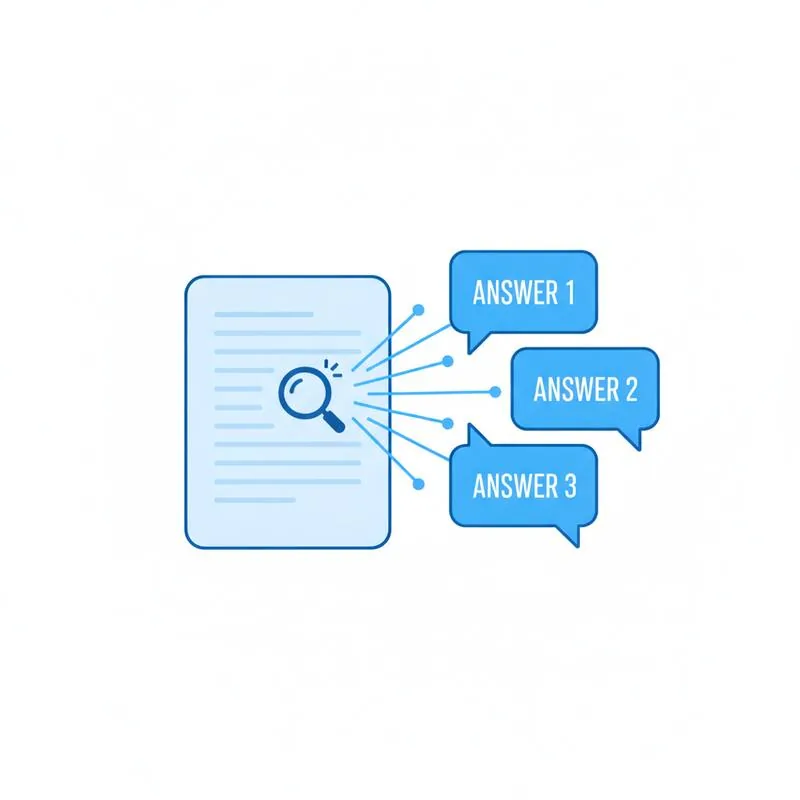
When a document is scanned - Think of a photocopier spitting out a hospital form, an old lease agreement fed through a flatbed scanner, or a phone camera shot of a printed invoice - The result is a photograph. The PDF format is just a container. Inside that container is a JPEG or TIFF image, not text. There is no text layer, no character encoding, nothing a computer can parse as language.
This is the single most common reason people get confusing results from AI PDF tools. You upload a 40-page scanned contract and ask "What are the termination clauses?" The AI responds with something like "I don't see any termination clauses in this document" - Or, worse, it hallucinates an answer entirely. It isn't being evasive. It genuinely cannot see the words. From the AI's perspective, you sent it a series of grey rectangles.
The fix is Optical Character Recognition (OCR): software that analyses the image, identifies letter shapes, and writes out the underlying text. Once that text exists in the PDF, any AI tool - Including Chat with PDF - Can read it normally. The process takes a few seconds on PDFBEAR and costs nothing on the free tier.
Step 1 - Run OCR on the Scanned PDF
Head to PDFBEAR's OCR PDF tool. Upload your scanned document - You can drag it straight onto the page. PDFBEAR accepts PDFs up to 50 MB on the free tier, and there is no software to install. The tool runs entirely in your browser over an encrypted HTTPS connection; no one at PDFBEAR reads your files, and free-account files are automatically deleted after 14 days of inactivity.
Once the upload finishes, click Convert. The OCR engine analyses each page, identifies text blocks, preserves layout where possible, and embeds a full text layer into a new PDF. Download that output - It looks identical to the original scan visually, but now every word is selectable, searchable, and readable by AI.
A few things worth knowing before you start:
- Multi-page documents are processed all at once. You don't need to split a 100-page scanned report before uploading.
- Language detection is automatic. OCR handles most Latin-script languages and many others without any settings to configure.
- The original file is not overwritten. You always download a separate OCR'd copy, so your source scan stays intact.
Step 2 - Ask Questions with Chat with PDF
After downloading the OCR output, go to Chat with PDF and upload the new file. This is where the AI question-answering happens. You can ask in plain English: "Summarise the key terms of this lease," "What is the total amount on this invoice," "Does this document mention an arbitration clause?" The AI reads the embedded text and answers based on what is actually in the document - Not a hallucinated guess.
Because the text layer is now accurate (assuming a clean scan - More on that below), the answers are grounded in the real content of your document. You can follow up with more specific questions in the same conversation thread, ask for quotes, or request a bullet-point summary of specific sections.
Chat with PDF is a Premium AI feature available with any PDFBEAR Premium plan, starting at $13.99/month or $99.99/year, with a 7-day free trial. If you have not tried it yet, the trial is risk-free - Cancel any time before the trial ends and you won't be charged.
How Scan Quality Affects OCR Accuracy
OCR is not magic - It is pattern recognition, and garbage in means garbage out. The most important factors are scan resolution, image clarity, and page alignment.
Resolution
Aim for 300 DPI when scanning with a flatbed or dedicated scanner. Most modern smartphone camera apps produce sufficient resolution in good lighting; the issue with phones is usually angle and shadow, not pixel count.
Print vs handwriting
Typed or printed text OCRs with very high accuracy. Clear block-letter handwriting can be extracted reasonably well. Cursive handwriting, personal shorthand, or signatures are largely unreadable by current OCR - The AI in Chat with PDF won't be able to answer questions about content that only appears as cursive script in the scan. If your document is a mix of printed forms with handwritten fill-in fields, expect the printed portions to come through cleanly and the handwritten fields to be partial or missing.
Page skew
A page that is even slightly rotated (a few degrees) can significantly degrade OCR quality, because the engine expects horizontal text baselines. If you are feeding phone photos, try to hold the camera directly above the document, square to the page.
Troubleshooting Garbled OCR Output
If you open your OCR'd PDF and the text looks like a scramble of random characters - Or you ask Chat with PDF a question and get nonsense answers - The problem is almost always in the source scan, not the OCR tool itself. Here is what to check.
Try re-scanning at higher resolution.
If you used a flatbed scanner at 150 DPI or lower, rescan at 300 DPI. The difference in OCR accuracy is dramatic, especially for small fonts or documents with dense paragraphs.
Straighten the page before scanning.
If the document was folded or curled, flatten it fully. Even a 5-degree tilt on a text-heavy page can cause entire lines to be misread. Many scanner apps and phone document-scanning apps include automatic deskew - Turn it on.
Improve contrast.
Old documents often have yellowed paper or faded ink. If your scanning app has a "document" or "black and white" mode, use it instead of colour - It pushes the contrast between ink and paper, making character edges sharper and easier for OCR to detect.
Split multi-column layouts manually.
Academic papers, newspapers, and legal filings sometimes use two- or three-column formats. OCR can misread these as a single jumbled column. If your document uses this layout and the output is scrambled, consider cropping each column into a separate PDF before running OCR PDF, then merging the results with Merge PDF.
Accept partial results for mixed documents.
If your scanned file contains both printed text and handwritten sections, focus your Chat with PDF questions on the printed portions. The AI can accurately answer questions about the clauses in a printed contract even if the handwritten signature date at the bottom was not recognised.
Real Use Cases Where This Two-Step Workflow Shines
This OCR-then-chat workflow is not just a technical workaround - It unlocks a genuinely useful capability for a range of practical situations.
Old contracts and legal filings.
Pre-2000 agreements were almost never born digital. If you are trying to understand the obligations in a 1995 commercial lease or a scanned court filing, run OCR PDF first, then ask Chat with PDF to find renewal terms, break clauses, or indemnity language. Far faster than reading 80 pages manually.
Scanned receipts and invoices.
Whether it is a stack of paper receipts for expense reporting or a supplier invoice sent by fax, OCR converts them into queryable documents. Ask "What is the total amount?" or "What date was this issued?" in seconds.
Archived research and textbooks.
Libraries and universities often distribute scanned PDFs of out-of-print texts. These are image-only by default. OCR them once and you can query any page directly instead of hunting through the scan manually.
Medical and insurance paperwork.
Hospital discharge summaries, pathology reports, and insurance policy documents are frequently scanned. Being able to ask "What medications are listed?" or "What does the exclusion clause say about pre-existing conditions?" can save significant time.
Handwritten notes - Partial support.
If you have scanned meeting notes or a hand-filled form, OCR will extract the printed labels (field names, headers) accurately. Handwritten content in the fields will be hit-or-miss. For forms with tick boxes, the boxes and their labels extract well; whether the tick itself is recognised as present or absent varies.
In all of these cases, the workflow is the same: upload to OCR PDF, download the output, upload to Chat with PDF, start asking questions. No software, no account required for OCR (free tier), and no waiting - Both tools run instantly in the browser.
Compare PDF tools
 Continue with Google