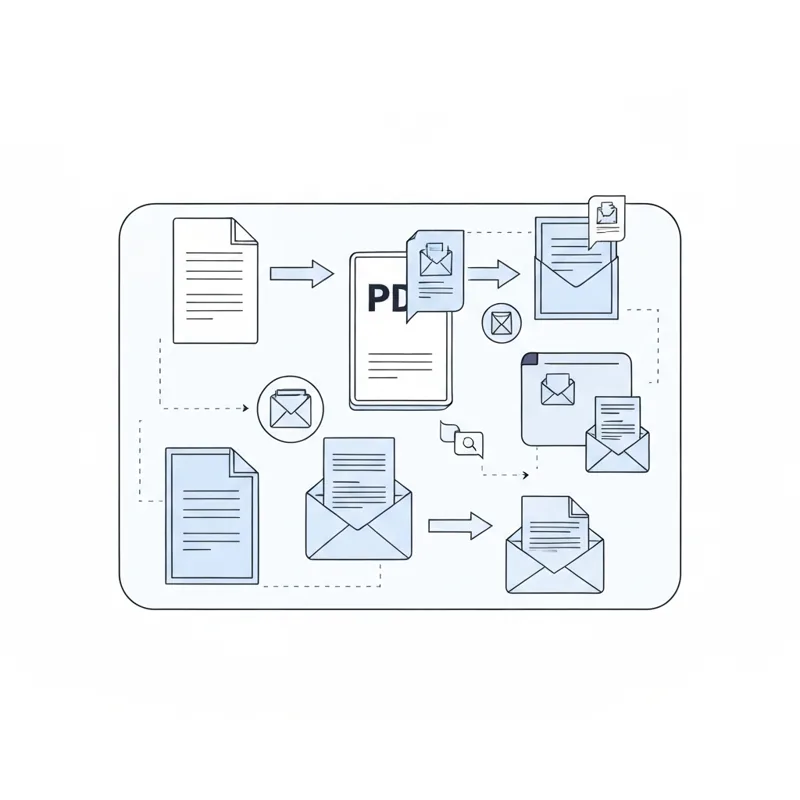
Most email providers bounce attachments over about 25 MB. Run your file through a free compressor first, and a heavy PDF usually drops well under the limit in seconds.
- Gmail and Outlook both cap attachments near 25 MB.
- A quick pass through Compress PDF often cuts size by half or more.
- It works in any browser, free, with a 50 MB upload limit.
- If it is still too big, split the file or share a link instead.
Shrink it once, hit send, and stop fighting the size limit.
Why your email keeps bouncing the attachment
You wrote the message, clicked attach, and got a red error about the file being too large. It is annoying, but it is not your fault. Gmail limits attachments to 25 MB, and Outlook and most company servers land right around the same number. A scanned contract or a slide-heavy report can sail past that without warning.
The good news is that a PDF is almost always bigger than it needs to be. Photos, scans, and embedded fonts pad the file. Squeezing that padding out is the fastest fix, and you do not need to install anything.
The quick way to get under 25 MB
Here is the whole process from start to finish:
- Open the Compress PDF tool in your browser.
- Drag your file in, or click to upload it (files up to 50 MB are fine).
- Pick a compression level. Medium is the sweet spot for email.
- Download the smaller PDF and check the new size.
- Attach it to your email and send.
Most people see their file shrink by half or more. A 30 MB report often comes back around 8 to 12 MB, which sends without a fight. Once it is done, your uploaded copy is auto-deleted, so nothing lingers on a server.
What if it is still too big?
Some files are stubborn, especially long scanned documents. You have two solid options.
Split it into smaller pieces
If a 60-page PDF is the problem, you may not need to email all of it at once. Use Split PDF to break it into two or three smaller files, then send them in separate messages. You can also use Extract Pages from PDF to pull out just the pages the other person actually asked for.
Share a link instead
For very large files, skip the attachment entirely. With Share Document you get a link you can paste into the email body. The reader clicks, views, and downloads, and your message stays tiny.
A few habits that keep PDFs small
- Scan in black and white when color is not needed. Color scans are huge.
- If you built the PDF from images, the source photos are often the bloat. Convert them sensibly with JPG to PDF rather than dropping in full-resolution shots.
- Compress before you sign or stamp, not after, so the final version stays lean.
Send it the first time, every time
Getting a PDF under 25 MB for email is rarely about deleting content. It is about trimming the hidden weight. Run the file through Compress PDF, and if it is still oversized, split it or share a link. Either way, you click send once and move on with your day.
Compare PDF tools
 Continue with Google