Use OCR PDF to convert your scanned receipt or invoice image into a searchable PDF with a real text layer, then PDF to Text to export the content as a plain file you can paste into a spreadsheet.
- Thermal receipts fade quickly - Scan them as soon as possible and boost contrast before OCR.
- OCR PDF works on JPG, PNG, and scanned PDF inputs for receipts of any size.
- PDF to Text produces a plain .txt export that imports cleanly into Excel and Google Sheets.
- For best results, photograph receipts flat on a dark surface under even overhead light.
Scan the receipt while the ink is fresh, run it through OCR PDF, export with PDF to Text, and paste straight into your spreadsheet - Expense reports done in minutes.
Why Receipts and Invoices Are Harder to OCR Than Regular Documents
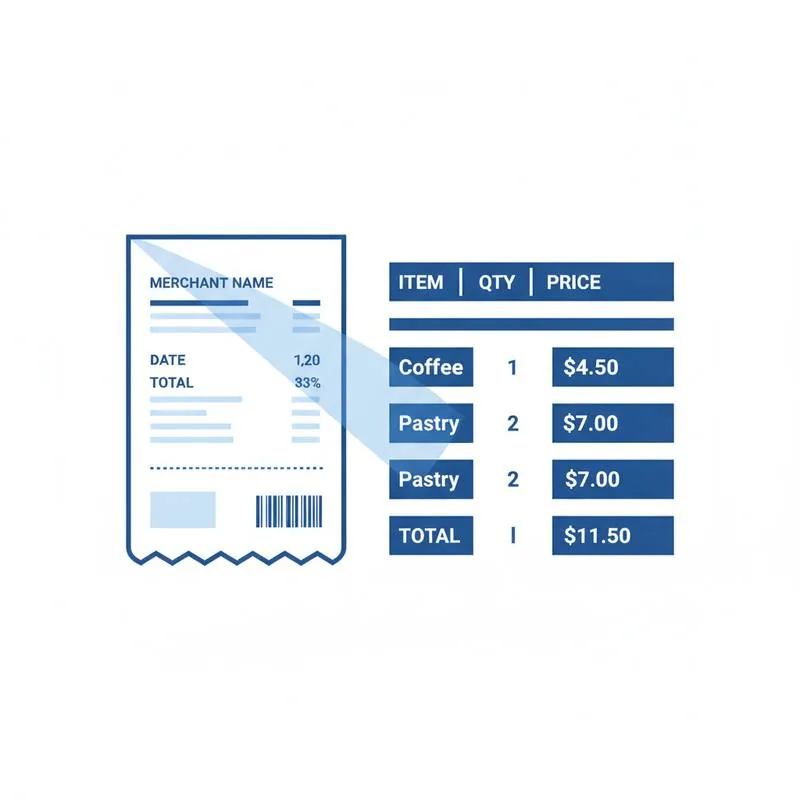
At first glance, a receipt looks simple: a short list of items and prices. In practice, receipts are among the trickiest documents for OCR engines to handle. Thermal receipt paper - The shiny, slippery kind used by most cash registers - Does not use ink. Instead it uses heat to darken a chemical coating. The result is text that fades over months, is highly sensitive to heat and light, and has a low-contrast grey-on-white appearance rather than the deep black-on-white of laser-printed documents. Older receipts may have areas so faded that individual characters are genuinely hard for a human to read, let alone an OCR engine.
Invoices from suppliers or vendors add different challenges: dense line-item tables with narrow columns, small font sizes, logos overlapping text areas, and occasionally coloured backgrounds behind prices or totals. The two-column layout of many invoices - Description on the left, amount on the right - Can confuse OCR line segmentation if the columns are not clearly separated. Understanding these challenges lets you prepare better before you run the document through OCR PDF.
Scanning Thermal Receipts: Timing and Technique
The single most important piece of advice for thermal receipts is: scan them immediately. Thermal paper begins fading from the moment it is printed, accelerating in warm environments, under UV light, or if it contacts plastic (as happens when stored in a wallet with credit cards, which accelerates fading dramatically through contact with plasticisers). A receipt that is perfectly legible today may be 30% faded in three months and nearly unreadable in a year.
When photographing a thermal receipt with your phone, lay it flat on a dark non-reflective surface. The dark background maximises contrast between the receipt paper and the table, helping the automatic cropping algorithm find the receipt edges precisely. Use overhead room lighting rather than flash - Flash causes bright spots that wash out the already-low-contrast thermal printing. After shooting, use your phone's photo editor to increase contrast by 20–30% before uploading. This single step dramatically improves OCR accuracy on faded thermal paper.
If you have access to a flatbed scanner, use it for important receipts. Set the scanner to at least 300 DPI, but 400 or 600 DPI is better for the small font sizes typical of receipts. If the receipt is printed on both sides (some thermal rolls print on both), scan both sides separately and combine with Merge PDF.
Running OCR on Your Receipt
Go to OCR PDF and upload your scanned receipt file. You can upload a JPG or PNG image directly - You do not need to convert it to PDF first. The tool accepts both and handles the conversion internally. If you have multiple receipts from the same vendor or the same period to process together, consider uploading them as a single merged PDF rather than one at a time - You will get one output file covering all of them, which is easier to manage.
Once processing completes, download the searchable PDF. Open it and use Ctrl+F to search for key terms like the total amount, the merchant name, or a specific product. If these searches return results, the OCR was successful. If a key number comes back with garbled digits - "7.8B" instead of "$7.89", for instance - That indicates a resolution or contrast issue on that part of the receipt. Note the problem area and consider re-scanning with higher contrast before re-running OCR.
Exporting to a Spreadsheet-Friendly Format
Once you have a good searchable PDF of your receipt or invoice, use PDF to Text to export the content as plain text. The output file (.txt) contains the OCR-detected text in reading order. Open the file in a text editor to review it, then copy the content and paste it into your spreadsheet. In Excel or Google Sheets, use the Data → Text to Columns function to split lines at consistent delimiters (spaces or tabs) to populate individual cells for date, description, quantity, unit price, and total.
| Invoice Field | OCR Accuracy | Common Error | Manual Check Needed? |
|---|---|---|---|
| Invoice number | High | Leading zeros dropped | Recommended |
| Date | High | "0" vs "O", "1" vs "l" | Spot check |
| Line item descriptions | Moderate–High | Abbreviations garbled | Spot check |
| Prices / amounts | Moderate | Decimal point misread | Always verify totals |
| Tax amounts | Moderate | Percentage symbol confusion | Always verify |
Accuracy Tips for Specific Receipt Types
Different receipt formats have different OCR challenges. For restaurant receipts, the greatest risk is the handwritten tip amount added after printing - OCR cannot reliably read handwriting, so always manually enter handwritten figures. For petrol / gas station receipts, the font is often very small and the fuel grade and volume printed in adjacent columns can be merged into a single string by OCR; parse these fields manually. For online order confirmation PDFs, these are usually already searchable PDFs generated from a web page - Test with Ctrl+F before running OCR, since they may not need it at all.
For overseas invoices in foreign currencies and languages, OCR accuracy depends on the character set. Latin-alphabet languages (French, Spanish, German, Italian, Portuguese) work well. Non-Latin scripts such as Arabic, Chinese, Japanese, or Korean may not produce accurate output with the default OCR language setting. If your receipts are in a non-English language, check whether using Translate PDF after OCR gives you a usable English version of the content.
Storing and Organising Your Receipt Archive
Once you have searchable PDFs of your receipts and invoices, name them consistently: YYYY-MM-DD_Vendor_Amount.pdf (for example, 2025-06-15_Staples_47.89.pdf). This naming convention lets you sort chronologically by filename in any file browser and makes it trivially easy to search for all receipts from a specific vendor. Keep originals alongside OCR'd versions - The OCR'd copy is convenient for searching, but the original scan is the authoritative document for audit purposes. PDFBEAR processes your files securely over HTTPS and does not keep your financial data longer than 14 days from last activity.
Compare PDF tools
 Continue with Google