An image-only PDF is a photograph of text - You cannot search, copy, or select any words. A searchable PDF has a hidden text layer added by OCR that makes all those functions work. Use OCR PDF to convert the first kind into the second.
- Image-only PDFs are created by scanners and phone camera apps that just wrap a photo in a PDF shell.
- Searchable PDFs contain real text data behind (or instead of) the image, enabling Ctrl+F, copy-paste, and accessibility tools.
- OCR (Optical Character Recognition) is the process that reads the image and generates that text layer.
- Use PDF to Text to extract the text layer from a searchable PDF into a plain file.
If you cannot Ctrl+F a PDF, it's image-only. Run it through OCR PDF to unlock search, copy, and screen-reader access permanently.
What Is an Image-Only PDF?
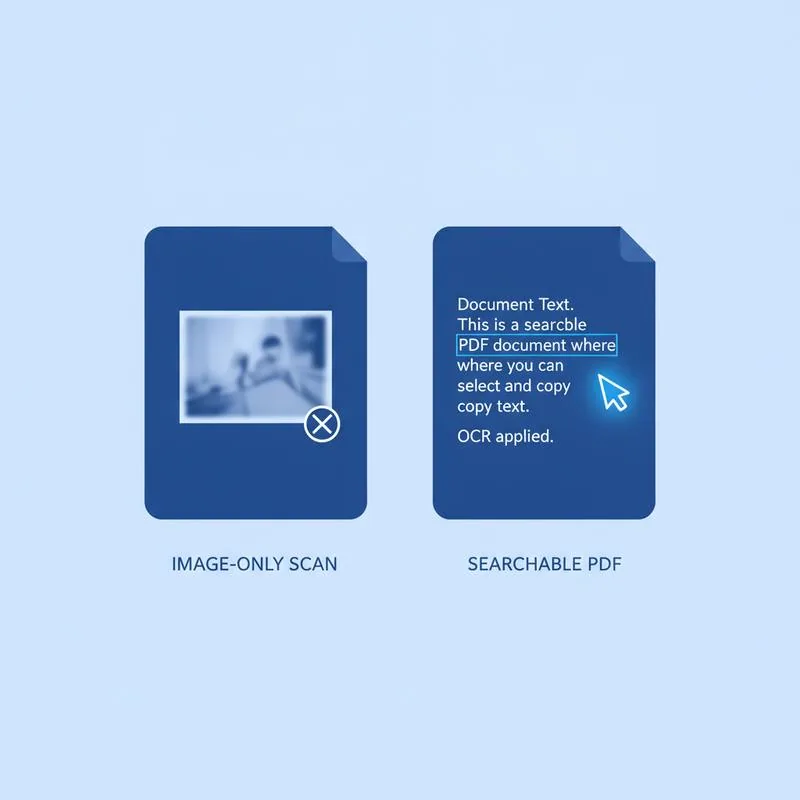
When a document is scanned on a flatbed scanner or photographed with a phone, the hardware captures a raster image - Essentially a digital photograph of the page. The simplest way to package that photograph for sharing is to wrap it inside a PDF container. The result is an image-only PDF: visually it looks exactly like a typed document, but under the hood there is no text data whatsoever. Every word, number, and punctuation mark exists only as coloured pixels arranged to resemble letters.
The implications are significant. You cannot press Ctrl+F to search for a word - There is no word to find, only pixels. You cannot click and drag to select a sentence for copying - The PDF viewer has nothing to select. Screen readers used by visually impaired users cannot read the page aloud - The accessibility layer is completely absent. If you try to use PDF to Text on an image-only PDF, you will get an empty or near-empty text file. The document is, in effect, a locked box that you can look at but cannot interact with in any meaningful way.
What Is a Searchable PDF?
A searchable PDF is superficially identical to an image-only PDF when you look at it on screen - You see the same scanned page image. But behind or beneath that image, there is a hidden text layer containing the character-by-character transcription of every word on the page. This text layer is what your PDF viewer's Find function searches when you press Ctrl+F. It is also what gets selected when you click and drag across the page, what gets pasted when you copy, and what screen readers announce when they read the document aloud.
Searchable PDFs can be created in two ways. The first is native: a document produced directly in a word processor and saved as PDF has real text from the start - It was never an image. The second is through OCR: a scanned image-only PDF is processed by an OCR engine that reads the image and writes a text layer into the PDF. The resulting file looks the same but is now fully interactive. PDFBEAR's OCR PDF tool performs this conversion.
Why This Matters for Archiving and Legal Compliance
Organisations that scan and archive large volumes of documents - Invoices, contracts, correspondence, medical records - Face a practical problem if those archives are image-only. Finding a specific document by searching its contents becomes impossible; you can only search filenames and metadata. In regulated industries, some compliance frameworks (such as ISO 15489 records management standards) require that stored documents be searchable. Converting scanned archives to searchable PDF is therefore not just a convenience - It may be a legal or procedural requirement.
For archives with a formal shelf life, pair OCR with PDF to PDF/A. PDF/A is the ISO format designed for long-term storage, so the file stays readable decades from now.
| Capability | Image-Only PDF | Searchable PDF |
|---|---|---|
| Ctrl+F / Find in page | No | Yes |
| Copy text to clipboard | No | Yes |
| Screen reader / accessibility | No | Yes |
| Full-text indexing by search engines | No | Yes |
| Export to editable text file | No (empty output) | Yes - Use PDF to Text |
| File size | Smaller (image only) | Slightly larger (image + text layer) |
How to Tell Which Type of PDF You Have
The quickest test: open the PDF in any viewer and press Ctrl+F (or Cmd+F on Mac) to open the Find bar. Type a common word that should appear in the document - A name, a date, a product code. If the viewer highlights it on the page, you have a searchable PDF. If the Find bar finds zero results for a word you can clearly see on the page, the document is image-only.
A second test: try to click and drag to select a word. In a searchable PDF, your cursor changes to a text insertion cursor when you hover over text, and you can select individual words. In an image-only PDF, clicking and dragging draws a rectangular selection box - The viewer treats the whole page as a single image object. You will not be able to select individual letters or words.
Converting Image-Only to Searchable With OCR PDF
Go to OCR PDF on PDFBEAR and upload your image-only PDF. The tool processes each page through an OCR engine, detects lines and characters, and writes a text layer into the output PDF. For a clean, high-resolution scan of a standard printed document, accuracy is typically above 98%. Download the output and run the Ctrl+F test - You should now be able to search for any word in the document. If you need to edit the recognised text rather than just search it, run the same file through PDF to Word and work on it in your word processor.
If you want just the raw text without the PDF wrapper - For example, to paste content into a spreadsheet or text editor - Use PDF to Text on the searchable PDF. This extracts the text layer and produces a plain .txt file with the document's content. Note that formatting (columns, tables, indentation) is not preserved in plain text output - The tool produces a linear stream of text that follows the reading order detected by the PDF's text layer.
Accessibility: The Often-Overlooked Reason to Convert
Screen readers - Software used by people with visual impairments to have documents read aloud - Rely entirely on text layers. A screen reader encountering an image-only PDF will either announce "image" and move on, or say nothing at all. The document is effectively inaccessible to blind and low-vision users. Converting to searchable PDF with OCR PDF immediately makes the document accessible, since screen readers can then navigate the text layer word by word, sentence by sentence.
For organisations with public-facing documents - Government agencies, universities, healthcare providers - Accessibility is often a legal requirement under frameworks such as WCAG 2.1 and national disability discrimination legislation. Ensuring that all published PDFs are searchable (not image-only) is one of the simplest and most impactful accessibility improvements available.
Compare PDF tools
 Continue with Google