Browser print-to-PDF breaks layouts, cuts off elements, and drops CSS. PDFBEAR's HTML-to-PDF converter renders web pages faithfully - Full layout, fonts, and styles intact.
- HTML pages can disappear, change, or go behind paywalls - A PDF is a permanent snapshot
- Browser "Print to PDF" often mangles layouts, strips backgrounds, and inserts unwanted headers/footers
- PDFBEAR renders the full HTML/CSS as a clean, share-ready PDF
- Use cases range from saving receipts and invoices to legal compliance archiving
Any web page. Any layout. One clean PDF - Without touching the print dialog.
Why Save a Web Page as PDF?
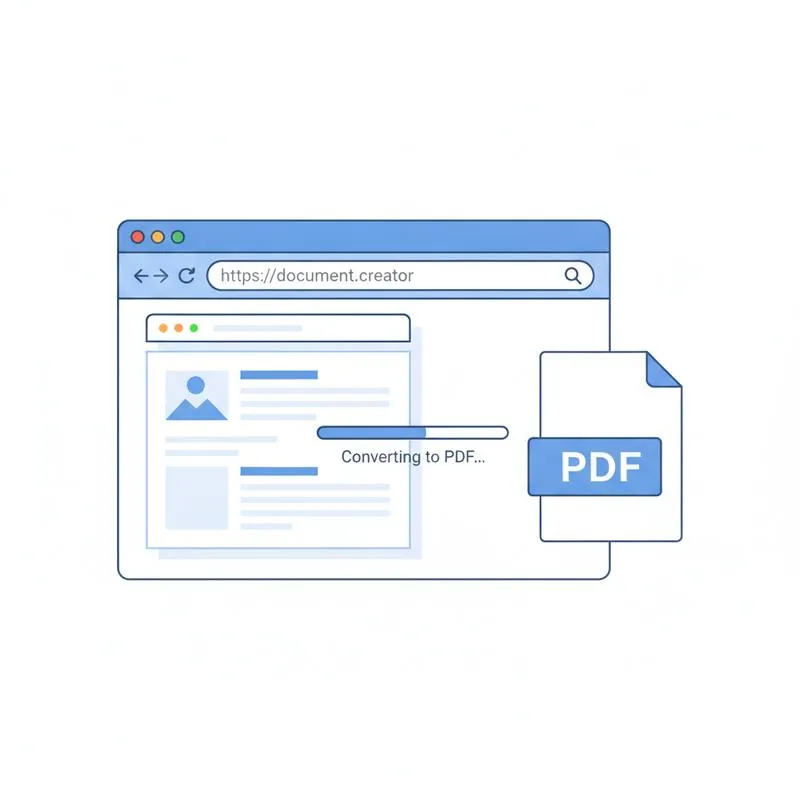
The web is impermanent. Pages go offline, articles are updated, receipts expire behind login screens, and paywalls appear overnight. Converting a web page to PDF gives you a frozen, portable copy that can be read, shared, printed, or filed - Regardless of what happens to the original URL.
Here are the most common real-world reasons to convert an HTML page to PDF:
- Online receipts and order confirmations: E-commerce and booking sites show your confirmation once - After a few days it may be hidden behind a login, or the layout may change. A PDF keeps the exact confirmation as you saw it.
- Invoice archiving: Freelancers and accountants need permanent copies of invoices from SaaS tools, ad platforms, and suppliers. PDF is the format your accountant and tax authority expect.
- Article and research archiving: Long-form articles, Wikipedia entries, and research pages can change or disappear. PDF captures the content as it exists today.
- Sharing with offline users: Not everyone has reliable internet access. A PDF of a web page works in a plane, in a hospital, or in a remote area.
- Clean printing: Web pages are designed for screens, not printers. Ads, navigation bars, cookie banners, and sidebars all land in your printed output - PDF conversion lets you capture only the content.
- Legal and compliance archiving: Lawyers, compliance teams, and auditors regularly need timestamped, unalterable copies of web pages as evidence or records.
The Problem with Browser "Print to PDF"
Every major browser - Chrome, Firefox, Safari, Edge - Has a built-in "Print to PDF" option. It's convenient, but it produces notoriously inconsistent results. Here's why it often falls short:
- Broken layouts: CSS that depends on viewport width, flexbox, or grid often collapses or wraps incorrectly in the print context. Multi-column layouts become single-column. Sidebars stack under content.
- Missing backgrounds and colors: Browsers typically suppress background colors and images in print mode by default to save ink. Many page designs become unreadable without them.
- Unwanted headers and footers: Chrome prints the page URL, date, and page numbers at the top and bottom of every page - Cluttering professional-looking documents.
- Clipped content: Wide tables, code blocks, and fixed-width elements often get cut off at the page edge.
- Print media queries override design: Websites that include
@media printCSS rules may intentionally strip content from the printed version - Hiding images, ads, or navigation. You may get much less than the screen shows.
A dedicated HTML-to-PDF converter solves these issues by rendering the page in a full browser engine at a defined viewport width, then converting that rendered output to PDF - Capturing exactly what appears on screen.
Browser Print vs PDFBEAR HTML-to-PDF - Side-by-Side
| Feature | Browser Print to PDF | PDFBEAR HTML to PDF |
|---|---|---|
| Preserves full CSS layout | Often broken | Yes - Full render |
| Background colors/images | Stripped by default | Preserved |
| Page headers/footers (URL, date) | Added automatically | Clean output |
| Wide tables / code blocks | Often clipped | Handled correctly |
| Shareable file output | Saved locally | Downloadable PDF link |
| Works without a desktop browser | No | Yes - Browser-based tool |
How to Convert an HTML Page to PDF with PDFBEAR
PDFBEAR's HTML to PDF tool accepts either a URL or a raw HTML file. Here's how to use it:
- Go to PDFBEAR HTML to PDF. The tool runs in your browser - No extension, plugin, or software to install.
- Paste the URL or upload an HTML file. If you want to convert a live web page, paste its URL. If you have a locally saved HTML file (for example, an exported email or a downloaded invoice), upload the file directly.
- Convert. PDFBEAR fetches and renders the page, including linked CSS stylesheets and images, then generates a PDF that mirrors what you see in a browser window.
- Download your PDF. The result is a single PDF file ready to save, email, or print. No watermark, no registration required for standard use.
Your uploaded files and converted PDFs are stored securely with HTTPS encryption. No PDFBEAR employee views your content - Processing is fully automated. Files are automatically deleted after 14 days of inactivity for free accounts.
Practical Use Cases in Detail
Let's look at a few specific scenarios where HTML-to-PDF conversion pays off:
Saving Online Invoices and Receipts
SaaS subscriptions, Google Ads invoices, AWS bills, Shopify payouts - These all live behind login pages. Bookmarking the URL is useless when the session expires. Convert the invoice page to PDF the moment it appears, and you have a permanent, printable record that your accountant can open without logging into anything.
Legal and Compliance Archiving
In disputes, audits, or regulatory reviews, you may need to prove what a web page said on a specific date. A PDF is far more credible as evidence than a screenshot (which is trivially editable). Some compliance frameworks - GDPR, SOC 2, financial audits - Require documented proof of third-party policies and terms. PDF-ing the vendor's privacy policy or terms page at signing time is good practice.
Sharing Pages with Offline or Low-Bandwidth Recipients
If you're sending a web article to someone in a region with unreliable internet, or to a colleague who will be traveling, converting the page to PDF first means they can read it offline at full quality. This is also useful for presentations - Embedding a PDF in a slide deck is far more reliable than a live URL.
Archiving Articles Before They Disappear
Journalism changes. Articles get updated, retracted, or deleted. Research papers move behind paywalls. Wikipedia entries evolve. If a specific version of a page matters to you - For a citation, a reference, or a record - Convert it to PDF now. The PDF preserves the exact text, structure, and images as they existed at conversion time.
After Converting: What You Can Do with the PDF
Once your web page is a PDF, PDFBEAR's full tool suite is available:
- Compress PDF - Reduce the file size before emailing (especially useful for image-heavy pages)
- Protect PDF - Add a password to sensitive invoices or legal documents before sharing
- Merge PDF - Combine multiple converted web pages into a single document
- Split PDF - Extract specific pages if the converted PDF is long
- eSign PDF - Sign a converted contract or agreement directly
Whether you're a freelancer archiving invoices, a paralegal collecting web evidence, or a researcher saving articles, PDFBEAR's HTML-to-PDF tool handles the conversion cleanly - In your browser, in seconds, with no software to install.
Compare PDF tools
 Continue with Google