PDFBEAR's share-then-sign workflow lets you send a PDF to someone else for their signature without any third-party e-signature platform: prepare the document, share a secure link, and the recipient signs using eSign PDF.
- Upload your PDF, add your own signature if needed, then share a secure link using Share Document.
- The recipient opens the link and uses PDFBEAR's eSign tool to add their signature - No account required on their side.
- The signed document is downloaded by the recipient; you receive the final copy via re-share or email attachment.
- For formal multi-party sign-off, flatten the final signed PDF to lock all signatures permanently.
No specialist e-signature platform needed - PDFBEAR's share link plus eSign handles the full request-and-sign workflow for free.
Why Request a Signature Rather Than Just Send the File?
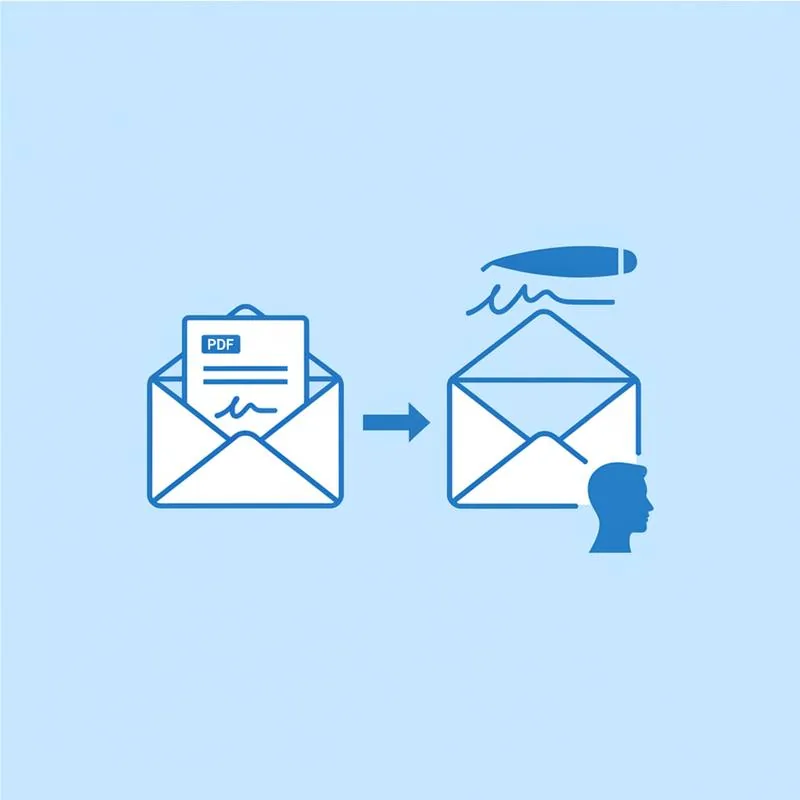
Emailing a PDF to someone and asking them to "sign and return it" introduces a lot of friction and risk. The recipient may not have a PDF editor, may print and scan (losing digital quality), may return an unsigned copy by mistake, or may use an incompatible annotation tool that does not render correctly on your end.
A structured request-and-sign workflow solves all of these problems. Instead of sending a raw file and hoping for the best, you send a link to a controlled process: the signer receives exactly the right document, applies a proper electronic signature using eSign PDF, and returns a clean signed PDF. The whole process takes minutes and requires nothing to be installed on either side.
Preparing the Document Before Requesting a Signature
Before sharing the document for signature, make sure it is in the correct final state. Nothing creates confusion like a signer asking "wait, is this the right version?"
- Review and proofread - Open the document in PDFBEAR's Edit PDF tool to correct any typos, update dates, or add any last-minute text before locking it for signing.
- Add your own signature first (if counter-signing) - If the workflow requires your signature to appear alongside the other party's, use eSign PDF to add your signature before sharing. This prevents the awkward "who signs first?" ambiguity.
- Mark the signature location - Consider adding a visible instruction on the page, such as a text box saying "Please sign here →" placed at the exact signature location. This removes ambiguity for less tech-savvy signers.
- Compress if large - If the file is over 10 MB (e.g., because it contains high-resolution images), run it through Compress PDF first so it shares and loads faster.
Step-by-Step: Requesting a Signature With PDFBEAR
-
Upload and prepare the document
Go to eSign PDF. Upload the PDF you want the other party to sign. If you need to add your own signature first, do so now and save the result. -
Generate a share link
Use Share Document to create a secure, time-limited link to your PDF. This link can be sent via email, SMS, WhatsApp, or any messaging channel. No login is required for the recipient. -
Send the link with clear instructions
Include a short message alongside the link, for example: "Please open this link, sign the document at the marked location, and download the signed copy. Then send me the signed PDF at [your email]." Clear instructions reduce back-and-forth. -
Recipient opens the link
The recipient clicks the link and sees the document. They then navigate to eSign PDF (linked from the share page), upload the document, and apply their signature. -
Recipient downloads and returns the signed PDF
After signing, the recipient downloads the signed PDF and sends it back to you by email or via Share Document in reverse. -
Flatten the final document
Once you have received the signed copy, open it in PDFBEAR and use Flatten PDF to permanently lock all signatures into the page. This is the document you archive or file.
Tips for Getting a Signature Without Delays
Chasing signatures is one of the most common time-wasters in document workflows. These practical tips minimise delays:
Handling Multi-Party Signatures
Some documents require signatures from two or more parties - A buyer and a seller, an employee and an HR representative, or multiple co-founders. The PDFBEAR workflow handles this with a sequential approach:
- Party A uploads the document and signs it using eSign PDF.
- Party A shares the signed document (with their signature already embedded) via Share Document with Party B.
- Party B opens the link, downloads the document, uploads it to eSign PDF, and adds their own signature.
- Party B shares the doubly-signed document back to Party A.
- Party A (or any party) runs the final document through Flatten PDF to lock all signatures permanently.
For more complex workflows with three or more signers, or where signatures must be collected in a legally mandated order, consider whether a dedicated e-signature platform with workflow routing (such as DocuSign or Adobe Sign) might be more appropriate for your specific use case. For everyday two-party contracts, however, the PDFBEAR sequential workflow is fast, free, and entirely sufficient.
Security and Privacy Considerations
When requesting signatures on sensitive documents, keep these security practices in mind:
- Do not send the raw PDF by email - Email is unencrypted by default. Use a secure share link via Share Document instead, which uses HTTPS throughout.
- PDFBEAR does not review your files - All document processing is automated. No human at PDFBEAR reads your documents.
- Files are deleted automatically - Free accounts retain uploaded files for 14 days from last activity. Premium accounts have extended retention. After that window, files are permanently deleted from PDFBEAR servers.
- Use a unique link per signer - If you are sending to multiple people, generate a separate share link for each. This lets you track which copy went to which person.
- Retain a copy of the signed document yourself - Download and save the flattened signed PDF to your own secure storage as your definitive record. Do not rely solely on PDFBEAR's temporary copy.
Compare PDF tools
 Continue with Google