You can turn any flat PDF scan or template into a fillable form using PDFBEAR's PDF Forms tool - Add text fields, checkboxes, and dropdowns without any specialist software.
- A "flat" PDF is a static document with no interactive fields - A common output of scanners and exported Word files.
- PDFBEAR lets you layer interactive form fields on top of any existing PDF in your browser.
- The finished form can be filled in digitally and signed via eSign PDF before returning.
- No Adobe Acrobat Pro licence or desktop software is needed - The entire workflow is free online.
From flat scan to interactive form in minutes - PDFBEAR handles the whole conversion free in your browser.
What Is a Flat PDF and Why Can't People Fill It In?
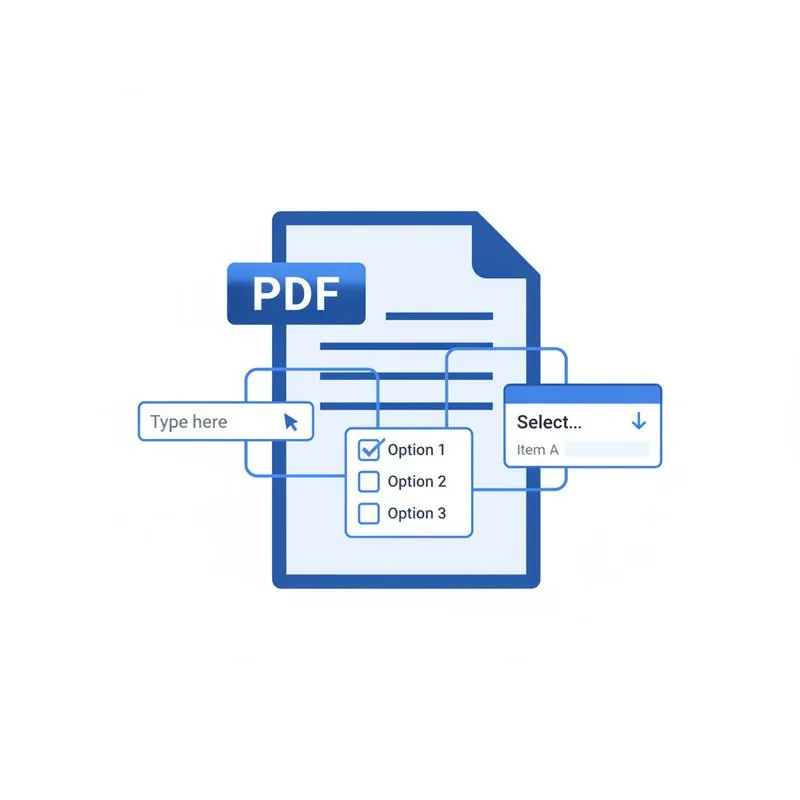
When you scan a paper form, export a Word document to PDF, or download a government form as a PDF, the result is almost always a flat PDF: an image or set of static text objects with no underlying form structure. There are no "real" input fields - Just boxes drawn on the page. Recipients either print the form and handwrite their answers, or attempt to use a comment tool to approximate typed responses.
This creates friction. Printed forms get lost, faxed copies degrade in quality, and email chains of annotated PDFs are messy. The clean solution is to add proper interactive form fields to the existing document so it can be filled, validated, and submitted entirely digitally.
PDFBEAR's PDF Forms tool overlays a form-field editor directly on your existing PDF. You do not need to recreate the document from scratch - You simply place fields on top of the existing layout.
Types of Form Fields You Can Add
A well-built fillable PDF uses the right field type for each piece of information. Here is a quick reference:
| Field Type | Best For | Validation Options |
|---|---|---|
| Text field (single line) | Names, email addresses, reference numbers | Character limit, format (number, date) |
| Text area (multi-line) | Comments, descriptions, addresses | Character limit |
| Checkbox | Yes/No options, consent tick-boxes | Required, default checked |
| Radio button group | Single-choice selections (e.g., gender, plan tier) | One-of-group enforcement |
| Dropdown list | State/country selection, category menus | Predefined option list |
| Signature field | Authorisation sign-off areas | Required before submission |
| Date field | Date of birth, agreement date | Date format enforcement |
Step-by-Step: Converting a Flat PDF Into a Fillable Form
-
Open the PDF Forms tool
Navigate to PDFBEAR PDF Forms. No account is required to try the tool on a free document. -
Upload your flat PDF
Drag and drop the file onto the upload area. You can also click to browse your device. Supported: scanned PDFs, exported Word/Excel PDFs, downloaded forms. -
Inspect the underlying document
Before placing fields, zoom in to read the existing labels on the form (e.g., "Full Name:", "Date:", "Signature"). You will place your interactive fields in the blank areas next to these printed labels. -
Add text fields
Select the text field tool and click-drag on the form to place a field next to each label that requires a typed response. Resize each field to match the space available. -
Add checkboxes and radio buttons
For yes/no tick boxes or multiple-choice questions, use the checkbox and radio button tools. Group related radio buttons so the form enforces a single selection. -
Add dropdowns where appropriate
For fields with a known set of valid values (e.g., country, job title), a dropdown keeps responses consistent and avoids typos. -
Add a signature field
If the form requires a sign-off, place a signature field at the authorisation point. This integrates with eSign PDF when the form is being completed. -
Label and name each field
Give each field a clear internal name (e.g.,first_name,email). This matters if the form data will later be extracted or processed programmatically. -
Save and download
Click "Save as Fillable PDF". Download your new interactive form and test it by opening it in any PDF viewer.
Best Practices for Usable PDF Forms
A fillable form that confuses recipients defeats its own purpose. Keep these principles in mind when laying out your fields:
- Match field size to expected input - A postcode field should be narrow; an address field should be wide. Mismatched sizes frustrate users.
- Use tab order - Ensure fields can be tabbed through in logical reading order (top-to-bottom, left-to-right). PDF viewers follow the field order you define.
- Add placeholder text - Use tooltip or placeholder text on text fields (e.g., "DD/MM/YYYY") to guide respondents on format expectations.
- Mark required fields - Use the "required" property on essential fields. This prevents accidental partial submissions.
- Avoid overlapping fields - Overlapping interactive objects cause unpredictable behaviour across different PDF viewers. Zoom in and align carefully.
- Test before distributing - Always download and fill in your own form before sending it out. Check every field, every checkbox, and the tab order.
Preparing the Completed Form for Submission
Once your form has been filled in by a recipient, you may need to prepare it for archiving or forwarding:
- Flatten before archiving - Use Flatten PDF to bake the filled values into the page permanently, preventing any further edits. This is essential for legal and compliance records.
- Merge with attachments - If the form requires supporting documents, use Merge PDF to combine the completed form with attachments into a single file.
- Compress for email or upload - If the filled form has grown in size, run it through Compress PDF before emailing or uploading to a portal.
- Apply a final signature - If an administrator needs to counter-sign the completed form, use eSign PDF to add the second signature, then flatten the result.
Fillable PDF vs. Online Form Builders: Which Should You Use?
Web-based form tools (such as Google Forms or Typeform) are excellent for simple data collection, but they have significant limitations in professional contexts:
For regulated industries, legal documents, or any situation where the existing visual layout of the form must be preserved, a fillable PDF is almost always the better choice. Use PDF Forms to get started in minutes.
Compare PDF tools
 Continue with Google