BMP files are massive, uncompressed Windows bitmap images. Converting them to PDF with PDFBEAR shrinks the file size dramatically while preserving every pixel - And gives you a shareable, universally readable document.
- BMP is an uncompressed raster format created by Microsoft - No compression, no transparency, just raw pixel data
- A single BMP image can be 10–30× larger than the equivalent JPEG or PNG
- Converting BMP to PDF dramatically reduces file size and makes the image universally shareable
- PDFBEAR's BMP to PDF tool handles the conversion in seconds, for free, with no watermark
Stop emailing 25 MB screenshots. Convert your BMPs to PDF and send a clean, compressed file instead.
What Is a BMP File (and Why Is It So Big)?
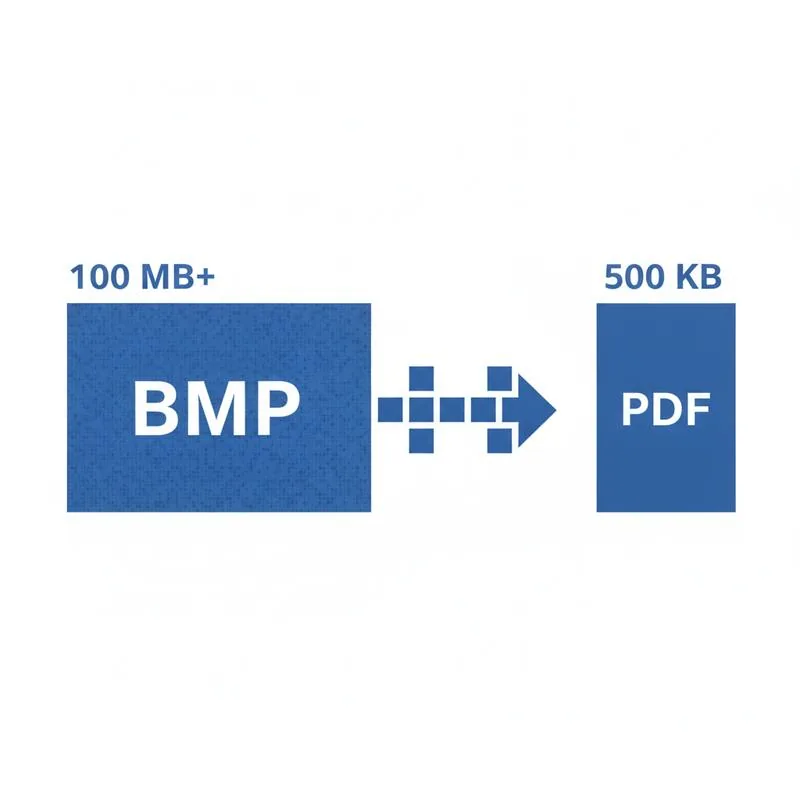
BMP stands for Bitmap - A raster image format introduced by Microsoft in the early 1990s as the native image format for Windows. When you open Microsoft Paint and save a drawing, you get a BMP. When older scanners or legacy industrial software export images, they often default to BMP. Screenshots captured on Windows XP, Vista, and early Windows 7 systems were frequently saved as BMP files.
The defining characteristic of a BMP file is that it stores raw, uncompressed pixel data. Every single pixel is encoded individually - Typically 24 bits (3 bytes) of color information per pixel. There are no compression algorithms applied at all in the most common BMP variant. This means a 1920×1080 screenshot saved as BMP will be approximately 5.9 MB - Whereas the same image saved as a JPEG might be 200–400 KB, and as a PNG perhaps 800 KB–1.5 MB.
That raw storage approach made sense in the early 1990s when CPUs were slow and decompression overhead was a real concern. In 2025, it's simply a liability. BMP files are too large to email conveniently, take up excessive storage on shared drives, and are often not supported by web browsers or cloud document viewers.
BMP vs PNG vs JPEG vs PDF: A Format Comparison
Not all image formats are created equal. Here's how BMP compares to the formats you're more likely to actually want to use:
| Format | Compression | Transparency | Typical Use | Relative File Size |
|---|---|---|---|---|
| BMP | None (raw pixels) | No | Legacy Windows apps, old scanners | Largest (~6 MB for 1080p) |
| JPEG | Lossy | No | Photos, web images | Small (~200–400 KB) |
| PNG | Lossless | Yes | Screenshots, graphics, logos | Medium (~800 KB–1.5 MB) |
| Embedded (lossless or lossy) | Supported | Documents, archives, sharing | Small–medium, universally readable |
One important distinction: BMP does not support transparency. If you've ever tried to use a BMP as a logo or overlay on another image, you'll notice the background is always a solid color - Usually white. PNG supports full alpha-channel transparency, making it the go-to format for graphics work. But for archiving, sharing, and printing, PDF wins on all counts.
Why Convert BMP to PDF Instead of Just Re-saving as JPEG?
JPEG is smaller than BMP, sure - But JPEG uses lossy compression. Every time you save a JPEG, it discards some image data permanently. For a scanned document or screenshot that contains text, lossy compression introduces ugly artifacts around letters, making the text harder to read. If you're archiving documentation, submitting a screenshot as proof of something, or sending a scanned form, you want pixel fidelity, not compression artifacts.
PDF solves this elegantly. When you convert a BMP to PDF, the image can be embedded with lossless compression - Meaning no quality loss - While still achieving significant file size reduction compared to raw BMP. A 6 MB BMP screenshot converted to PDF will typically come out at 400–700 KB, a reduction of 85–93%.
Beyond file size, PDF has structural advantages:
- Universal compatibility - Every browser, email client, and device can open a PDF without special software
- Print-ready - PDFs preserve page dimensions, so what you see is what prints
- Multi-image documents - You can combine multiple BMP files into a single PDF document
- Searchable - If your BMP contains text and you run OCR on the PDF afterward, the text becomes searchable and copyable
How to Convert BMP to PDF with PDFBEAR
Converting a BMP file to PDF with PDFBEAR takes about 30 seconds. Here's how:
- Go to PDFBEAR BMP to PDF
- Click Choose File or drag and drop your BMP file onto the upload area
- PDFBEAR processes the image on secure HTTPS-encrypted servers - No humans review your files
- Download your PDF - It's ready instantly
There's no software to install, no watermarks on your output, and no account required for free conversions. Free files are kept for 14 days from last activity, giving you plenty of time to retrieve your converted PDF. If you regularly convert BMP files - For example, from a legacy industrial system or a scanner - PDFBEAR Premium at $13.99/month removes file size limits and prioritizes your conversions.
Common Sources of BMP Files
You might be wondering who still creates BMP files in 2025. More people than you'd think:
- Microsoft Paint - Still ships with every version of Windows and defaults to BMP for new files in some versions
- Legacy industrial and medical software - Many specialized Windows applications from the early 2000s export reports and visualizations as BMP
- Old flatbed scanners - Scanners running Windows XP-era drivers often default to BMP output
- Windows XP/Vista virtual machines - Archivists and developers running old VMs frequently encounter BMP screenshots
- Remote desktop screenshots - Some RDP clients capture screens as BMP before any compression
- Embedded systems and kiosks - Industrial touchscreens and point-of-sale systems sometimes produce BMP logs
If you have a folder of BMP files from any of these sources, converting them all to PDF is the smart long-term archival strategy. PDFs are smaller, universally readable, and will remain accessible long after the software that created the BMP files is obsolete.
Batch Converting Multiple BMP Files
If you have more than one BMP file to convert, you have two good options with PDFBEAR. First, you can convert each BMP individually using the BMP to PDF tool and download each PDF separately. Second, if your BMPs are actually photos or images you want combined into a single document, consider using JPG to PDF - PDFBEAR supports multi-image uploads there, letting you arrange multiple images on a single PDF with a few clicks.
For very large batches, PDFBEAR Premium users get priority processing and higher file size limits, making it practical to convert entire folders of legacy BMP archives in one session.
File Size: What to Expect After Conversion
Here's a practical example of what happens to file size when you convert typical BMP files to PDF:
| Original BMP | Resolution | BMP Size | PDF Size | Size Reduction |
|---|---|---|---|---|
| Windows XP screenshot | 1024×768 | 2.25 MB | ~180 KB | 92% |
| Full HD screenshot | 1920×1080 | 5.93 MB | ~420 KB | 93% |
| Scanned document page | 2480×3508 (A4 at 300 DPI) | 24.8 MB | ~1.2 MB | 95% |
| Small Paint drawing | 800×600 | 1.37 MB | ~95 KB | 93% |
The exact reduction depends on the image content - Simple graphics with large areas of solid color compress very well, while complex photographic images compress somewhat less. But in virtually every case, the PDF will be dramatically smaller than the source BMP.
Ready to shrink your BMP files? Head to PDFBEAR's BMP to PDF converter and get started in seconds - No install, no watermark, no fuss.
Compare PDF tools
 Continue with Google