OCR errors are almost always caused by low-resolution scans, skewed pages, poor contrast, or handwritten text being treated as print. Fixing these at the scan stage - Before running OCR PDF - Dramatically reduces mistakes.
- Scan at 300 DPI minimum - Below 150 DPI is the leading cause of garbled output.
- Skewed pages make OCR confuse line breaks and produce scrambled word order.
- Serif fonts and decorative typefaces are harder for OCR engines than clean sans-serif.
- Handwritten text should not be run through standard OCR - Accuracy will be very poor.
Better scans mean fewer OCR errors - Shoot at 300 DPI or higher, keep pages flat and straight, and maximise contrast before processing.
The Root Cause of OCR Errors
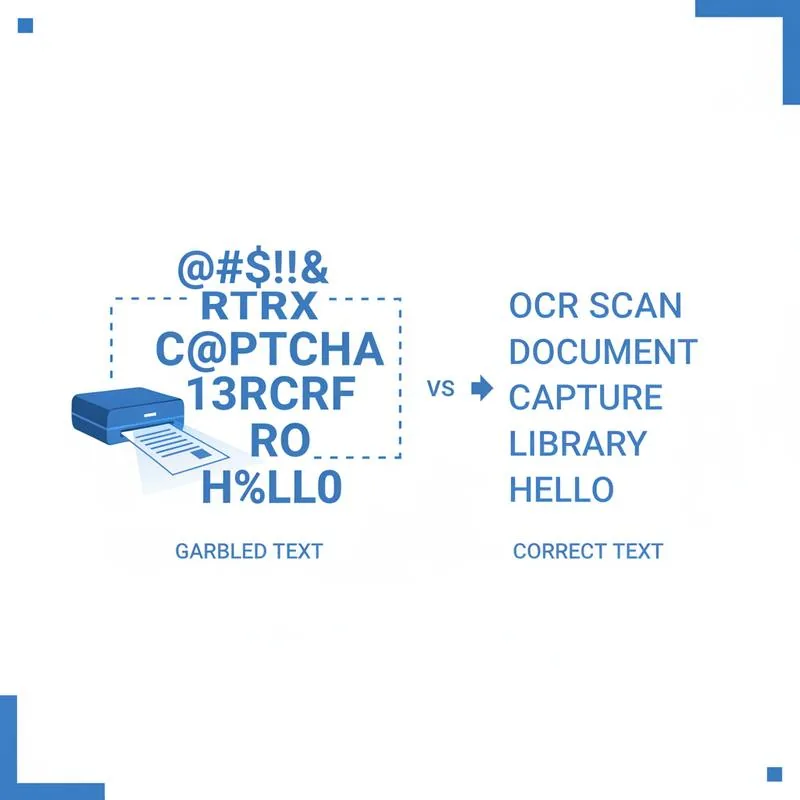
Optical character recognition works by analysing the shapes of characters in an image and matching them to a database of known letter and number shapes. When the image quality is high - Crisp edges, even contrast, straight lines of text - OCR engines achieve accuracy rates above 99% on standard printed documents. When quality degrades even slightly, error rates spike dramatically. The most common symptom is a string of wrong letters: "rn" being read as "m", "l" becoming "1", "O" mistaken for "0", or entire words replaced by nonsense strings. When a page comes back with more than a handful of these mistakes, convert it with PDF to Word and correct the text in a document editor - far faster than patching words inside a PDF viewer.
The good news is that almost all OCR errors trace back to a small list of fixable scan problems. Understanding which problem causes which type of error lets you diagnose your PDF quickly and re-scan just the affected pages rather than redoing the entire document.
The DPI Problem: Why Resolution Matters So Much
DPI stands for dots per inch - It describes how much detail a scanned image contains. A scan at 72 DPI (screen resolution) produces an image where individual letters are only a handful of pixels tall. An OCR engine trying to distinguish between "a", "o", and "e" at that resolution simply cannot see enough detail to make the right call. At 150 DPI, accuracy improves but thin strokes - The serifs on letters like "i", "l", and "t", or the dot above a lowercase "j" - Can still be missing or merged with adjacent characters. At 300 DPI, which is the industry standard minimum for OCR, each character is described by hundreds of pixels and accuracy becomes very high for clean printed text.
If you are scanning with a phone camera rather than a dedicated scanner, effective DPI depends on how far from the page you are when you shoot. A 12-megapixel camera shooting an A4 page from 30 cm (about 12 inches) produces roughly 500 DPI effective resolution - More than enough. But if you are photographing from arm's length at 60 cm, effective resolution drops to around 250 DPI, which is borderline. The practical advice: get as close as possible while keeping the whole page in frame, and shoot in good light so the camera does not increase ISO noise compensation (which degrades edge sharpness even at adequate resolution).
Skewed Scans: The Silent OCR Killer
Even a 2–3 degree tilt in a scanned page can seriously degrade OCR accuracy. The reason is that OCR engines use horizontal baseline detection to identify lines of text. When a page is tilted, the baselines are also tilted, and the engine may segment the image incorrectly - Cutting across multiple lines or grouping characters from different lines together. The result is words in the wrong order, or strings of characters from completely different parts of the page concatenated together.
Many OCR engines include automatic deskew, which detects and corrects small tilts automatically. However, deskew algorithms struggle when the tilt is larger than about 5 degrees, when the page contains multiple columns, or when the content is sparse (few text lines to detect baseline from). The safest approach is to capture the page straight in the first place: use a book stand or document holder to keep the paper perfectly flat and perpendicular to the camera, or align the page carefully on a flatbed scanner.
Font and Character Issues
Certain typefaces and character combinations are consistently misread by OCR engines. Understanding these patterns helps you predict where errors will occur and check those areas carefully in the output.
| Problematic Pattern | Common Misread | Cause |
|---|---|---|
| Lowercase "rn" together | Read as "m" | Strokes merge at low resolution |
| Lowercase "l" (el) | Read as "1" (one) or "I" (eye) | Single vertical stroke, context-dependent |
| Capital "O" | Read as "0" (zero) | Identical shapes in many fonts |
| Ornate serif fonts | Various errors | Decorative strokes confuse shape matching |
| Underlined text | Letters merged with underline | Underline seen as part of the character |
| Text on coloured background | Missing characters | Insufficient contrast between ink and bg |
Handwritten Text: A Special Case
Standard OCR engines are trained on printed typefaces. Handwritten text varies enormously in style, letter formation, slant, and spacing - Variations that printed fonts do not have. Running a handwritten document through standard OCR with OCR PDF will typically produce output with 40–70% accuracy at best, often much worse for cursive writing. The output may look superficially plausible - Real words scattered among garbled text - But will not be reliable enough for any practical use.
If you need to digitise handwritten notes, the most practical options are manual retyping (fastest for short documents), dedicated handwriting recognition apps (Google Lens, Microsoft's Lens app, Apple Live Text), or professional transcription services. For mixed documents - A mostly printed form with a few handwritten entries - Run OCR on the printed portions and manually fill in the handwritten fields in the resulting text.
How to Improve Scan Quality Before Running OCR
If you have already scanned a document and the OCR output is poor, consider these fixes before re-scanning. First, try adjusting contrast and brightness on the image. Many image editors and phone camera apps let you increase contrast, which deepens black text and brightens the white background. Even a small contrast boost can significantly improve OCR accuracy. Second, check for coffee stains, smudges, or ink bleed-through from the back of the page - These are often interpreted as characters. Clean the document if possible, or scan at a lower light level to reduce bleed-through visibility.
Third, if the document is multi-page and only some pages have errors, identify the problematic pages by checking the OCR output section by section. Re-shoot only those pages rather than the entire document. Upload the replacement pages through OCR PDF individually, then use Merge PDF to replace the bad pages in the original document. This targeted approach saves significant time on long documents.
Compare PDF tools
 Continue with Google