Your signature vanishes on reopen because it was saved as a floating annotation layer that some PDF viewers strip out. The fix is to Flatten PDF immediately after signing - This burns the signature into the page so it can never disappear.
- Annotation-layer signatures are displayed by the signing tool but ignored or hidden by other viewers.
- Flattening merges all annotations into the base page, producing a single static image per page.
- Always flatten before emailing or sharing a signed PDF.
- PDFBEAR's eSign PDF followed by Flatten PDF is the safest two-step workflow.
Sign, then flatten - Two steps that guarantee your signature survives every PDF viewer on the planet.
The Annotation Layer Problem Explained
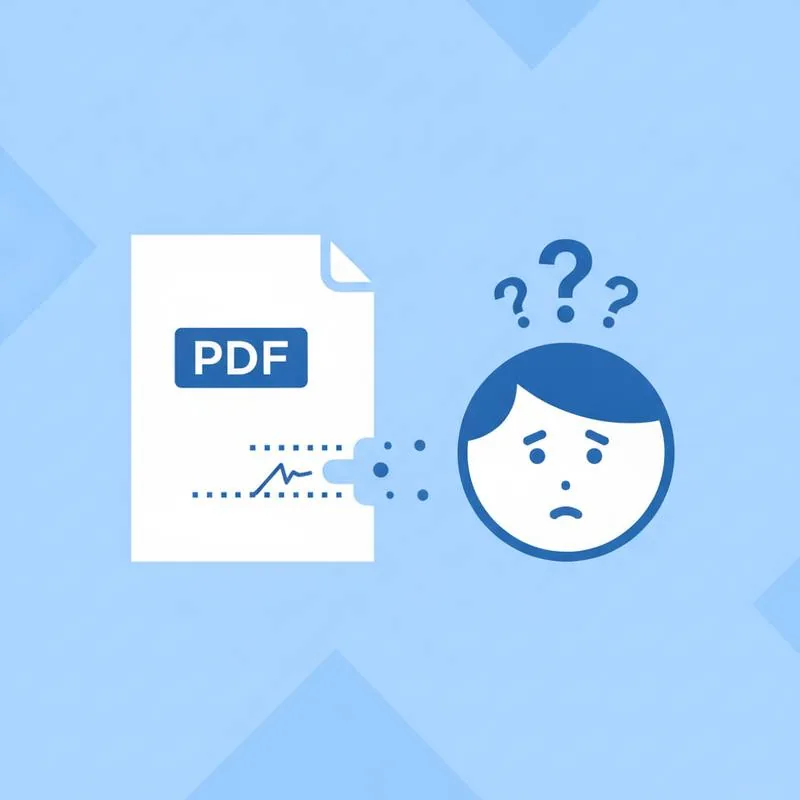
PDF files are built in layers. The base layer contains the original page content - Text, images, vector graphics. On top of that sits an optional annotation layer, which stores comments, highlights, form field values, and - Crucially - Signatures added by many PDF editing tools. When a signing tool places your signature, it sometimes writes it only to this annotation layer rather than permanently fusing it into the page. The file looks complete in that tool's viewer because the tool is designed to display annotation layers. Open the same file in a different PDF viewer - A browser's built-in reader, an older version of Adobe Acrobat, or a mobile app - And suddenly your signature is gone. The annotation layer is still there in the file's data, but the other viewer chose not to render it, or rendered it differently.
This is not a bug in the viewer that "lost" your signature. It is a predictable consequence of how PDF annotations work across different software implementations. The solution is not to find a better viewer - It is to eliminate the annotation layer entirely by flattening the document.
What Flattening Actually Does
Flattening takes every element that lives in an annotation or overlay layer and redraws it directly onto the base page. The output is a PDF where every page is a self-contained image of everything that should be visible - Text, graphics, and signature all merged together. There is no longer a separate annotation layer for viewers to ignore. A side effect is that interactive form fields are also locked in place: checkboxes, typed text, and dropdown selections all become static. This is actually desirable for a final signed contract - You do not want the recipient to be able to uncheck a checkbox or alter typed text after the document is finalised.
Use Flatten PDF on PDFBEAR immediately after you finish signing. Upload the signed file, let the tool process it - Which takes only a few seconds even for long documents - And download the flattened version. Open it in two or three different viewers (your browser, your phone's PDF reader) and you will see the signature is present in all of them.
Embedded Signatures vs Annotation Signatures - The Technical Difference
| Signature Type | Where It Lives | Visible in All Viewers? | Can Be Edited Later? |
|---|---|---|---|
| Annotation layer | Overlay above base page | No - Depends on viewer | Yes - Can be moved or deleted |
| Flattened (merged) | Baked into base page | Yes - Always visible | No - Permanently fixed |
| Cryptographic signature | Separate signature dictionary | Visual appearance varies | No - Tampering breaks validity |
Note that PDFBEAR's workflow produces a visually signed document - The appearance of your signature is fixed on the page. This is sufficient for the vast majority of everyday use cases: freelance contracts, rental agreements, internal approvals, consent forms. It is not the same as a cryptographic digital signature tied to a certificate authority, which provides tamper-evident proof for high-stakes legal filings. For everyday contracts, the flattened visual signature is widely accepted.
When You Should Flatten and When You Should Not
Always flatten when you are done signing and ready to share the document. Do not flatten a document you still need to edit - Once flattened, you cannot move text, change a checkbox, or modify a field without editing the page as an image. If you realise you placed your initial in the wrong spot after flattening, you will need to go back to the pre-flatten version. For this reason, it is good practice to keep a copy of the unflattened signed PDF in a private folder and share only the flattened version.
If you are the sender of a contract - The person asking someone else to sign - Do not flatten before sending. The recipient needs the form fields to be interactive so they can fill them in. Flatten only after the fully completed document comes back to you, as a final archiving step.
The Two-Step PDFBEAR Signing Workflow
Here is the complete workflow that guarantees a professional, permanent result every time:
- Sign: Upload your contract to eSign PDF. Add your drawn signature, initials on each page, and any typed text elements. Download the signed PDF.
- Flatten: Upload that signed PDF to Flatten PDF. Process and download. This is the file you send, print, or archive.
Troubleshooting: Signature Still Missing After Flatten
In rare cases a signature can still appear absent after flattening. The most common culprits are: the signature was placed outside the visible page area (check by zooming out to 50% before downloading from eSign PDF); the signature opacity was accidentally set to zero or near-zero (look for an opacity slider in the signing tool); or you are viewing a cached version of the old file in your browser (do a hard refresh with Ctrl+Shift+R or Cmd+Shift+R). If none of these apply, try re-signing the document from scratch - Go back to eSign PDF, upload the original unsigned PDF, and repeat the process. The entire operation takes under two minutes for most contracts.
One more thing worth checking: make sure you are downloading the output file and not refreshing the upload page. After PDFBEAR processes your document, a Download button appears. Click that button and save the file to your computer. It is a different file from what you uploaded - The processed version with annotations merged. Reopening the original uploaded file (which is still in your Downloads folder from before) would naturally show the unflatten version.
Compare PDF tools
 Continue with Google