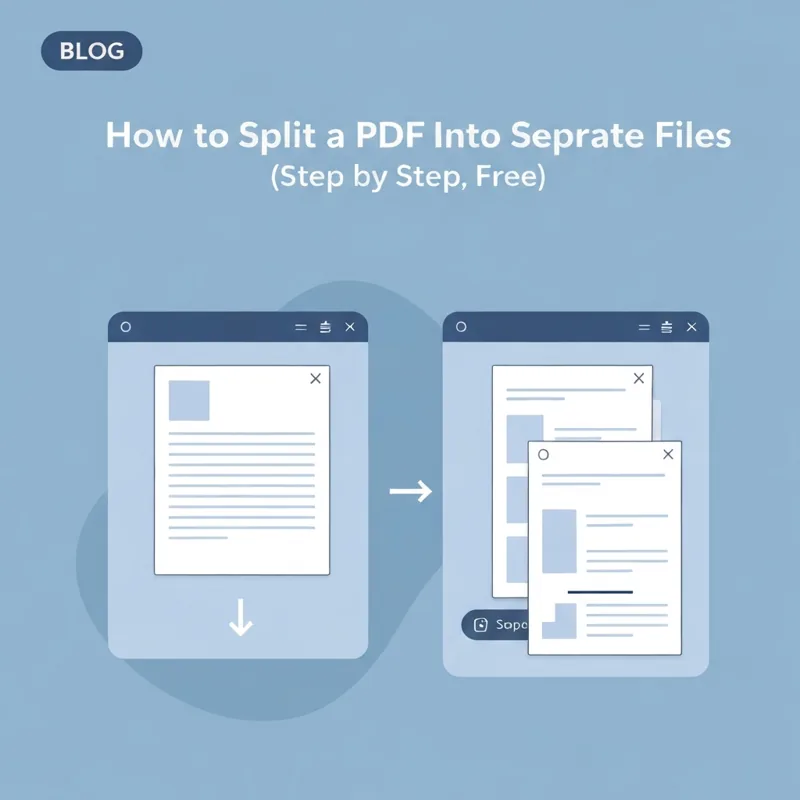
Splitting a PDF means turning one file into several smaller ones. You upload your PDF, pick where to cut it, and download the pieces. No software to install.
- Works right in your browser on phone, tablet, or computer.
- Split by page range, by a single page, or into one file per page.
- The original file is never changed, you only get copies.
- It is free, the upload limit is 50 MB, and files auto-delete.
One big PDF in, several tidy files out.
What "splitting" a PDF actually means
Splitting takes a single PDF and breaks it into smaller, separate PDFs. Think of a 40-page handbook that really holds five different chapters. Instead of sending the whole thing every time, you can carve it into five files and share only the part each person needs. The handy part is that your original stays exactly as it was. You are making copies of the pages you choose, not cutting up the file you started with.
People reach for this more often than they expect. A teacher pulls one worksheet out of a packet. A renter saves just the signature page of a lease. An accountant separates a stack of scanned receipts into one file each. If you have ever scrolled past 30 pages to reach the 3 you actually wanted, splitting is the fix.
Step by step: split a PDF in your browser
Here is the whole process from start to finish. Open the Split PDF tool first, then follow along.
- Upload your PDF by dragging it onto the page or clicking to browse. Files up to 50 MB are welcome.
- Choose how you want to cut it. You can grab a single page, a range like pages 4 to 9, or break the document into one file per page.
- Preview the pages so you know you are pulling the right ones. This is the step that saves you from re-doing it.
- Click to split, then download your new files. You can save them one by one or as a single zip.
That is it. No account, no email sign-up, nothing to download to your machine first. The same steps work whether you are on a laptop at your desk or a phone on the bus.
Three common ways people split
Most jobs fall into one of these patterns, and the Split PDF tool handles all three:
- One page out. Perfect for pulling a single invoice, certificate, or signed form from a longer file.
- A page range. Best when a chapter or section runs across several pages you want to keep together.
- Every page apart. Useful when a scan crammed many separate documents into one PDF and each needs to stand alone.
What to do with the pieces afterward
Once your file is split, the rest gets easy. If a piece still feels heavy to email, run it through Compress PDF to shrink the size without much quality loss. If you split out a few pages and later want to stitch a couple back together in a new order, Merge PDF joins them into one clean document. And if you only need to drop a page or two rather than carve up the whole file, Delete PDF Pages is the gentler tool for that.
Working with a scanned PDF where the text is really just a picture? Send it through OCR PDF first so the words become searchable, then split. It makes finding the right page far quicker.
A quick word on safety and cost
Splitting here is completely free, with no watermark stamped on your pages and nothing to install. Your upload travels over a secure connection, and your files are auto-deleted from the servers a short time after the job finishes, so no one is sitting on your documents. If you want to lock a finished piece before sending it, Protect PDF adds a password in seconds.
Ready to split your PDF into separate files
Splitting a PDF into separate files is one of those small tasks that feels like it should need fancy software and simply does not. Pick your pages, click split, download the parts. When you are ready, open Split PDF and turn that one bulky document into the tidy set of files you actually meant to send.
Compare PDF tools
 Continue with Google