Scanned PDFs are images - Screen readers get nothing from them. OCR adds a hidden text layer, making the content readable. Then verify with PDF to Text and check reading order to complete the accessibility chain.
- A scanned PDF is a photograph of a page - There is no selectable text for any tool to read.
- OCR (Optical Character Recognition) reads the image pixels and creates a text layer behind it.
- Verify the OCR worked by running PDF to Text - If clean text comes out, the layer is good.
- OCR has limits: handwriting, low-DPI scans under 150 DPI, and damaged documents produce poor results.
One OCR pass turns an invisible scanned document into something a screen reader can actually use.
Why Scanned PDFs Are Invisible to Screen Readers
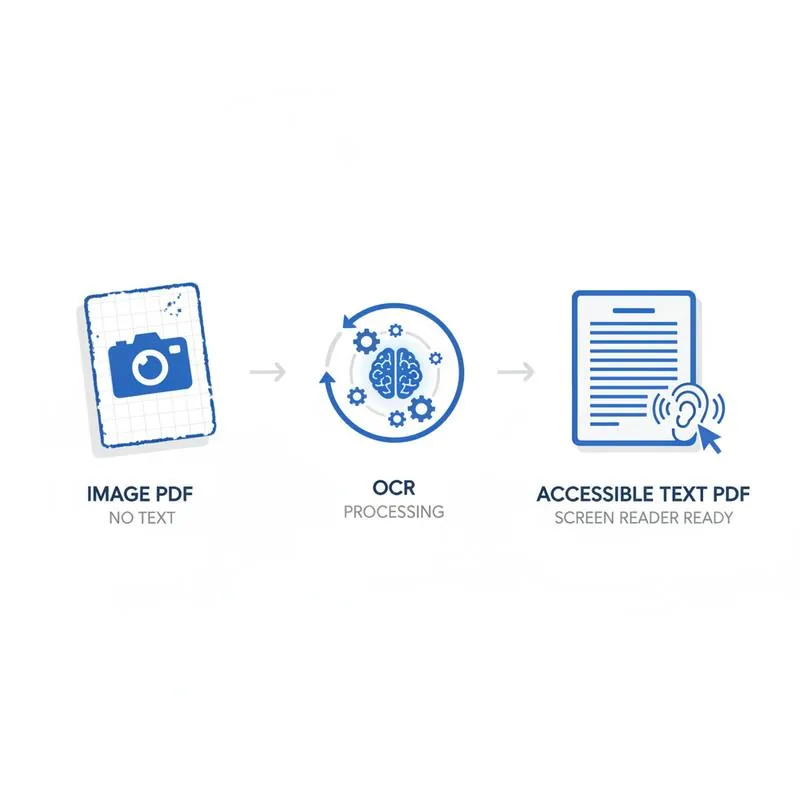
When a paper document is scanned, the scanner captures a raster image - A grid of colored pixels. The PDF that results is essentially a picture frame containing that photograph. There is no text in it, no characters, no selectable words. From a screen reader's perspective, the page is completely blank.
This is true even if the text in the scan looks perfectly legible on screen. A screen reader does not look at pixels and infer characters - It reads the character data stored in the PDF's internal structure. If there are no characters stored, there is nothing to read.
The same problem affects users trying to copy and paste text, search within the document, or use translation tools. The entire document is locked inside pixels.
What OCR Does to a Scanned PDF
Optical Character Recognition (OCR) processes the image pixels in your PDF and identifies characters, words, and lines of text. It then stores that recognized text as an invisible text layer, positioned precisely behind the corresponding visual characters in the image.
The result looks identical to the original scan - You still see the photograph of the page. But now there is a hidden character layer that screen readers, text extraction tools, search engines, and copy-paste functions can all access.
Use OCR PDF on PDFBEAR to add this text layer. The tool processes all pages simultaneously, supports multi-page scans, and preserves the original image quality.
Step-by-Step: From Scanned PDF to Screen-Reader Ready
-
Run OCR on the scanned PDF
Go to OCR PDF, upload your scanned document, and download the output. The process usually takes 10–30 seconds for a typical document. -
Verify the text layer with PDF to Text
Go to PDF to Text and upload the OCR'd file. If the extracted text is clean, readable, and matches the document content, the OCR worked correctly. If the text is garbled (random characters, fragmented words), the scan quality was too low - See troubleshooting below. -
Check reading order
Reading order is the sequence in which the text layer stores content. For a simple single-column document, reading order usually matches top-to-bottom correctly. For multi-column layouts, tables, or documents with sidebars, the OCR engine may interleave the columns incorrectly. Open the document in a PDF editor and check the tab order or use the accessibility checker in Adobe Acrobat if available. -
Add alt text to key images
If the document contains charts, diagrams, or photographs that convey important information, use Edit PDF to add descriptive alt text. The OCR layer covers the text - It cannot describe what images mean.
Verifying OCR Quality
| Test | What to check | Pass / Fail indicator |
|---|---|---|
| PDF to Text extraction | Run extracted text through PDF to Text tool | Pass: clean readable sentences; Fail: garbled symbols |
| In-document search (Ctrl+F) | Search for a specific word from page 1 | Pass: word is found and highlighted; Fail: "no results" |
| Copy-paste test | Select and copy a paragraph, paste into a text editor | Pass: proper text; Fail: nothing pasted or garbage characters |
| Screen reader test | Open NVDA (free) and navigate the document | Pass: all text read aloud; Fail: "blank" or silence |
OCR Limitations to Know
Scan resolution matters most. If your scan was done at 72 DPI (screen resolution) instead of 300 DPI (document standard), the characters in the image are too pixelated for OCR to distinguish reliably. Re-scan at 300 DPI or higher for best results. For scans you cannot redo, OCR will still attempt recognition but expect 10–30% error rates on low-resolution scans.
Handwriting is not reliably OCR'd by standard recognition engines. PDFBEAR's OCR is optimized for printed text. Forms with handwritten answers, signed letters with handwritten notes, or older handwritten documents will not produce reliable text extraction. For those documents, transcription by a human remains the only reliable accessibility option.
Related Tools
- OCR PDF - Add a text layer to any scanned or image-only PDF
- PDF to Text - Extract and verify the text layer after OCR
- Edit PDF - Add alt text to images and annotate the document
- Compress PDF - Reduce file size of large scanned PDFs before processing
Compare PDF tools
 Continue with Google