Screen readers need a text layer, logical reading order, alt text on images, and proper heading hierarchy. Scanned image-only PDFs provide none of these - OCR adds the text layer, then further tagging makes the structure accessible.
- Screen readers need selectable text - Scanned image PDFs are invisible to them without OCR.
- Tagged PDFs carry structural metadata (headings, lists, tables, reading order) that screen readers use.
- Alt text on images must describe the content; decorative images should be marked as artifacts.
- PDFBEAR OCR PDF adds a text layer to scanned documents; Edit PDF can add and fix alt text on images.
Accessibility is not a feature - For many users it is the only way to read your document at all.
How Screen Readers Interact with PDFs
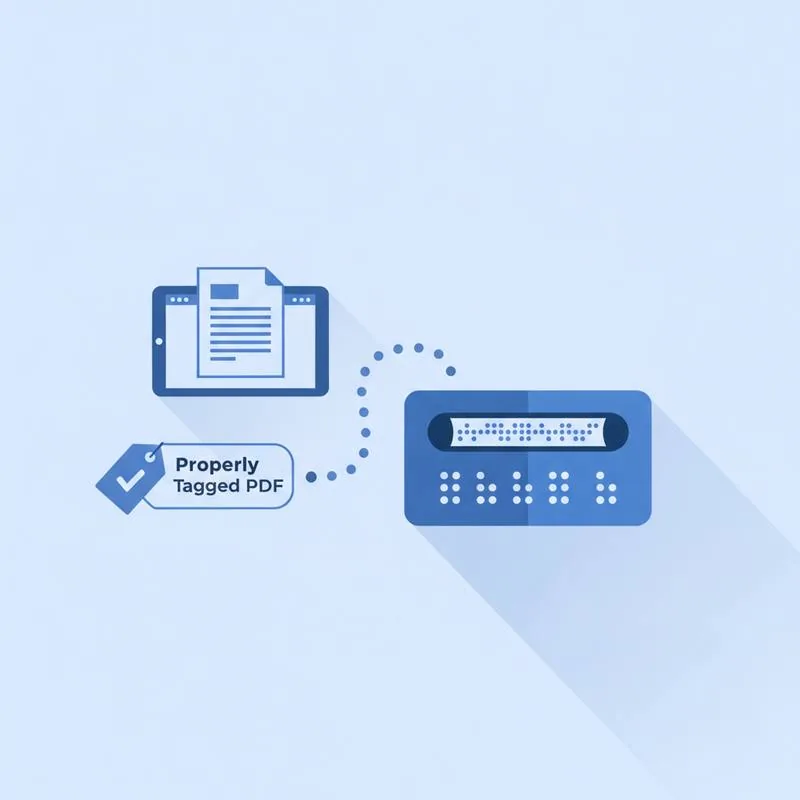
A screen reader like NVDA, JAWS, or VoiceOver does not "see" a PDF the way a sighted user does. It reads the document's internal data structure. For it to work, the PDF must provide:
- A text layer - Actual Unicode text characters, not just pixels arranged to look like letters
- Tags - A tree of structural elements that define headings, paragraphs, lists, tables, and figures
- Reading order - The sequence in which content should be read, which may differ from visual layout
- Alternative text - Descriptions for images, charts, and diagrams
- Language declaration - Tells the screen reader which language to use for pronunciation
Most PDFs created from Word, Google Docs, or InDesign export with a basic text layer but without complete tagging. Scanned PDFs are the worst case - They are purely image files that provide nothing to a screen reader.
Text Layer: The Foundation of Accessibility
The text layer is non-negotiable. Without it, the screen reader encounters a blank page. If your PDF was created from a scanned paper document, a photograph, or an image export, it has no text layer. Use OCR PDF on PDFBEAR to add a hidden text layer behind the image. After OCR, the text is selectable, copyable, and readable by screen readers.
Once the text layer exists, confirm it with PDF to Text - If the extraction produces clean readable text matching the document, the text layer is working correctly.
Tagged PDF: Structure That Screen Readers Understand
A tagged PDF contains a logical structure tree that describes the document semantics, not just the visual appearance. Without tags, a screen reader reads content in the internal storage order, which often does not match logical reading order - It might read a footer before the main body, or mix text from two side-by-side columns.
| Tag type | What it marks | Screen reader behaviour |
|---|---|---|
| <H1> to <H6> | Headings at different levels | Announced as "Heading level 1" etc; user can jump between headings |
| <P> | Paragraphs | Read as a block; brief pause after |
| <L>, <LI> | Lists and list items | Announced as "list of N items", "item 1 of N" |
| <Table>, <TH>, <TD> | Tables, header cells, data cells | Reads column/row header before cell content |
| <Figure> with Alt | Images and diagrams | Reads the alt text description |
| <Artifact> | Decorative elements, page numbers, headers/footers | Skipped - Not read aloud |
Heading Hierarchy Matters
A common accessibility failure is incorrect heading hierarchy. Just as a web page should have a single H1 and nested H2→H3 structure, a PDF should follow the same logic. Problems arise when:
- Large bold text is formatted as a visual heading but not tagged as <H1> - It looks like a heading but the screen reader reads it as a paragraph
- Heading levels skip from H1 to H3 - Users navigating by heading hear a confusing jump
- Every section uses H1 - Users cannot distinguish major from minor sections
Use Edit PDF to inspect and adjust text elements. For documents where the source is available (Word, InDesign), the correct fix is to repair the heading structure in the source application before exporting to PDF.
Alt Text on Images
Every meaningful image in a PDF needs descriptive alt text. The description should convey the information the image provides, not describe the image aesthetically. Examples:
- Bad: "Graph image" - Tells the user nothing about the data
- Good: "Bar chart showing quarterly sales: Q1 $2.1M, Q2 $2.4M, Q3 $1.9M, Q4 $3.1M" - Conveys the actual data
- Decorative image: Mark as <Artifact> - Logos, dividers, and purely visual elements should be flagged so the screen reader skips them
Use Edit PDF to add alt text to images in your PDF. For complex charts where alt text cannot convey all the information, provide a data table in the document body as a text alternative.
Document Language Declaration
The PDF must declare its primary language in the document properties. Without a language declaration, the screen reader uses the system default - Which may produce French pronunciation rules applied to English text, making it unintelligible.
For multi-language PDFs (e.g., bilingual contracts), language changes within the document can be tagged at the element level, so the screen reader switches pronunciation rules mid-document.
PDFBEAR Tools for PDF Accessibility
- OCR PDF - Add a text layer to image-only/scanned PDFs. Essential first step for any scanned document.
- Edit PDF - Add alt text to images, insert or correct text, add annotations.
- PDF to Text - Verify the text layer is present and readable by extracting all text from the PDF.
Compare PDF tools
Test the Finished PDF
Use the PDF Accessibility Checker before publishing to find machine-detectable barriers, then work through the ADA and WCAG PDF checklist for the human review that automated checks cannot replace. If a scan has no text layer, start with OCR PDF.
 Continue with Google