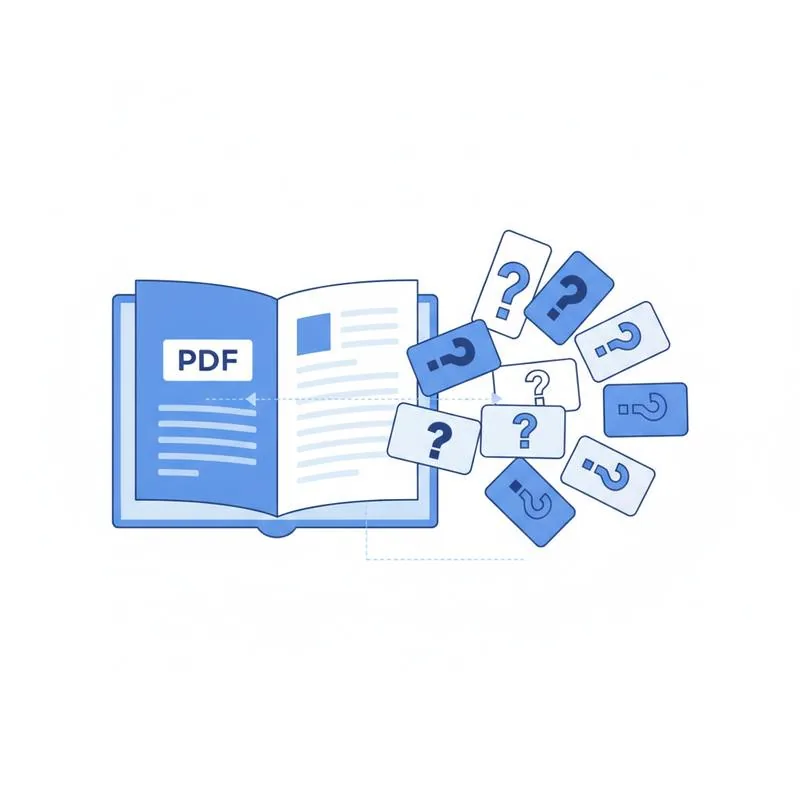
PDFBEAR's PDF Question Generator instantly creates study questions from any PDF - Then you can use Chat with PDF to answer them interactively, turning passive reading into active recall practice.
- Upload any textbook chapter, lecture notes, or paper and get targeted quiz questions
- Questions cover definitions, cause-and-effect, application, and analysis levels
- Use Chat with PDF to check your answers against the source document
- Both tools are Premium features - $13.99/month or $99.99/year with a 7-day free trial
Reading a PDF once is studying. Answering questions from it five times is learning. PDFBEAR makes the second part automatic.
Why Passive Reading Fails as a Study Method
Cognitive science has established this clearly for decades: re-reading is one of the least effective study strategies. It creates a feeling of familiarity ("I've seen this before") that's easily mistaken for genuine recall. But familiarity and retrieval are neurologically distinct. When the exam question arrives, recognition doesn't help you - Production does. You need to pull the information out of memory, not just recognize it on the page.
The most effective study technique, by a wide margin, is active retrieval practice - Also called the testing effect. Attempting to answer questions about material, even before you know the answers, strengthens memory encoding far more than re-reading the same text. The problem is that generating good questions from a dense PDF is time-consuming. A well-designed quiz question takes longer to write than it does to answer.
PDFBEAR's PDF Question Generator eliminates that bottleneck. Upload your study material, and the AI generates a set of questions across different cognitive levels - From factual recall to application and analysis. Then use Chat with PDF to check your answers against the source material directly.
Step-by-Step: From PDF to Active Study Session
Here's the exact workflow to build an effective study session from any PDF:
- Upload your material to PDF Question Generator. This can be a textbook chapter, a set of lecture slides converted to PDF, a research paper you need to know deeply, or even meeting notes. The tool works on any topic.
- Review and organize the generated questions. The AI produces multiple question types. Copy them into a text file or print them - Having the questions physically separate from the PDF helps simulate exam conditions.
- Attempt every question from memory before checking. This is the critical step most people skip. The productive struggle of trying to recall, even if you fail, significantly improves retention compared to reading the answer immediately.
- Open Chat with PDF with the same document. Paste each question and ask the AI to answer it with page citations. Compare the AI's answer to your attempt. Note the specific page and paragraph where the correct answer lives.
- Flag questions you missed. Re-attempt them 24 hours later. Space repetition - Revisiting material at increasing intervals - Is what converts short-term familiarity into long-term recall.
What Types of Questions Does the Generator Create?
The quality of a study tool depends on the quality of its questions. Trivial "what year was X founded" questions test memory, not understanding. PDFBEAR's PDF Question Generator targets multiple levels of the cognitive hierarchy:
For highly technical or specialized content (medical board exam prep, advanced mathematics, legal bar prep), the generated questions are a useful starting point but should be supplemented with your own written questions targeting the specific sub-topics your exam emphasizes. Use the AI questions to cover breadth; write your own for depth in high-stakes areas.
Subject-by-Subject Guide: What Works Best
| Subject Type | Best PDF Input | What the Questions Focus On |
|---|---|---|
| Biology / Medicine | Textbook chapters, case studies | Mechanisms, definitions, processes |
| History / Social Sciences | Course readings, journal articles | Causes, effects, dates, figures |
| Law | Case law PDFs, statute texts | Holdings, elements, exceptions |
| Business / Finance | Annual reports, case study PDFs | Key metrics, strategic decisions |
| Computer Science | Documentation PDFs, whitepapers | Concepts, algorithms, trade-offs |
Using Chat with PDF as Your Personal Tutor
Once you have your question list, Chat with PDF becomes a Socratic tutor. Don't just paste the question and read the answer - Engage with it. Try these follow-up patterns:
"I answered X. Is that correct, and what did I miss?" - The AI compares your attempt to the document's actual content and identifies gaps specifically, rather than just stating the correct answer.
"Explain why the answer is Y, using only what's in this document." - Constraining the AI to the document prevents hallucination and keeps the explanation grounded in your actual study material.
"Give me a harder follow-up question on this topic." - Dynamically extends your question bank in areas where you need more practice.
"Which page should I re-read to understand this better?" - The citation-based response points you to the exact passage, not just a general section. Targeted re-reading after a failed retrieval attempt is far more effective than passive re-reading of the whole chapter.
Troubleshooting: When Generated Questions Miss the Mark
Questions are too surface-level.
This often happens with very long documents where the AI distributes attention across too many topics. Use Split PDF to break the PDF into focused chapter segments and run the generator on each one individually. More focused input produces deeper, more targeted questions.
Questions are about a different section than you need.
The generator covers the whole document proportionally. If you need questions only about Chapter 5 of a 12-chapter textbook, extract just Chapter 5 using Split PDF first.
Scanned PDF produces poor results.
Run the PDF through OCR PDF first to add a text layer. The Question Generator, like all of PDFBEAR's AI tools, works from the text content of the document - A scanned image with no text layer gives the AI nothing to work from.
The PDFBEAR AI suite - PDF Question Generator, Chat with PDF, and Summarize PDF - Works best as an integrated system rather than standalone tools. Use Summarize to build your mental map, the Question Generator to create retrieval practice, and Chat with PDF to close the gaps. That three-tool study loop turns any PDF into a complete self-study course.
Compare PDF tools
 Continue with Google