PDF to Text gives you raw plain text instantly - Ideal for data work. PDF to Word gives you a formatted DOCX you can edit like the original document. Choose based on what you plan to do with the content.
- PDF to Text (.txt) strips all formatting - Fastest, smallest output, perfect for copy-paste or code pipelines.
- PDF to Word (.docx) preserves headings, tables, and layout - Best when you need to edit or reformat the document.
- Neither tool works well on scanned PDFs - Use OCR PDF for image-based documents first.
- Both tools are free on PDFBEAR, browser-based, and require no account or installation.
If you are editing, use Word. If you are extracting, use Text. If it is scanned, use OCR first.
The Core Difference: Extraction vs Editing
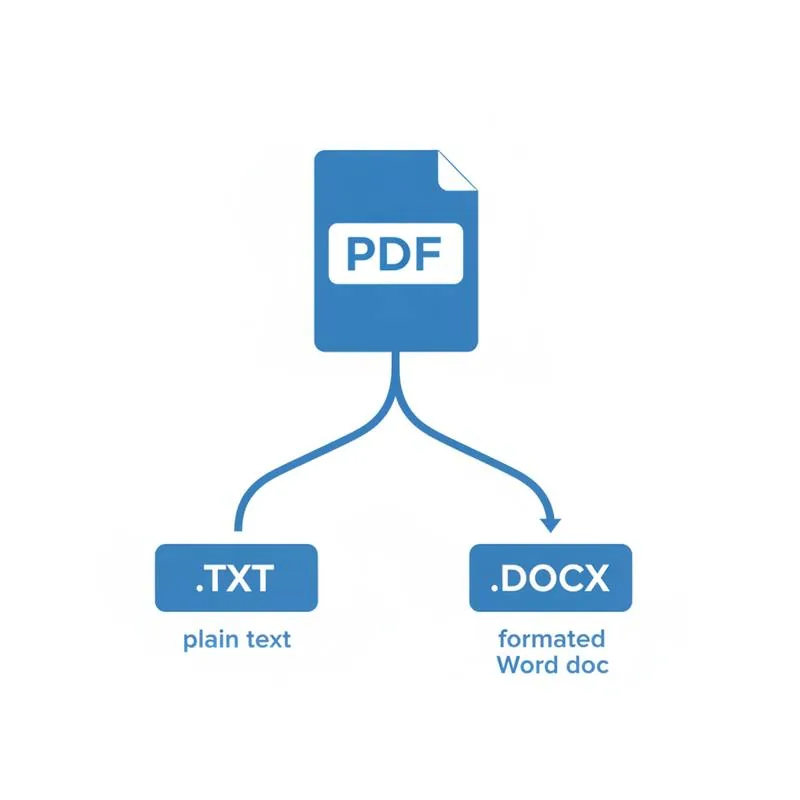
When people say they want to "get the words out of a PDF," they usually mean one of two very different things. They either want the raw text - Just the characters, stripped of all decoration - Or they want something they can open in Microsoft Word or Google Docs and carry on writing as if the PDF never existed.
PDFBEAR offers both. PDF to Text delivers a plain .txt file: fast, minimal, no formatting overhead. PDF to Word delivers a .docx file that attempts to reconstruct the original document's visual structure - Headings, bold text, columns, tables, even embedded images in many cases.
The right choice comes down entirely to what you plan to do after the conversion. This article lays out both options clearly so you can make that call in under a minute.
PDF to Text: When Raw Is Right
PDF to Text extracts every character from the PDF and writes it to a plain .txt file. No bold, no headings, no columns, no images - Just the words and numbers in reading order, separated by line breaks.
This sounds like a limitation, but for many use cases it is actually exactly what you want:
- Researchers extracting quotes. Academic papers come as PDFs. If you are pulling quotes into a research database, citation manager, or document, you do not want Word formatting to paste with each quote. Plain text copies cleanly.
- Lawyers pulling contract clauses. Legal teams often need to extract specific language from contracts to compare versions or feed into clause libraries. (To diff two contract versions directly, Compare PDF highlights every change side by side.) Raw text is far easier to search and manipulate programmatically than a DOCX.
- Data analysts and developers. If your next step is to parse the output with Python, run it through a text analysis tool, feed it into an AI pipeline, or import it into a spreadsheet, plain text is the correct format. DOCX requires a library to parse; .txt can be opened with a single
open()call. - Students copying notes. Pasting from a .txt file into your note-taking app (Notion, Obsidian, Apple Notes) eliminates all the stray formatting that pastes from DOCX often introduce.
- Content editors re-using text. Copying from a Word file often carries hidden formatting that clashes with a CMS. Plain text is a clean slate.
The main trade-off: if the document had a two-column layout, a table, or content in a sidebar, the reading order in the .txt file may be jumbled. PDF to Text reads left-to-right, top-to-bottom, which does not always match how multi-column layouts are meant to flow.
PDF to Word: When You Need to Edit
PDF to Word takes a more ambitious approach. It analyses the visual structure of the PDF - Where headings sit, how wide the columns are, where images are placed, where tables begin and end - And attempts to reconstruct all of that as a DOCX document.
This is the right tool when:
- You need to edit the document. You received a report as a PDF but need to update the figures or add a new section. Convert to DOCX, open in Word or Google Docs, and edit directly.
- The document has complex formatting you want to keep. A formatted contract, a branded proposal, a multi-column newsletter - PDF to Word preserves as much of this as the format allows.
- You need to reuse the document's structure. Sending a DOCX to a client who asked for an editable version, creating a template from an existing document, re-purposing a report layout.
The caveat: PDF was never designed to be edited. The conversion is an approximation. Very complex PDFs - Heavy on custom fonts, intricate layouts, layered graphics - May need minor clean-up in Word after conversion. Simple documents convert almost perfectly.
Full Feature Comparison
| Feature | PDF to Text | PDF to Word |
|---|---|---|
| Output format | .txt (plain text) | .docx (Microsoft Word) |
| Preserves text formatting | No - All formatting stripped | Yes - Bold, italic, headings kept |
| Preserves tables | Partial - Column structure may break | Yes - Tables reconstructed as DOCX tables |
| Preserves images | No | Yes - Inline images included |
| Preserves page layout | No | Approximately - Complex layouts may shift |
| Output file size | Tiny (a few KB) | Moderate (similar to original PDF) |
| Processing speed | Very fast | Fast (slightly more analysis required) |
| Best for programmatic use | Excellent | Poor (requires DOCX parser) |
| Best for editing in Word/Docs | Poor | Excellent |
| Works on scanned PDFs | No - Use OCR first | No - Use OCR first |
How These Tools Compare at a Glance
What About Scanned PDFs? Use OCR First
Neither PDF to Text nor PDF to Word will work correctly on a scanned PDF - A document created by photographing or scanning physical pages. In a scanned PDF, there is no underlying text layer at all: the words you see are just pixels in an image. Both tools will either return nothing or garbled output.
The solution is OCR PDF (Optical Character Recognition). PDFBEAR's OCR tool analyses the image, identifies characters, and builds a real text layer into the PDF. Once OCR has run, you can feed the result into either PDF to Text or PDF to Word and get proper output.
PDFBEAR Premium users also get access to AI-powered OCR that handles handwriting, unusual fonts, and low-contrast scans that trip up standard OCR engines. If you work regularly with scanned documents, this is worth having.
How to tell if your PDF is scanned: Try selecting text in the PDF in your browser or PDF reader. If you cannot select any words, it is a scanned image - Run OCR first. If you can select text, you have a native digital PDF and can use either tool directly.
How to Use Both Tools on PDFBEAR
Both conversions follow the same simple workflow:
- Open PDF to Text or PDF to Word - No account required for either.
- Upload your PDF by clicking Choose File or dragging it into the upload area. Files are sent over HTTPS. PDFBEAR does not review your documents, and free files are deleted automatically after 14 days of inactivity.
- Click the convert button. Processing is server-side and usually completes within a few seconds, even for large documents.
- Download your .txt or .docx file. For DOCX files, open in Word, Google Docs, or LibreOffice to review and edit.
Free users can upload files up to 50 MB. If you are working with larger documents or need to process many PDFs in a session, PDFBEAR Premium is $13.99/month or $99.99/year with a 7-day free trial - No watermarks, no size limits, no queue waits.
Compare PDF tools
 Continue with Google