You can compress a PDF on iPhone directly in Safari using PDFBEAR - No app download needed. The whole process takes under a minute and works on any iOS device.
- Safari on iPhone fully supports file uploads to web tools - No app required
- iCloud Drive, Files app, and photo library PDFs all work as upload sources
- PDFBEAR's Compress PDF compresses on the server and sends back a smaller file
- The compressed PDF can be saved directly to Files, shared via AirDrop, or sent to any app
Your iPhone's Safari browser is all you need - No App Store visit, no account, no waiting.
Do You Really Need an App to Compress PDFs on iPhone?
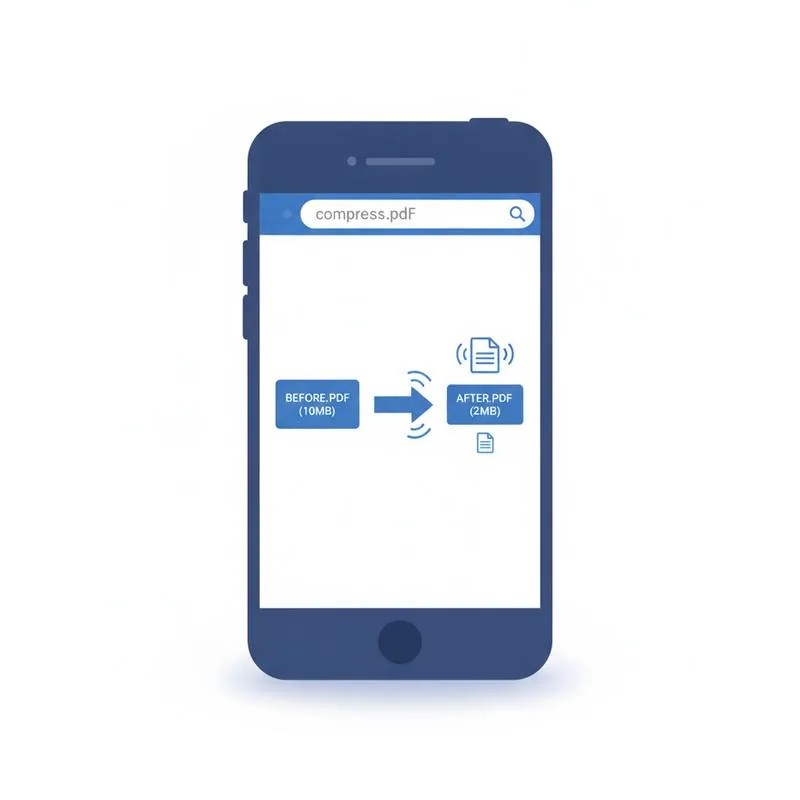
The App Store is full of PDF compressor apps - Some free, many padded with subscriptions, ads, or upsells. But if you need to shrink a PDF right now, you almost certainly do not need to install anything. Safari on iPhone can upload files to web-based tools just like a desktop browser, and PDFBEAR's Compress PDF tool works perfectly on mobile. The compressed file lands back in your Downloads folder (or wherever you direct it) in seconds.
This guide walks through every step, including how to find a PDF stored in iCloud Drive, your email app, or your Photos library - Because on iPhone, getting a file to the upload button is often the trickiest part.
How to Find Your PDF on iPhone Before You Start
PDFs land in different places on iPhone depending on where they came from. Knowing which one applies to you saves time:
| Where the PDF came from | Where to find it |
|---|---|
| Email attachment (Gmail, Outlook, Apple Mail) | Tap and hold the attachment → Save to Files |
| Downloaded in Safari | Files app → On My iPhone → Downloads |
| Sent via iMessage or WhatsApp | Tap the PDF in the chat → Share → Save to Files |
| Exported from an iPhone app | Files app → On My iPhone → [App folder] |
| Stored in iCloud | Files app → iCloud Drive |
If your PDF is not already in the Files app, save it there first using the steps above. The Files app is the easiest source to browse when PDFBEAR asks you to pick a file.
Step-by-Step: Compressing a PDF in Safari on iPhone
Step 1 - Open Safari and navigate to the tool.
In Safari's address bar, type pdfbear.com/compress-pdf and tap Go. The full desktop version of the tool will load. If the page looks too small, use a pinch-to-zoom gesture or tap the "aA" icon in the address bar and select "Request Desktop Website."
Step 2 - Tap "Choose File" or the upload area.
PDFBEAR's upload button will open iOS's native file picker. Tap "Browse" to navigate to Files, or tap the relevant location (iCloud Drive, On My iPhone, etc.) and select your PDF.
Step 3 - Wait for the upload and compression.
On a typical home Wi-Fi connection, a 5MB PDF uploads and compresses in about 10–20 seconds. Mobile data will take longer. The page will display a progress indicator.
Step 4 - Download and save the result.
Tap "Download" when it appears. iOS will ask what to do with the file - Choose "Save to Files" to store it in iCloud Drive or On My iPhone, or tap "More" to share it directly to an app (Mail, WhatsApp, Dropbox, etc.).
What to Do If the File Is Still Too Big
Some PDFs - Especially those exported from design tools or scanned at very high resolution - Resist a single compression pass. If the "Recommended" setting does not bring the file below your target size, try the "High Compression" option. The difference is that High Compression resamples embedded images more aggressively, trading a small amount of photo sharpness for a substantially smaller file. For most documents, this trade-off is invisible on a phone screen.
If the PDF contains dozens of scanned pages and is still over 10MB after high compression, consider whether the whole document needs to be sent at once. PDFBEAR's Split PDF tool lets you break a large file into chapters or page ranges - A useful option when you only need to share part of a scan.
Privacy: Is It Safe to Upload Documents on iPhone?
A common concern with browser-based tools on mobile is whether your data is safe. PDFBEAR transmits all files over HTTPS encryption - The same protocol your banking app uses - So your document cannot be intercepted in transit. No human at PDFBEAR reviews uploaded files. Free files are automatically purged after 14 days of inactivity. For confidential documents, this is worth knowing before you upload.
Comparing Approaches: App vs Browser on iPhone
The browser route wins on convenience for occasional use. If you compress PDFs on iPhone multiple times a day, a dedicated app might be worth the storage - But for most people, bookmarking PDFBEAR's Compress PDF page is the faster path.
Compare PDF tools
 Continue with Google