Editing a PDF adds size because editors embed fonts, annotation layers, form data, and revision history on top of the original content. Compressing after editing - And optionally flattening - Removes that bloat.
- Every save in a PDF editor can append a new revision block rather than replacing old content
- Text annotations, form fields, and digital signatures all add hidden data layers
- Flattening merges all layers into a single flat page, removing editable overhead
- Running Compress PDF after Flatten PDF gives the deepest size reduction
Two tools, two minutes: flatten first to strip edit layers, then compress to shrink the result.
The Paradox: Why Does Editing Make a PDF Bigger?
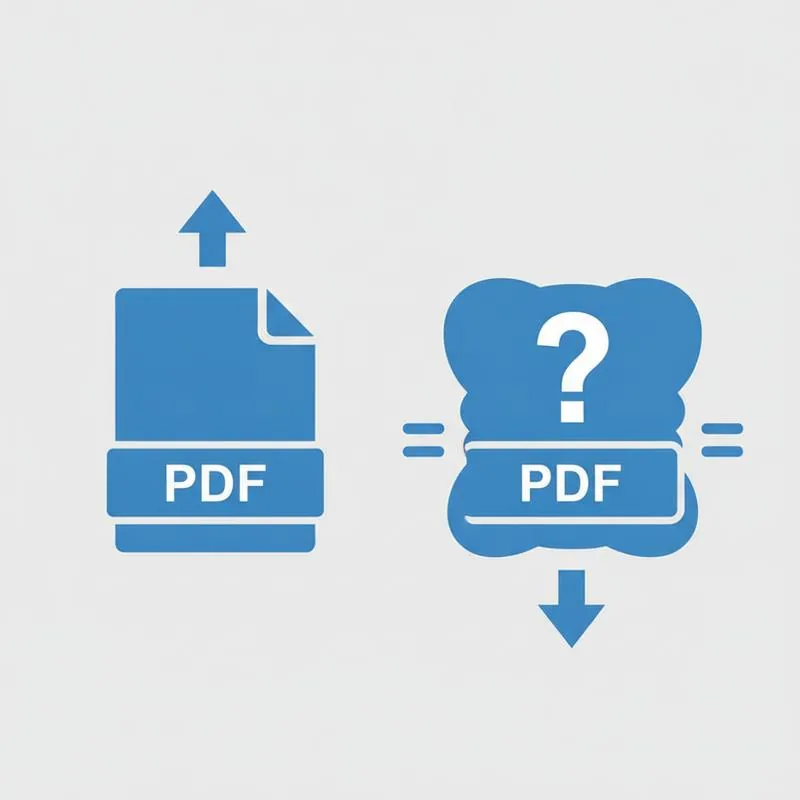
You open a 2MB PDF, add a few notes, fix a typo, and save it. You expect the file to stay roughly the same size. Instead it is now 4.7MB. This is one of the most confusing things people encounter with PDF files, and the explanation lies in how the PDF format is designed at a technical level.
PDFs are not like Word documents, where saving overwrites the old version in place. The PDF specification uses an "incremental update" model: every time you make a change and save, the editor appends a new section to the end of the file - A "revision block" - Rather than rewriting the whole document. The original content stays in the file. Over multiple saves, these blocks stack up, and your two-page document ends up carrying five or six full copies of its own content history.
The Six Hidden Reasons Your Edited PDF Ballooned
Revision history is the biggest culprit, but there are others:
| Cause | Typical Size Added | How Common |
|---|---|---|
| Incremental revision blocks | 50–300% of original size | Very common |
| Newly embedded fonts | 100–800 KB per font | Common |
| Form field data and appearance streams | 10–150 KB per field | Moderate |
| Digital signature metadata | 20–100 KB | Moderate |
| Annotation layers (comments, highlights) | 5–50 KB per annotation | Common |
| Embedded ICC colour profiles | 100–500 KB | Less common |
Each of these adds data that is invisible to the reader but very visible on a file size display. The editor needed that data to keep everything editable and undoable, but you do not need it once the document is finished.
What "Flattening" Does (and Why It Helps)
Flattening is the process of merging all interactive and editable elements - Form fields, annotations, comments, signature appearances - Into the base page content. After flattening, the PDF looks identical but is no longer a layered, editable structure: it is a single flat representation of each page.
This has two benefits for file size. First, the form and annotation overhead disappears entirely. Second, it removes the data structures that editors use to track which objects are associated with which interactive element - Structures that can be surprisingly large in complex documents.
Use PDFBEAR's Flatten PDF tool as the first step in your workflow. Once flattened, there are no form fields left to fill in, no comments to edit - So the subsequent compression step operates on a much cleaner file.
The Two-Step Workflow: Flatten Then Compress
Here is the sequence that produces the smallest possible output without altering the visible content of your document:
Step 1 - Flatten.
Go to Flatten PDF, upload your edited PDF, and download the flattened result. This collapses all interactive layers, removes revision history redundancy, and locks in every annotation as permanent page content.
Step 2 - Compress.
Take the flattened file and upload it to Compress PDF. Because the file is now "clean" - No redundant revision blocks, no editable overhead - The compressor has a clear view of what data is actually needed and can apply lossless optimisation (and optional image resampling) for maximum effect.
The numbers above are typical for a 10-page annotated PDF with embedded images. The combined approach outperforms either step alone by a significant margin.
When You Should Not Flatten First
Flattening makes all form fields and annotations permanent and uneditable. If you need to send the document to someone who will fill in the form or reply to comments, do not flatten it yet - Send the editable version and flatten only the final signed copy. Similarly, if a digital signature must remain cryptographically verifiable (as opposed to just visually present), flattening may break the signature's validation chain. Check with your recipient's requirements before flattening signed contracts.
Compare PDF tools
 Continue with Google