Flattening a PDF merges all interactive layers - Form fields, annotations, and signatures - Permanently into the page, producing a smaller, tamper-proof file ideal for archiving or final delivery.
- Flattening bakes form fields, comments, and digital signatures into static page content.
- It differs from compression: compression squeezes image quality, flattening removes interactive overhead.
- Flattened PDFs are smaller, universally readable, and cannot be edited through normal field controls.
- PDFBEAR lets you flatten any PDF in seconds - No software install required.
Flatten once, share confidently - Your fields and signatures are locked in forever.
What Does "Flatten a PDF" Actually Mean?
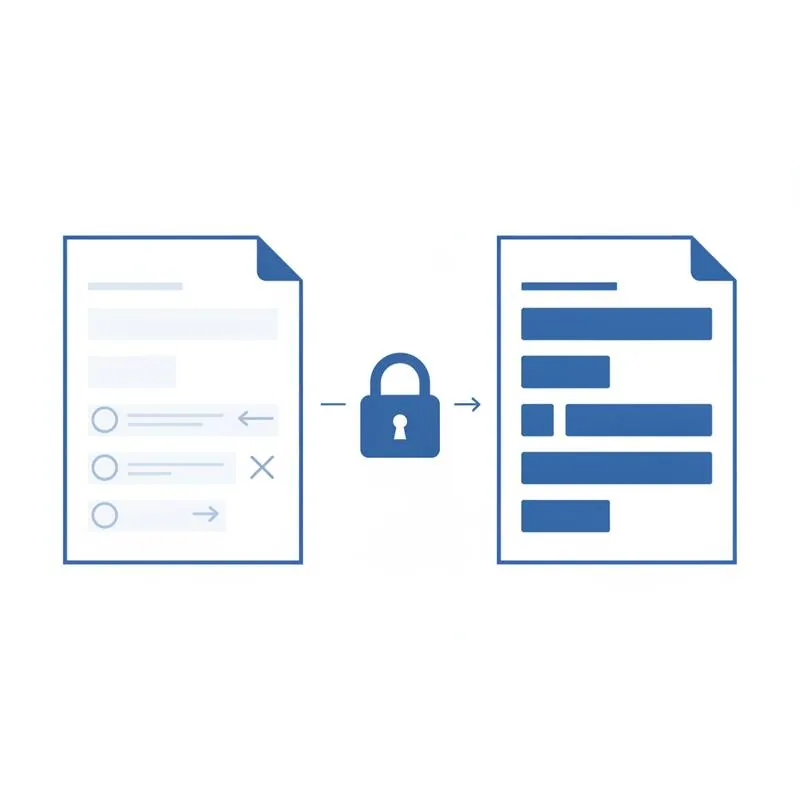
When you create a PDF form, add sticky-note annotations, or apply a digital signature, those elements live on separate layers on top of the base page. They are interactive objects: a text field is not ink on the page - It is a widget that a PDF viewer renders at display time. Flattening collapses all of those layers into a single, merged page. Afterwards, the data is indistinguishable from the rest of the content; there are no widgets, no form objects, no annotation dictionaries left in the file.
The practical result is a document that looks exactly the same in every viewer - Including browsers, e-readers, and older PDF software that may not fully support interactive forms - Because all the content is now static pixel-equivalent vector art or text. Nothing can be accidentally edited by a recipient who opens the file and starts typing.
Use Flatten PDF on PDFBEAR to do this in one click, then optionally follow it with Compress PDF if you need the smallest possible file size.
Flattening vs. Compression: What's the Difference?
People often confuse these two operations because both can reduce a PDF's file size. They work in completely different ways and serve different purposes.
| Operation | What it changes | Typical size reduction | Affects quality? |
|---|---|---|---|
| Flatten | Merges interactive layers into page content | 5 %–40 % (depends on form complexity) | No - Vector text stays sharp |
| Compress | Re-encodes images at lower quality / resolution | 20 %–80 % (depends on image content) | Slightly - High-res photos lose detail |
| Flatten + Compress | Both operations combined | Up to 85 % | Minimal for typical documents |
Compression targets the images embedded inside the PDF - It re-samples photos from, say, 300 DPI down to 150 DPI and applies JPEG encoding to reduce bytes. Flattening removes the structural overhead of interactive elements: the JavaScript actions, the field appearance streams, the annotation dictionaries. For a heavily annotated document or a multi-page fillable form, removing those structures can trim the file noticeably without touching a single pixel of the images.
If your PDF has both large images and a lot of form fields, running Flatten PDF followed by Compress PDF gives you the maximum possible size reduction.
When Should You Flatten a PDF?
Flattening is the right move in several common scenarios:
Archiving signed documents.
Once a contract has been signed by all parties, flatten it before storing it. The signatures are permanently embedded - No viewer quirk can hide them or render them incorrectly years later. Many compliance frameworks (including PDF/A archival standards) require or strongly recommend flattened, non-interactive content.
Court filings and legal submissions.
Clerks and court filing systems often reject PDFs with interactive form fields because those fields create security risks and render inconsistently. A flattened PDF is treated as a plain document and sails through intake systems without issues.
Sharing final-version forms.
When you send a completed application or registration form, you usually do not want the recipient to change the answers. Flattening locks the filled values into the page. Combined with Protect PDF, you can also add a password to prevent even printing or copying.
Preventing annotation clutter.
Peer-review documents and proofing PDFs accumulate sticky notes and markup. Once revisions are resolved, flatten the file to bake the accepted changes in and remove the annotation layer entirely before distribution.
How to Flatten a PDF with PDFBEAR (Step by Step)
PDFBEAR's Flatten PDF tool runs entirely in your browser over an HTTPS-encrypted connection. No software download is needed, and PDFBEAR never has a human review your files - They are processed automatically and deleted after 14 days of inactivity.
- Open the tool. Go to Flatten PDF on PDFBEAR. Click Select PDF file or drag your file onto the upload area.
- Upload your file. Files up to 50 MB are accepted on the free plan. Premium users have no file-size cap.
- Process. Click the flatten button. PDFBEAR merges all form fields, annotations, and signatures into the page layer. Processing typically takes under five seconds for most documents.
- Download. Click Download to save your flattened PDF. You can also continue editing - For example, run Compress PDF immediately to shrink the file further.
Free accounts can flatten PDFs without creating an account. If you need to process multiple documents in a row or keep your files available in My Files, sign up for a free account or go Premium for $13.99/month (or $99.99/year) with a 7-day free trial.
Will Flattening Break Anything?
The most important thing to understand is that flattening is irreversible. Once you flatten a PDF, the form fields are gone. There is no "unflatten" button. Before you flatten, make sure:
- All required fields have been filled in correctly.
- All digital signatures have been applied and verified.
- You have saved a backup copy of the interactive version if you might need to reuse the form later.
Flattening does not affect the text content, font rendering, page layout, or embedded images of the document. Vector text stays perfectly sharp at any zoom level. The visual appearance of the output should be pixel-perfect compared to the original when rendered in a standard viewer.
One edge case to be aware of: if your PDF uses JavaScript-driven calculated fields (e.g., a form that totals invoice line items automatically), those calculations will no longer update after flattening - But the current calculated values will be baked in correctly, which is exactly what you want for a final record.
Combine Flatten with Other PDFBEAR Tools
Flattening is often one step in a broader document preparation workflow. PDFBEAR's 50+ free tools cover every common PDF task, and you can chain them together without re-uploading:
- Compress PDF - Reduce file size after flattening by re-encoding images at a lower DPI.
- Protect PDF - Add a password and restrict printing or copying on your flattened document.
- PDF to Word - Convert to an editable Word document before flattening if you still need to make text changes.
- Merge PDF - Combine multiple flattened PDFs into a single archive file.
- Sign PDF - Add a signature before flattening to lock it in permanently.
All tools are browser-based, require no install, and apply no watermarks - On free or paid plans alike.
Compare PDF tools
 Continue with Google