Sending a confidential PDF securely means layering protections: password-encrypt the file before it leaves your hands, share it via a secure link rather than an email attachment, verify HTTPS transit encryption, and use time-limited access wherever possible.
- Always password-protect the PDF itself before sending - So the file is useless if it lands in the wrong inbox.
- A secure share link (HTTPS, access-limited) is safer than attaching the raw file to an email.
- Email is not end-to-end encrypted by default - Treat any unprotected attachment as potentially visible in transit.
- Time-limited file retention means a link expires naturally, cutting off access without any manual follow-up.
The goal is defense in depth: even if one layer fails, the others keep the document out of the wrong hands.
Why Email Attachments Are Riskier Than They Look
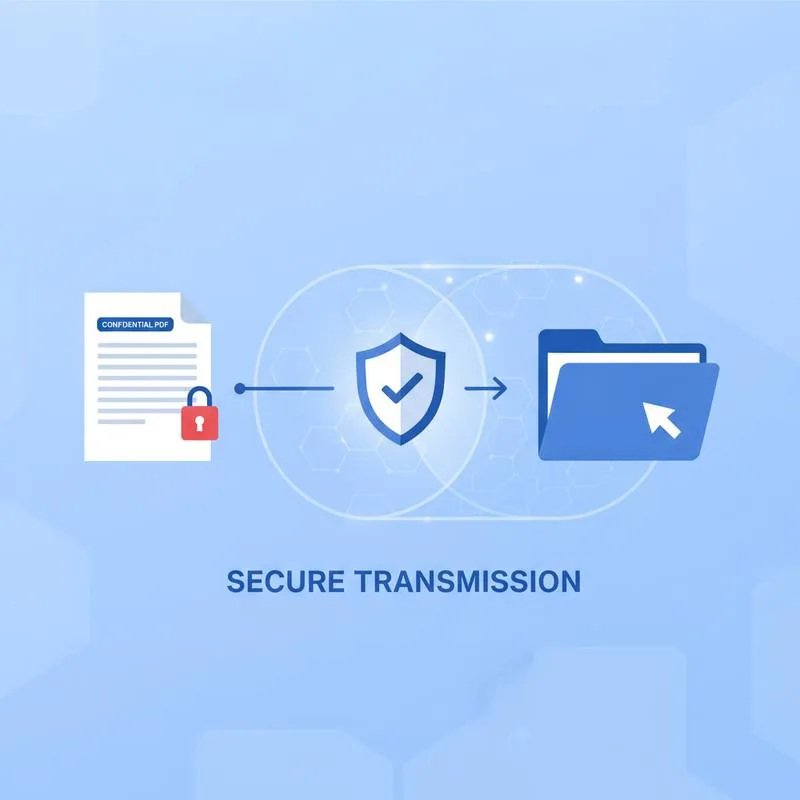
Most professionals send confidential PDFs the same way they send a lunch-order confirmation: drag, drop, send. The problem is that standard email is not end-to-end encrypted. Messages pass through multiple servers - Your provider, your recipient's provider, any intermediary relay - And while TLS encrypts the connection between servers, the message itself is typically stored in plaintext on each one. A misconfigured server, a subpoena, or a phishing-hijacked inbox can expose every attachment ever sent to or from that account.
This does not mean email is always the wrong channel - It means the attachment needs its own layer of protection before it gets there. Think of it like sending cash: you would use a sealed envelope even if the postal service is generally trustworthy.
Layer 1 - Password-Protect the File Before Sending
The first and most important step is encrypting the PDF at rest, before it leaves your computer. A password-protected PDF is scrambled ciphertext. Even if the email is intercepted, forwarded to the wrong address, or sitting in an unattended inbox, the file is unreadable without the password.
Use PDFBEAR's Protect PDF tool to apply AES-256 encryption and an open password in seconds:
- Upload your PDF to Protect PDF.
- Set a strong open password (12+ characters, mixed types - Never a birthday or dictionary word).
- Download the encrypted file and attach that to your email.
- Send the password to your recipient through a different channel - A text message, a phone call, or a separate secure message. Never include the password in the same email as the attachment.
Layer 2 - Share via Secure Link, Not Raw Attachment
Once the file is encrypted, you still have a choice about how to deliver it. Attaching it directly to an email means a permanent copy exists in both your sent folder and your recipient's inbox - And possibly in any backup, archive, or mail-server log in between. A better option is to upload the file to a secure location and share a link instead.
This approach offers several advantages over raw attachments:
| Method | Revocable? | Link Expires? | Avoids Email Servers? |
|---|---|---|---|
| Email attachment (unprotected) | No | Never | No |
| Email attachment (password-protected) | No (file stays) | Never | No |
| Open cloud drive link (Google Drive, Dropbox) | Yes (manual) | Only if you set it | Partial |
| HTTPS secure share link + password-protected PDF | Yes | Automatic (14-day retention) | Yes |
PDFBEAR's file links are served over HTTPS, are not indexed by search engines (noindex headers), and are automatically removed after 14 days of inactivity for free users - No manual cleanup needed. If your recipient needs the file permanently, they download and save their own copy; you do not need to keep it alive.
Layer 3 - HTTPS and Transit Encryption
Every upload, download, and link visit on PDFBEAR happens over HTTPS, which means the connection between your browser and our servers is encrypted with TLS. Nobody on the same Wi-Fi network - At a coffee shop, a conference, a shared office - Can read the file bytes in transit.
This is the baseline that responsible services should provide. It is not sufficient on its own (HTTPS protects the wire, not the stored file), but it is an essential part of the stack. Always verify that any service you use to handle confidential documents shows a valid HTTPS padlock in your browser. Uploading a sensitive PDF over plain HTTP is equivalent to handing it to a stranger to photocopy.
PDFBEAR never subjects uploaded files to human review. Processing is automated, and the file is deleted from our servers after the retention window closes or when you manually delete it. No employee can open, read, or forward your document.
What NOT to Do
Equally important as the steps above is knowing which shortcuts create hidden risk:
- Do not send password and file in the same message. If the inbox is compromised, both are exposed together. Use a separate channel - SMS, phone, or a dedicated password manager share link.
- Do not use shared drives with broad link access. "Anyone with the link" settings on Google Drive or Dropbox can spread further than you intend, especially if the recipient forwards it.
- Do not reuse the same password across documents. If one document's password is ever exposed, every other file protected with the same string is now compromised.
- Do not trust security theatre. Adding a "permissions-only" restriction that anyone can bypass is not a substitute for a real open password on sensitive files. Understand the difference - read our guide on open vs. permissions passwords.
Step-by-Step: Send a Confidential PDF with PDFBEAR
Here is a complete workflow combining all three layers for maximum protection:
- Encrypt the file. Go to Protect PDF, upload your document, set a strong open password, and download the AES-256 encrypted version.
- Upload and get a share link. Use PDFBEAR to generate a secure share link for the protected file. The link is HTTPS-only and not publicly indexed.
- Send the link. Email or message the share link to your recipient. Do not attach the raw PDF - Use only the link.
- Send the password separately. Text the password, call the recipient, or send it through a different messaging platform.
- Let retention handle cleanup. After 14 days of inactivity, the file is automatically removed. If you need it gone sooner, delete it manually from your PDFBEAR session.
If you need to revoke access to a document you have already sent - For example, a contract that was superseded - Simply delete the file from PDFBEAR. The share link becomes a dead end immediately. No emailed attachment can offer that level of control.
For teams handling high volumes of sensitive documents, PDFBEAR Premium ($13.99/month or $99.99/year, with a 7-day free trial) extends file retention, removes size limits, and keeps your full conversion history available in one place. All the same zero-human-review, HTTPS-encrypted processing applies at every tier.
Compare PDF tools
 Continue with Google