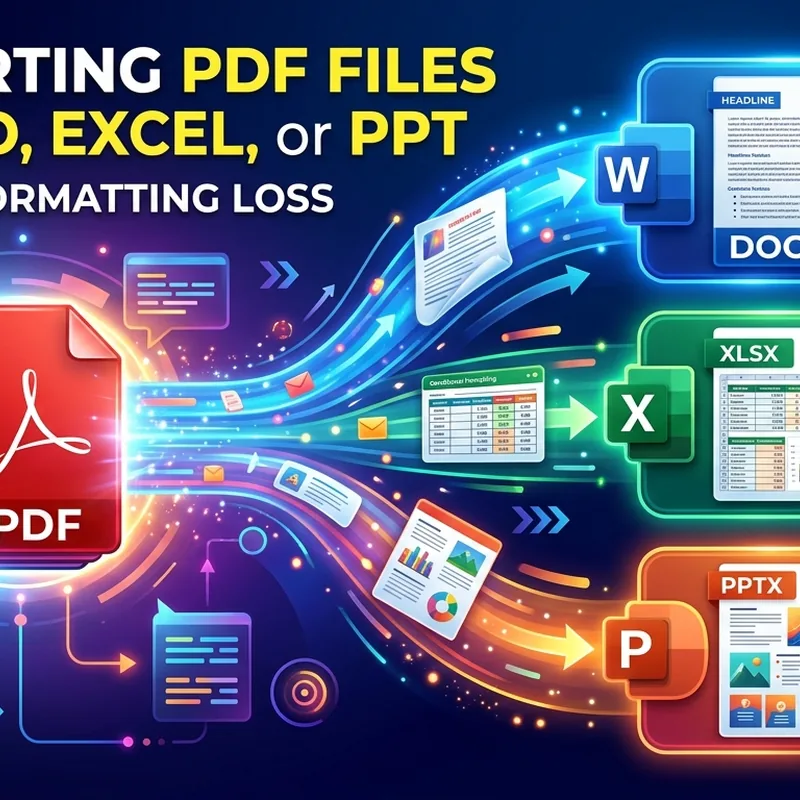
You open a PDF contract on a Monday morning. It looks clean and organized on screen. Then you run a conversion, open the resulting Word file, and suddenly the text is scrambled, bullet points have vanished, and the table has collapsed into a wall of numbers with no structure. This is one of the most frustrating things about working with PDFs. It happens to nearly everyone, and it always happens at the worst possible time.
The good news is that it does not have to be this way. Formatting loss during PDF conversion is predictable. Once you understand what causes it, you can take steps to prevent it and choose the right approach for each file type.
Before You Convert
PDF files are fixed-layout by design, which makes converting them to an editable format tricky. The type of PDF you have, whether it is text-based or scanned, largely determines how much formatting survives the process. Checking the file before conversion, choosing a capable tool, and doing a targeted review afterward will save you far more time than trying to clean up a chaotic output without any plan.
Why PDF Formatting Gets Scrambled on Conversion
PDFs are built to look identical on every screen and every printer. The format was engineered for visual fidelity, locking characters, images, and spacing into fixed positions. There is no flowing text the way there is in a Word document. Everything sits exactly where it needs to appear. That is great for sharing files. It is not great for editing them.
When a conversion tool tries to take that fixed layout and rebuild it as an editable document, it is essentially reverse-engineering a design. Several things can go wrong along the way.
The font used in the original PDF may not be installed on your machine. When the converter cannot find a match, it substitutes something else and the spacing shifts. If the PDF was scanned from a physical document, the text is actually an image. There are no real characters to extract. The converter has to use optical character recognition to read the text, and that process is not perfect. Complex layouts with multiple columns, overlapping elements, and multi-level tables can also confuse most conversion engines, causing the algorithm to misread what is a heading, what is a footer, and what belongs together in a single cell.
What to Check Before Running Any Conversion
A few minutes of preparation before you hit convert can save a lot of cleanup afterward. Run through these checks on every file before you start:
- Is the PDF text-based or scanned? Open the file and try to select and copy a word. If you can highlight text, the file has actual characters in it. If the cursor turns into a crosshair and nothing selects, it is a scanned image and you will need a tool with OCR capability built in.
- Are there password restrictions? A PDF locked with editing or copying permissions may not convert cleanly. Remove the restriction first using an unlocking tool before attempting conversion.
- How complex is the layout? Single-column documents with standard fonts convert with the fewest issues. Multi-column reports, brochures, or academic papers are harder and will require more manual cleanup.
- What is the file size? Very large PDFs with embedded high-resolution images can cause some converters to time out or produce incomplete output. Splitting oversized files in advance helps.
- Does the original source document exist? If the person who sent you the PDF still has the original Word or Excel file, ask for that first. It saves everyone time and avoids the conversion problem entirely.
Converting a PDF to Word Without Losing Your Formatting
Word conversion is the most common request and also the most forgiving. Modern conversion tools have gotten very good at handling standard business documents, especially text-heavy ones like contracts, reports, and formal letters. Follow this process for reliable results:
- Confirm the PDF type. Use the text selection test described above. If the PDF is text-based, you are in good shape. If it is scanned, choose a tool that has OCR built in rather than a basic converter.
- Remove any restrictions. Use an unlocking tool first if the PDF has editing or copying restrictions. Some converters handle this automatically, but not all of them do.
- Run the conversion. Upload the file to a PDF converter that works directly in your browser, with no software installation required. Browser-based tools are especially practical when you are on a work machine where you cannot install new programs.
- Check headings and paragraph styles first. Open the Word file and look at whether headings came through as Heading 1 or Heading 2 styles, or whether everything converted as plain body text. This matters a great deal for long documents with a table of contents.
- Review paragraph breaks and text boxes. Columns and sidebars in the original PDF sometimes export as floating text boxes in Word. You may need to paste the content into the main document flow and reformat it manually.
- Correct any font substitutions. If a heading or body font looks different from the original, select the affected text and apply the correct font manually. This usually affects only a handful of spots and takes under a minute.
For most standard business documents, you should be able to clean up any conversion artifacts in five minutes or less.
Moving PDF Tables Into Excel Without the Mess
Spreadsheet data is where PDF conversion gets genuinely difficult. A table in a PDF is often not a real data table at all. It is a visual arrangement of rows and columns drawn with lines and precisely placed numbers. The conversion engine has to infer which number belongs in which cell, and it does not always get it right.
Results vary significantly depending on the original file. A financial report with clean, bordered tabular data will convert far better than a scanned invoice with handwritten figures in uneven rows. The more irregular the original layout, the more manual work you will face afterward.
After converting a PDF to Excel, the most important step is validating the numbers. Do not assume the cells came through correctly. Sort one column and check that the values make logical sense. Spot-check totals against any subtotals visible in the original PDF. A single misplaced decimal point can cause serious problems in a financial model or a report.
If the original PDF has tables that span multiple pages, check whether the converter stitched them together or treated each page as a separate sheet. You may need to combine data manually before you can work with it properly.
Rebuilding a PDF Presentation Back in PowerPoint
PDF to PowerPoint conversion comes with its own distinct set of challenges. Presentation files are highly visual. They use custom fonts, background images, overlapping elements, and precise positioning. A conversion engine trying to reconstruct this from a fixed PDF layout is working under real constraints, and the results are rarely perfect on the first pass.
After converting a PDF to PPT, focus your review on these areas:
- Slide backgrounds. Custom gradient fills or branded backgrounds sometimes come through as stacked image overlays rather than actual slide fills. Check the slide background settings for each slide and correct them where needed.
- Text box positioning. Text placed over images in the original may end up disconnected from its background element after conversion. Reposition text boxes to realign them with the design.
- Font replacements. If the original used custom or licensed fonts, they will be substituted. Replace them manually, starting with titles and primary headings where the difference is most visible.
- Image resolution. Compressed images in the source PDF may look soft or pixelated after conversion. Swap them out with original high-resolution files if you have access to them.
- Animations and transitions. These are never preserved in PDF conversion. They were stripped the moment the file was originally saved as a PDF. You will need to add them back manually if they matter for the presentation.
For heavily designed slide decks, it is sometimes faster to rebuild the slides from scratch using the PDF as a visual reference, especially if you have the original brand assets on hand.
What Survives Conversion to Word, Excel, and PPT
| Formatting Element | PDF to Word | PDF to Excel | PDF to PPT |
|---|---|---|---|
| Body text | Usually intact | Partial | Often fragmented |
| Tables | Usually intact | Usually intact | Partial |
| Images | Usually intact | Partial | Usually intact |
| Custom fonts | Substituted | N/A | Substituted |
| Heading styles | Partial | N/A | N/A |
| Multi-column layouts | Partial | Poor | Partial |
| Animations and transitions | N/A | N/A | Not preserved |
Finishing What the Converter Started
No conversion tool gets everything right on the first pass. That is not a flaw in the tools. It is a direct consequence of how PDFs are built. The conversion does the heavy lifting, and your job afterward is to do a targeted, structured review rather than reading the whole document from scratch hoping to catch every issue.
Start at the top of the converted file and work through priorities in order. Check that the overall structure is intact, headings are in the right places, and nothing is missing from the main body of text. Then look at tables and data-heavy sections. Finally, review fonts, spacing, and any images or visual elements that might have shifted.
The files that give you the most trouble in conversion are scanned PDFs with handwritten content, PDFs that were exported from design tools rather than from Word or Excel, and PDFs with heavily layered graphics. For those files, build in extra review time. For everything else, a good conversion tool combined with a methodical post-conversion check will get you to a clean, editable document without starting from scratch.
Understanding what your PDF is made of before you convert it is what separates a five-minute fix from a forty-five-minute cleanup. Take those preparation steps first, and the rest of the process becomes far more predictable.
 Continue with Google