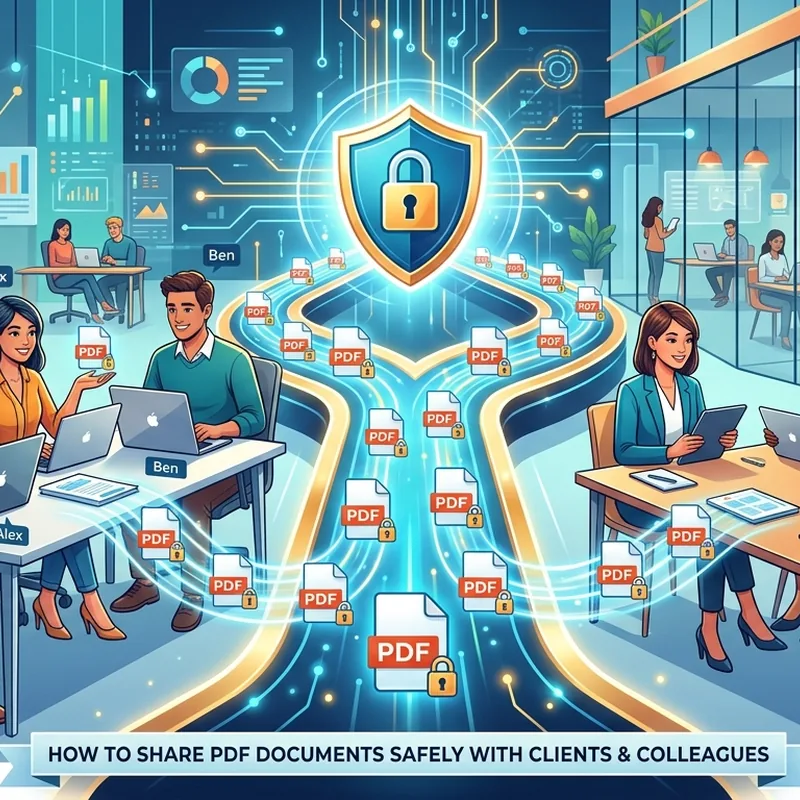
Sending a PDF should be the last step, not the start of a problem. Yet professionals lose time every week to bounced emails, file size rejections, and the sinking feeling that a confidential document landed somewhere it should not have. The good news is that most of these headaches come from skipping a few simple steps. Get those steps right, and sharing PDFs becomes one less thing to worry about.
Before You Hit Send
- Compress large PDFs before attaching them to email to stay well under size limits
- Add password protection to any document containing personal, financial, or legal content
- Use a browser-based delivery option when email is not a practical channel for the file
- Always confirm you are sending the latest version, not an outdated draft
- PDFBear handles compression, conversion, and password protection in any browser without a software install
When a Simple PDF Send Goes Wrong
Most email providers cap attachment sizes somewhere between 10 MB and 25 MB. Gmail allows up to 25 MB. Outlook often sits closer to 20 MB. Send a high-resolution contract, a design portfolio, or a scanned multi-page form, and you will hit that ceiling fast. The email bounces, the client never receives the file, and you are left wondering if they think you ignored them.
Size is not the only issue. A PDF sent to a shared inbox or an outdated email address can expose sensitive content to the wrong people. Medical records, salary information, signed agreements, client financial reports , these are documents that belong only in front of the right eyes. A simple forwarding mistake or an auto-fill error in the recipient field can undo that in seconds.
There is also the version problem. You finalize a proposal and send it, then make one small change and save it under a similar file name. Now you have two versions circulating. The client is reviewing the one with the typo. This is a common scenario, and it creates confusion that reflects poorly on your professionalism. Fixing the distribution process upstream prevents all of it.
How Compression Cuts File Size Without Killing Quality
Before you send any PDF, check its file size. If it runs over 5 MB and you plan to email it, compression is worth the two minutes it takes. Good compression tools reduce the file by stripping redundant data and optimizing embedded images. A scanned document that starts at 18 MB can often come down to under 3 MB without any visible degradation at normal reading size.
The key is using a tool that gives you control over the output quality. Some compressors obliterate image sharpness to hit a tiny file size. That is not what you want if the PDF contains charts, graphs, or photos that need to remain legible. PDFBear's compression tool lets you reduce file size while keeping the content readable. You upload the file, the tool does the work, and you download a leaner version in seconds.
For documents built entirely from text, such as invoices, agreements, and plain reports, compression is even more effective. Text-heavy PDFs tend to shrink dramatically because there is very little visual data to preserve. A 10-page invoice that starts at 8 MB might compress to under 1 MB without any noticeable change. That puts it safely inside any email attachment limit, with room to spare.
Why Password Protection Matters More Than You Think
Not every PDF needs a password. But if the file contains anything a stranger should not read, encryption is the right call. This includes tax documents, employment contracts, medical summaries, client data, financial statements, and anything marked confidential.
PDF password protection works by encrypting the file contents so the document cannot be opened without the correct passphrase. Modern PDF security uses AES-256 encryption, the same standard that the Advanced Encryption Standard specifies for protecting sensitive government and commercial data. That level of protection means even if the file ends up in the wrong inbox, an unauthorized person cannot read a single word.
The practical approach is straightforward. You add the password before sending. You share the password with the recipient through a separate channel, such as a text message or a phone call. This two-step method means the file and the key never travel together. Even if someone intercepts the email, the document stays locked.
PDFBear lets you add a password directly to your PDF in the browser. No software installation is required, and there is no account setup needed on the recipient's end. They just need the password you give them and a PDF reader, which every device already has built in.
Picking the Right Delivery Method for Your File and Your Audience
Email works well for most day-to-day document sharing, especially after compression. But there are situations where it falls short. The file is still too large after compression. The recipient's inbox has strict filtering rules. You need to share with multiple people at once and want one consistent link rather than a string of separate email threads.
In those cases, a browser-based tool to share documents online gives you a cleaner path. You upload the file, get a link, and send that link however is most convenient, whether by email, a messaging app, or even a text message. The recipient clicks the link and views or downloads the document. No account is required on their end, and there are no attachment size headaches or worries about the file filtering into spam.
This method also helps with version control. Rather than re-sending an email every time you update a file, you can replace the document at the source and the link continues to work. The client always gets what is current. Cloud storage services like Google Drive and Dropbox offer similar link-based sharing, but they require the sender to have an account and sometimes prompt the recipient to log in as well. A dedicated browser-based sharing tool skips that friction entirely, which is useful when you are working with clients who are not familiar with cloud platforms.
How the Main Delivery Methods Stack Up
| Delivery Method | Typical File Size Limit | Built-In Password Protection | Recipient Needs an Account | Best Use Case |
|---|---|---|---|---|
| Email Attachment | 10 to 25 MB | No | No | Small files sent to known contacts |
| Cloud Storage Link | Up to several GB | Optional | Sometimes | Large files and ongoing collaboration |
| Browser-Based File Sharing | Varies by service | Varies | No | Fast one-time delivery to any recipient |
| Password-Protected PDF via Email | 10 to 25 MB after compression | Yes | No | Confidential documents to known recipients |
Pre-Send Steps That Keep You Out of Trouble
Before sending any professional document, run through a brief mental check. Confirm the file is the correct version first. Open it, scroll to the end, and make sure nothing is missing and no tracked changes or comment annotations are visible. Some PDF editors embed metadata or comments that were never intended for the recipient, and those can create confusion or reveal information you did not mean to share.
If the document is sensitive, decide upfront whether it needs a password. If it does, add the password before attaching the file. Never plan to add it later and forget. Sending an unprotected version of a confidential file by accident is far worse than the extra minute it takes to encrypt it first. Share the password with the recipient through a separate message, not in the same email as the attachment.
Check the file size before attaching. If it is large, compress it. If it is still over the email limit after compression, switch to a link-based delivery method. Always double-check the recipient's email address before clicking send. Auto-complete in email clients has sent many confidential documents to the wrong person, and that mistake is difficult to undo. If you need to convert the document from another format first, PDFBear handles that conversion cleanly, ensuring the formatting stays intact no matter what software the recipient uses.
Documents That Arrive Right, Every Time
A file that arrives cleanly, opens immediately, and contains the right content at the right size tells the recipient something about how you work. It is a small thing, but small things add up in professional relationships. Clients notice when documents are consistently well-organized and easy to access. Colleagues appreciate not having to chase down attachments or ask for re-sends.
Getting your PDF workflow right does not require expensive software or technical expertise. It requires knowing which tool to reach for at each step. Compress when the file is large. Encrypt when the content is sensitive. Use a link when email is not the best channel for your file or your audience. Then use PDFBear to handle those preparation steps quickly, in any browser, without installing anything.
That combination covers nearly every document-sharing situation a professional will face, and it handles each one reliably. The goal is simple: the right person gets the right file, in readable condition, with no one else able to read along. With the right preparation, that is exactly what happens.
 Continue with Google