Google Docs excels at real-time collaboration, while PDF is the gold standard for fixed, universally readable documents. Use PDFBEAR to convert between them in seconds.
- Google Docs requires a Google account for editing and can create a login wall for recipients
- PDFs preserve exact layout across every device, printer, and operating system
- Legal, financial, and formal documents should almost always be PDF
- PDFBEAR's PDF Converter and share-document tool bridge the gap between both formats
Pick the right format the first time and stop resending files when formatting breaks.
The Core Difference: Live vs. Locked
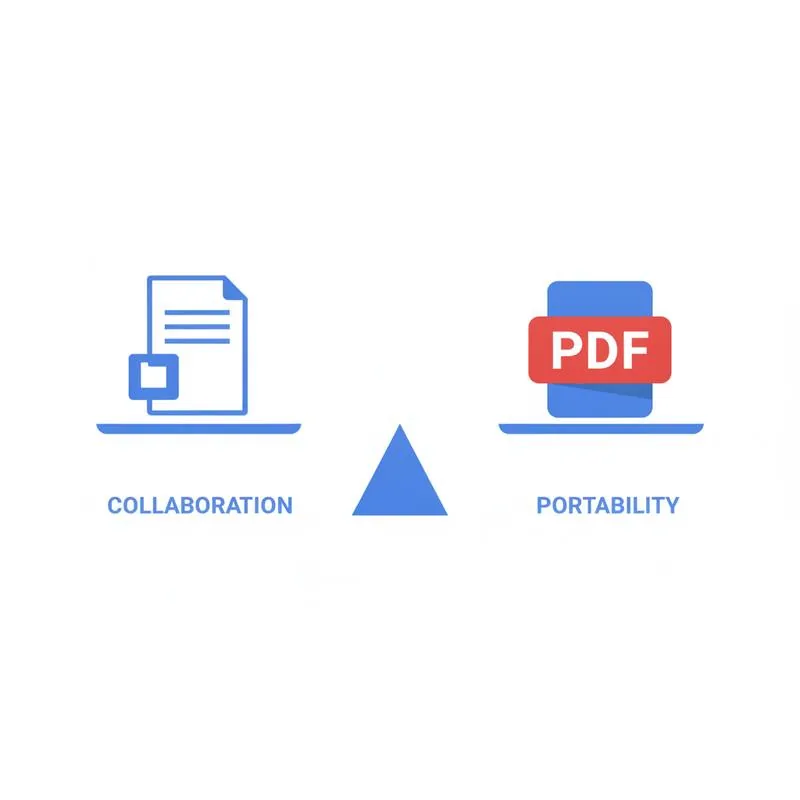
Google Docs and PDF solve different problems. Google Docs is a living document - It changes, multiple people can edit it simultaneously, and every revision is tracked. A PDF is a snapshot. It looks identical whether you open it on a Windows laptop, an iPhone, or print it on a laser printer in 1998.
Neither format is better in absolute terms. The right choice depends on what you need the document to do after you send it. Before you share your next file, ask yourself: do I want the recipient to collaborate, or do I want them to receive?
When Google Docs Is the Right Choice
Google Docs shines in collaborative, iterative workflows where multiple stakeholders need to contribute before a document is finalized:
- Team drafts - Marketing copy, project proposals, meeting notes where anyone can suggest edits
- Version control - Every change is logged; you can revert to any previous state without emailing file versions back and forth
- Real-time co-editing - Multiple people typing simultaneously with live cursors
- Comment and suggestion mode - Reviewers can leave notes without altering the main text
The catch: recipients need a Google account to edit (and sometimes even to view, depending on sharing settings). If your recipient doesn't use Google Workspace, you may be creating friction without realising it.
When PDF Is the Right Choice
PDF is the professional default for documents that need to look the same for every recipient, resist accidental edits, or comply with legal and archival standards:
- Contracts and legal documents - Content must not shift or reflow
- Invoices and financial statements - Fixed totals, no formula cells an accidental key-press could change
- Portfolios and presentations - Fonts, images, and layout appear exactly as designed
- Printable forms - PDF forms print predictably; Google Docs can reflow text when printed
- Long-term archiving - PDF/A is an ISO archival standard; Google Docs depends on Google's servers staying online
Decision Matrix: Which Format to Use
| Scenario | Google Docs | Winner | |
|---|---|---|---|
| Team is co-editing a draft | Real-time collaboration | Not editable | Google Docs |
| Sending a contract for signature | Can be accidentally edited | Fixed, signable | |
| Recipient has no Google account | Login wall possible | Opens in any browser | |
| Printing on different paper sizes | Reflows unpredictably | Preserves layout | |
| Sharing an invoice | Numbers could be changed | Locked totals | |
| Internal review with tracked changes | Built-in suggestion mode | Requires PDF annotation | Google Docs |
| Long-term archiving | Dependent on Google account | ISO archival standard (PDF/A) | |
| Accessibility (screen readers) | Good native support | Depends on PDF tags | Google Docs (slight edge) |
Converting Between Google Docs and PDF
The good news: you don't have to choose one format forever. The best workflow is often to draft in Google Docs (for collaboration) and then export to PDF when the document is final.
If you have a PDF and need to edit it in Google Docs, or if someone sent you a PDF that you need to modify, PDFBEAR's PDF Converter handles both directions - PDF to Word (which Google Docs opens natively), and Word/DOCX back to PDF. No desktop software required, no watermarks.
The Middle Ground: Sharing a PDF With a View Link
If you want the security of PDF (no accidental edits, universal compatibility) but still need recipients to access it easily without downloading a file, PDFBEAR's Share Document tool gives you a direct browser-viewable link. Recipients open the PDF in their browser - No app, no account, no download required.
This is particularly useful when:
- You're sending a document to clients who are non-technical
- You want to prevent casual copying or downloading
- The PDF is large and you don't want it clogging an inbox
File Size Considerations
Google Docs files are stored in Google's cloud and have no real "size" for sharing purposes - You just share a link. PDFs, on the other hand, can be large, especially if they contain high-resolution images or embedded fonts. Before emailing a PDF, consider compressing it with Compress PDF to keep it under email attachment limits (typically 25 MB for Gmail).
Summary: A Simple Rule of Thumb
Use Google Docs while you're still working on the document. Switch to PDF the moment the document needs to leave your hands in a final state. When in doubt, PDF is the safer choice - It works everywhere, looks the same everywhere, and can't be accidentally edited.
PDFBEAR's PDF Converter makes switching between formats a one-click operation, so you're never stuck in either format permanently.
Compare PDF tools
 Continue with Google