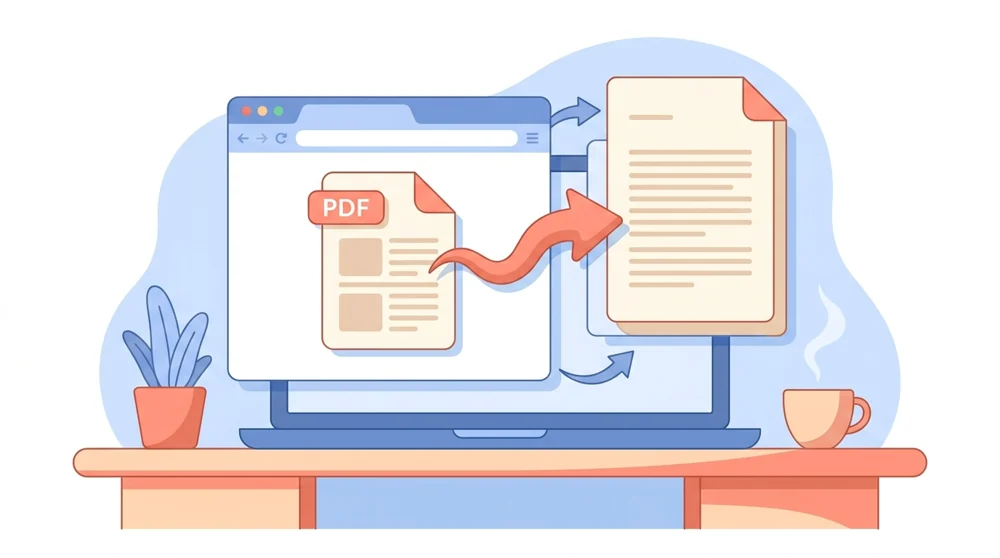
Convert Image to Text with OCR

Image to Text reads printed text in a document photo and returns a plain TXT file. OCR is free within the stated file limits.

Secure HTTPS upload - your files stay private and are saved to your file manager.
PDFTXTPDF to Text

How to extract text from an image

  1. Upload a JPG, PNG, TIFF, WebP, BMP or HEIC image.
  2. OCR reads the visible text automatically.
  3. Review the recognized text for names and numbers.
  4. Download the result as a plain TXT file.
How to use Convert PDF to Text

Why this workflow works

Extract unlimited PDFs, no fees

Convert as many PDFs to text as you want with no signup, no watermark, and no hidden fees.

Private file handling

Secure upload; free-account files are retained for 30 days after their last activity.

Convert PDFs in any browser

Run it in any browser on your phone, tablet, or laptop with nothing to install.

Just the words, plain TXT

You get a simple TXT file with just the words, ready to edit, search, or paste anywhere.

TXT files in a few seconds

Most PDFs turn into a text file in just a few seconds, even longer documents.

No download, browser-based extraction

Everything happens in your browser, so there is no software or app to download.


When You Need the Words, Not the Whole PDF

Pulling plain text out of a PDF is the fastest way to reuse, search, or quote what is inside a document.

Why plain text still matters

A PDF is built to look the same everywhere, which is wonderful for sharing and printing. The trouble starts when you actually want the words inside it. Copying by hand is slow, and selecting text in a PDF reader often grabs broken lines, page numbers, or nothing at all. Converting a PDF to text gives you a plain TXT file with just the words, ready to paste into an email, a notes app, or a search box.

Plain text is small, universal, and easy to work with. It opens in any editor on any device, it loads instantly, and it strips away fonts, columns, and images so you can focus on the content. That makes it perfect for grabbing a quote, feeding text into another program, or saving a lightweight copy of a long report.

Torn between the two extractors? PDF to Text vs PDF to Word settles which fits which job.

What this tool is good for

50 MB
max file size per upload
A few seconds
typical conversion time
$0
free, no signup, no watermark

This works best on PDFs that already contain real, selectable text, like exported reports, e-books, contracts, and articles. If your PDF is a scan or a photo of a page, the words are really an image, and a plain extractor cannot read them. For those, run OCR PDF first to turn the picture into searchable text, then come back here.

Keep the layout or just the words

Text extraction is about content, not formatting. If you need the document to stay editable with its headings, tables, and styles intact, PDF to Word is the better choice. If you only want the gist of a long file, Summarize PDF can shrink it down to the key points. Files travel over secure HTTPS and are processed automatically with no human review. They are saved to your private file manager; free-account files are removed 30 days after their last activity, and you can delete them sooner.

Extraction Tips and Limits

PDF to Text works best when the PDF already has selectable text. If the file is a scan, photo, or flattened image-only document, OCR runs automatically when the file has no text layer so the visible words become readable text. Without OCR, an image of a page is still just an image, even if it looks like normal writing on screen.

Expect a TXT file to favor words over layout. Multi-column articles, tables, footnotes, headers, and page numbers may appear in a simpler order than they did on the page. That is useful when you need searchable copy, but it is not the right output for preserving design. Use PDF to Word when you need an editable document with more structure, PDF to Excel for tables, and PDF to JPG or PDF to PNG when you need whole pages as images. After extraction, skim the result for repeated headers, broken line wraps, and hyphenated words before using it in another document.


Formats, quality and use cases

Input formats
JPG, PNG, TIFF, WebP, BMP, HEIC
Output format
TXT
Maximum file size
Guests: 10 MB · Free accounts: 50 MB · Premium: 90 MB
Processing time
Usually under a minute
What is preserved
  • Recognized words
  • Paragraph order where detectable
What changes
  • Images and visual layout are omitted
  • Recognition depends on image clarity

Popular use cases

Copy text from a receipt
Transcribe a photographed page
Extract text from a screenshot

File requirements and limits

Files per batchUp to 1
Free file sizeGuests: 10 MB · Free accounts: 50 MB · Premium: 90 MB
OCR accuracy depends on image focus, contrast, orientation and legibility.

Common problems and fixes

Some words are wrong

Why it happens: The photo may be blurred, skewed or low contrast.

Fix: Retake or crop the image so the text is upright, sharp and well lit.


Image to Text vs Copy-pasting text directly out of a PDF reader

The usual manual route is selecting text in a PDF viewer and pasting it into a text editor, versus extracting the whole document to .txt in one pass.

DimensionImage to Text (PDFBEAR)Copy-pasting text directly out of a PDF reader
SpeedWhole document in one clickSelect and paste page by page
Formatting fidelityConsistent reading-order streamHidden line breaks and column jumps
Batch / multiple filesOne full PDF per passManual re-selection every time
Install neededRuns in the browserNeeds a PDF reader open

Who this tool is for

Paralegal
Strips the body text out of a multi-page deposition PDF so they can paste exact quotes into a brief without retyping each passage.
Data scientist
Converts a folder of research-paper PDFs to .txt files to feed clean, token-friendly input into an NLP or text-mining pipeline.
Academic researcher
Pulls plain text from journal article PDFs to run word-frequency and concordance analysis in their reference-management workflow.
Subtitle and localization editor
Extracts the raw script text from a PDF screenplay so it can be dropped straight into translation memory and captioning tools.
Compliance officer
Lifts the wording out of long policy PDFs into searchable .txt so they can grep across documents for specific clauses outside a PDF reader.
Journalist
Turns a leaked report or court filing PDF into plain text to quickly keyword-search and copy verbatim statements into a story.

Frequently asked questions

Yes, PDF to Text is completely free. There is no signup, no watermark, and no limit on how many files you can convert.

Yes, it is safe. Files travel over secure HTTPS and are processed automatically with no human review. They are saved to your private file manager; free-account files are removed 30 days after their last activity, and you can delete them sooner.

The maximum file size is 50 MB per file. If your PDF is larger, try compressing it first or splitting it into smaller parts.

No, you do not need to install anything. PDF to Text runs in your web browser on any device, with no app or software to download.

Not directly. A scanned PDF stores words as images, so you should OCR runs automatically when the file has no text layer to make the text readable, then convert it to text here.

Your text is saved as a plain TXT file. You can open it in any text editor or notes app and edit, search, or copy the words freely.

No account is needed to extract text from a PDF as a guest, just upload your file. A free account is optional and saves your results; guests get 5 free files before one is suggested.

Most PDFs turn into a text file in just a few seconds, even longer documents.

No. The output is a clean plain TXT file with only your document's words, with nothing added.

When this tool is the right choice

Image to Text reads printed text in a document photo and returns a plain TXT file. OCR is free within the stated file limits.

Best for

  • Copy text from a receipt
  • Transcribe a photographed page
  • Extract text from a screenshot

Useful next steps