- Duplex (double-sided) scanning creates blank reverse pages automatically - They're a side effect of the scanner, not errors in your document.
- Use PDFBEAR Organize PDF to preview every page as a thumbnail and delete blanks visually before saving.
- If you already know which page numbers are blank, Delete Pages from PDF removes them by number in one step.
- Free, browser-based, no watermark, no software to install. Files deleted after 14 days (free) or while subscribed (Premium).
You've just scanned a 30-page contract on the office multi-function printer, and when you open the PDF you count 58 pages - Roughly every other one completely blank. This is one of the most common annoyances in document scanning, and it is entirely fixable in a browser without touching expensive desktop software.
This guide explains why blank pages appear in scanned PDFs, how to identify them reliably, and how to remove them in bulk using two free PDFBEAR tools: Organize PDF for visual review and Delete Pages from PDF for known page numbers.
Why Duplex Scanning Creates Blank Pages
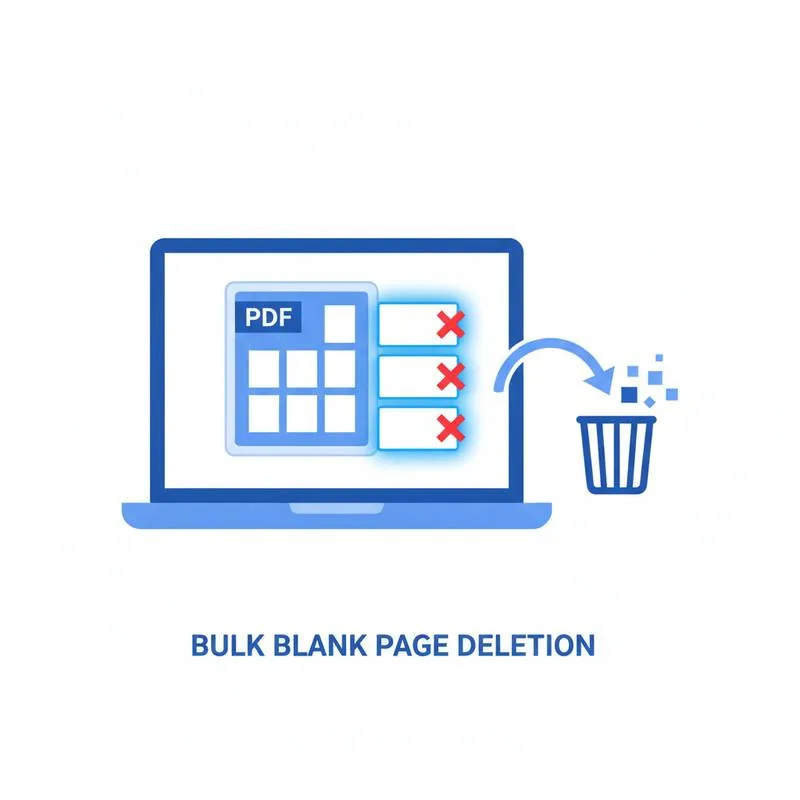
Most modern office printers and dedicated scanners offer a duplex (two-sided) scanning mode. The scanner feeds each sheet through the ADF (Automatic Document Feeder) and captures both sides in one pass. This is efficient - You don't have to flip the stack manually - But it creates a structural problem.
If your original document is single-sided (text only on the front of each sheet), the scanner still captures the blank reverse side. For a 30-sheet stack, that produces 60 scanned images, alternating between content pages and blank pages. The resulting PDF is twice as long as it needs to be.
The same thing happens with two-sided documents where some pages have content on only one side - Common in legal filings, invoices, and any document printed with odd page counts. The last sheet's reverse side is always blank.
How to Identify Blank Pages
Before you start deleting pages you need to know which ones are actually blank. There are two reliable approaches.
Identify by Eye (Thumbnail Preview)
Open the PDF in any viewer - Your browser, Preview on Mac, or Adobe Reader - And switch to the page thumbnail panel. Blank pages will show as white rectangles with no text or image content. For short documents this is the fastest check; for 100+ page files it becomes tedious.
Identify by File Composition
Scanned blank pages are not truly empty at the PDF level - They contain a scanned image of a blank sheet, which means they take up roughly the same file size as a content page (typically 50–200 KB each for a typical 300 DPI scan). You cannot rely on file size to distinguish blank from content pages in a single combined PDF. What you can do is use a tool with thumbnail preview to spot the visual difference instantly.
Identify by Pattern
If your document was single-sided duplex-scanned, blank pages follow a predictable pattern: pages 2, 4, 6, 8, and so on - Every even-numbered page is blank. This is the scenario where Delete Pages from PDF shines, because you can enter the page numbers directly without previewing each one.
Method 1: Delete Blank Pages Visually With Organize PDF
This method is ideal when you can't predict which pages are blank, or when you want to double-check before committing to deletions.
- Open Organize PDF. Click "Select PDF file" and upload your scanned document. For free accounts, files up to 50 MB are supported. Larger files require PDFBEAR Premium.
- Review thumbnails. The tool renders every page as a thumbnail. Blank pages appear as plain white squares - Immediately obvious against pages with text and images.
- Select blank pages. Click each blank page thumbnail. A tick or highlight shows it is selected. You can select multiple pages before deleting.
- Delete selected pages. Click the Delete (trash) icon or the "Remove selected" button. The thumbnails disappear from the preview.
- Save the result. Click "Organize PDF" (or "Save") to generate your cleaned file, then download it.
The whole process for a 60-page scan (30 real pages + 30 blanks) takes about 90 seconds once the file uploads. You can also use this same session to rotate any pages that came in sideways - A common side-effect of scanning mixed-orientation documents.
Method 2: Delete by Page Number With Delete Pages from PDF
If your blank pages follow a predictable pattern - Or if you already know exactly which pages to remove - Delete Pages from PDF is significantly faster.
- Open Delete Pages from PDF. Upload your scanned PDF.
- Enter the page numbers to delete. The tool accepts individual pages (e.g.,
2, 4, 6) and ranges (e.g.,2-60 step 2for every even page up to 60, if the tool supports step syntax - Check the interface for exact input format). - Click Delete Pages. The tool removes the specified pages and produces a new PDF.
- Download and verify. Open the downloaded file and skim through to confirm no content pages were accidentally removed.
For a 30-sheet single-sided duplex scan where you know pages 2, 4, 6 … 60 are all blank, this method eliminates 30 pages in seconds without needing to view a single thumbnail.
Tips for Mixed Document Batches
Real-world scanning rarely produces perfectly predictable blank page patterns. A batch scan of several different documents - An invoice, a contract, and a delivery receipt - Will have blank pages at different positions depending on how many pages each document had. Here is how to handle that efficiently.
- Scan documents separately when possible. Even if the ADF feeds all your papers in one go, scanning each document as its own file and cleaning them individually is faster than trying to manage blanks across a merged 200-page behemoth.
- Use Organize PDF's thumbnail view as your primary triage. It's the only tool that shows you all pages at once without requiring you to scroll through a full-resolution PDF. Blank pages are identifiable in under a second per page.
- Combine cleaning with splitting. After removing blank pages, use Split PDF to cut the cleaned batch into individual documents. This is a common workflow for invoice processing teams who scan a day's worth of paper mail in one pass.
- Don't assume all white pages are blank. Some letterheads have a nearly-invisible company logo or watermark. Check at 100% zoom before deleting a page that looks blank at thumbnail size.
- Re-scan at lower DPI if file size is a problem. A 300 DPI scan is standard for archiving and OCR. If the file is too large to upload, 200 DPI is adequate for most business documents and reduces file size by roughly 56%.
Preventing Blank Pages at the Source
The best blank page is one that never gets scanned in the first place. Most business-grade scanners and MFPs have a setting called "Skip blank pages" or "Blank page removal" in their scan driver or control panel. Enabling it tells the firmware to analyze each scanned image before writing it to the PDF and discard pages below a content threshold.
Look for this setting under:
- Scanner driver → Document settings → Blank page skip (Fujitsu ScanSnap, Canon imageFORMULA)
- MFP control panel → Scan → Advanced settings → Blank page removal (Ricoh, Konica Minolta, Xerox)
- Scanning software → Output → Remove blank pages (VueScan, NAPS2 - Both free)
If your scanner lacks this feature or you are processing historical scans, Organize PDF and Delete Pages from PDF remain the fastest browser-based fix - No software installation, no watermarks, and no per-page fees.
Frequently Asked Questions
Will deleting pages change the content on remaining pages?
No. Deleting a page in a PDF removes only that page. All content on surrounding pages is preserved exactly as scanned.
Is there a limit to how many pages I can delete at once?
Free accounts can process files up to 50 MB. For larger scanned PDFs, PDFBEAR Premium ($13.99/month or $99.99/year, 7-day free trial) removes the size restriction.
Can I undo a deletion?
PDFBEAR produces a new file - Your original upload is unchanged on our servers for 14 days (free plan) or while your Premium subscription is active. You can always re-upload the original and start over.
Does this work for password-protected scanned PDFs?
If the PDF is encrypted with an owner (editing) password, you'll need to unlock the PDF first before organizing or deleting pages.
With the right approach - Organize PDF for visual cleanup or Delete Pages from PDF for known page numbers - Clearing a duplex-scanned document of its blank pages takes a matter of minutes, not hours. Your document emerges leaner, cleaner, and ready to share or archive.
Compare PDF tools
 Continue with Google