When you have five files all claiming to be "final", use Compare PDF to diff them, check file metadata for the latest modification date, then lock the winner with Flatten PDF and Protect PDF so no one can quietly edit it again.
- Compare PDF definitively resolves which version contains the most recent approved changes.
- PDF metadata (creation date, modification date, author) is often the fastest first clue about which is newest.
- Flatten PDF bakes in all changes permanently; Protect PDF locks editing permissions to prevent future unauthorized edits.
- A consistent file naming convention prevents the "final_FINAL_v3" problem from recurring.
Five minutes of diffing and locking saves you from discovering six months later that everyone was working from the wrong version.
The Version Control Nightmare
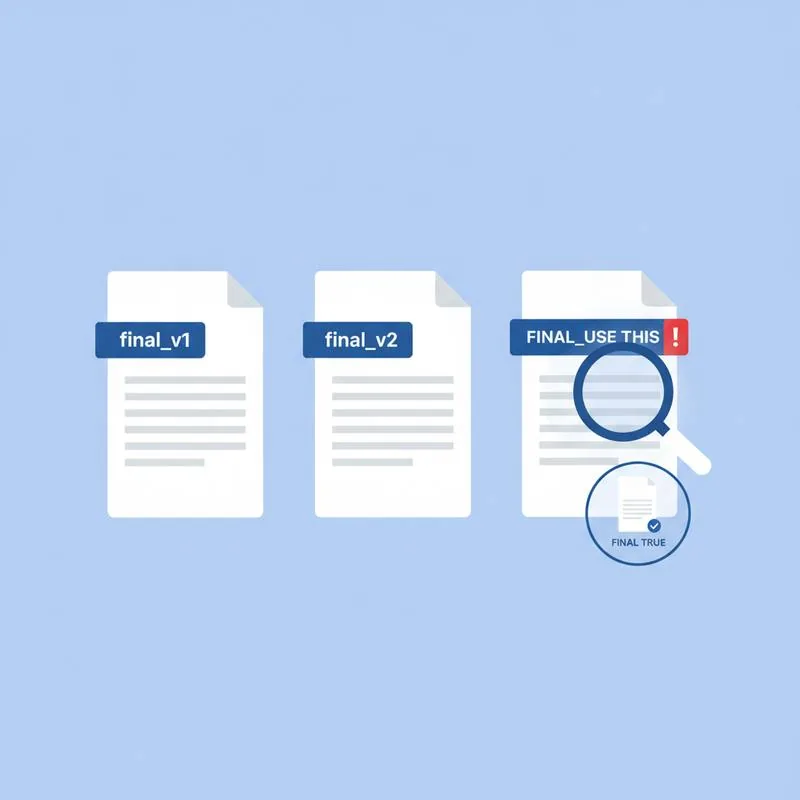
You have just been asked to retrieve the final approved version of a contract. You open the shared drive and find:
contract_final.pdfcontract_final_v2.pdfcontract_final_APPROVED.pdfcontract_final_APPROVED_edits.pdfcontract_USE_THIS_ONE.pdf
Which one is actually final? This scenario is common enough that it has become a dark joke in legal and operations teams. The correct answer requires a combination of tools - And PDFBEAR provides all of them.
Step 1: Check File Metadata First
Before reaching for a comparison tool, file metadata is often the fastest disambiguation method. PDF files carry internal metadata including:
- Creation date - When the PDF was first created (usually matches the export date from Word/InDesign)
- Modification date - The last time the PDF was saved or modified
- Author - The name from the application properties when the PDF was created
- Producer - The software that created it (e.g., "Microsoft Word for Microsoft 365")
On macOS, right-click any PDF → Get Info to see dates. On Windows, right-click → Properties → Details. The file with the latest modification date is often (but not always) the most recent version. Caution: copying a file resets the filesystem date but not the internal PDF metadata - So always check both.
Step 2: Use Compare PDF to Diff the Suspects
Once you have narrowed the candidates to two or three based on metadata, use Compare PDF to run a definitive comparison. Start with the two most recent candidates based on modification date.
What you are looking for:
- If one is a strict superset of the other - All the content from version A exists in version B, plus additional approved changes - Version B is more recent and likely final
- If both have changes the other does not - You have a branched version problem (two people edited from the same base). This requires a human decision: which branch is authoritative?
- If they are identical - The files are the same content despite different names. Either one is the final, and the other can be deleted
| Compare result | Meaning | Action |
|---|---|---|
| A ⊆ B (B has everything in A plus more) | B is a later edit of A | B is likely the final |
| B ⊆ A (A has everything in B plus more) | A is a later edit of B | A is likely the final |
| Both have unique content | Version fork - Two independent edits | Escalate to document owner |
| No differences | Identical content | Either is fine; delete duplicate |
Step 3: Lock the Approved Version
Once you have identified the correct final version, the most important thing you can do is lock it so it cannot be silently edited again. There are two tools for this and they work together.
Flatten PDF - Bake in All Changes
Flatten PDF merges all interactive layers - Annotations, form field values, digital signatures, watermarks, and comments - Permanently into the page content. After flattening:
- Sticky note annotations become visible text/graphics permanently on the page
- Form field values are baked into the page - The fields no longer exist as editable elements
- Watermarks are merged into the page layer - They cannot be toggled off
- The resulting PDF is a clean, static document with no interactive layers
Protect PDF - Permissions Password
After flattening, use Protect PDF to set a permissions password (also called an owner password or restriction password). This is different from an open password - Anyone can open and read the file, but a password is required to edit, copy text from, or print the document.
Set the permissions to: allow printing (so stakeholders can print), deny editing, deny copying text (optional - Consider whether recipients need to quote the document). Keep the permissions password in a secure location - If you lose it, you cannot modify the restrictions on that specific file.
Filename Conventions That Actually Work
The ideal filename convention answers three questions at a glance:
- What is it? - Document type and counterparty
- When is it? - ISO 8601 date (YYYY-MM-DD sorts correctly in any file browser)
- What is its status? - DRAFT, REVIEW, APPROVED, SIGNED
Example: supply-agreement_acme-widgets_2025-06-20_SIGNED.pdf
Once a document reaches SIGNED status, apply the Flatten + Protect workflow and archive it. Do not allow further edits. If changes are needed, create a new file: supply-agreement_acme-widgets_2025-07-01_AMENDMENT-1.pdf.
Complete Workflow Summary
- List all candidate "final" files and check internal PDF metadata for modification dates
- Run Compare PDF between the two most recent candidates - Identify which is the genuine latest
- If a version fork exists, escalate to the document owner for a human decision
- Run Flatten PDF on the confirmed final to bake in all layers
- Run Protect PDF with a permissions password to prevent editing
- Rename the file using the
doctype_party_YYYY-MM-DD_STATUS.pdfconvention - Archive it in a dedicated "Approved" or "Signed" folder and delete or quarantine the earlier drafts
Compare PDF tools
 Continue with Google