Covering text with a white box or hitting delete in a PDF editor does not redact it - The original words are still extractable from the file's data layer. True redaction permanently burns a black bar into the image and removes the underlying text entirely.
- White boxes, black rectangles, and "delete" annotations leave the original text intact in the PDF structure.
- True redaction flattens content to pixels and strips the text layer so nothing is recoverable.
- GDPR, HIPAA, and legal-discovery rules can all be violated by fake redaction.
- You can verify proper redaction by trying to copy-paste text from the blacked-out region after saving.
If you can still highlight text under that black box, the sensitive data is still in the file - Learn how to fix it.
The Dangerous Illusion of "Covering" Text in a PDF
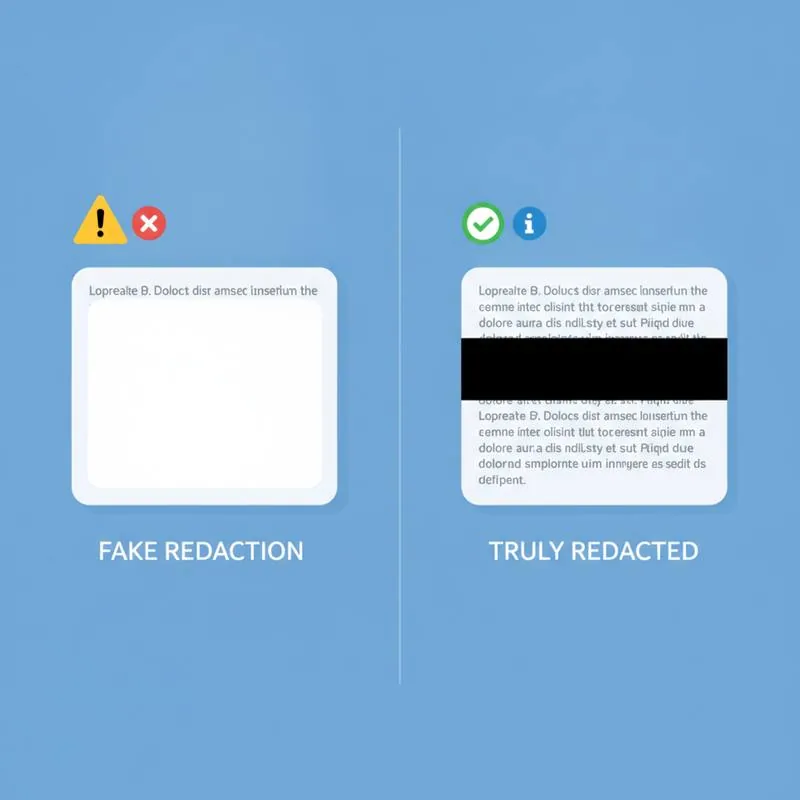
Open any PDF editor, draw a solid black rectangle over a Social Security number, save the file, and email it. To your eyes the number is gone. To anyone who opens that file in Adobe Acrobat's "Select All" mode - Or even pastes the content into Notepad - The digits are still perfectly readable. This is one of the most common data-leakage mistakes made by law firms, HR departments, government agencies, and healthcare providers every single day.
PDF files are not images. They are structured documents containing layers of data: fonts, vector graphics, annotations, form fields, and a text-content stream that lives separately from the visual rendering. When you draw a box over text, you are adding a new visual element on top of an existing element. The underlying text element is still encoded in the file. Any compliant PDF reader can retrieve it.
The same problem applies when you use a PDF editor's built-in "delete" or "remove" tool on body text if the tool only removes the rendered glyph rather than the content stream entry. Some editors do the right thing; many do not. The only way to be certain is to verify the result - Which we cover at the end of this article.
Why the PDF Text Layer Survives Visual Edits
To understand the problem it helps to know how PDF text storage works. Inside every PDF there is a content stream - Essentially a sequence of drawing instructions. A line of text looks something like BT /F1 12 Tf 72 720 Td (SSN: 123-45-6789) Tj ET. That instruction says "use font F1, 12pt, place the cursor at coordinates 72,720, then draw the string." When you draw a black rectangle over position 72,720, you are adding a new drawing instruction after that text instruction. The original instruction is still in the stream. PDF renders the file top-to-bottom, so your box appears on top visually - But the text data never left.
What True Redaction Actually Does
Proper redaction involves two distinct steps that must both happen before the file is saved:
Step 1 - Content removal
The sensitive text (or image region) is identified and its content-stream entries are deleted or replaced with innocuous placeholder data. This is not a visual operation - It modifies the underlying file structure.
Step 2 - Rasterisation / flattening
The redacted area is rendered to pixels (a flat image), and the black redaction bar is burned into that pixel layer. The resulting region contains no selectable text, no vector data, and no metadata about what used to be there.
PDFBEAR's Redact PDF tool handles both steps automatically in the browser. You mark the regions to redact, the tool processes the file server-side, and the output is a clean PDF where the blacked-out zones are pixel regions with no recoverable text beneath them.
Legal and Regulatory Consequences of Fake Redaction
The stakes are not hypothetical. Multiple high-profile breaches have occurred when agencies, courts, and corporations published PDFs they believed were redacted but were not. The consequences span several major regulatory frameworks:
| Regulation / Context | What must be redacted | Potential penalty |
|---|---|---|
| GDPR (EU) | Personal identifiers, health data, financial data of EU residents | Up to €20 million or 4% of global annual turnover |
| HIPAA (US) | 18 Protected Health Information identifiers including names, dates, phone numbers, SSNs | $100–$50,000 per violation, up to $1.9M per year per category |
| Legal discovery | Privileged attorney-client communications, trade secrets | Sanctions, mistrial, opposing counsel gains strategic advantage |
| Government FOIA releases | Classified or privacy-exempt information | Criminal liability if classified material is exposed |
| Financial filings (SEC, etc.) | Non-public material information during review periods | Securities fraud investigation, fines |
In 2005 the U.S. Department of Justice published a report on a terrorism investigation in which names were "redacted" with black boxes - But the names were trivially extractable by copy-paste. The incident became a textbook example of failed redaction. Similar leaks have come from the NSA, the European Commission, and dozens of law firms.
How to Verify That Redaction Actually Worked
After redacting a document - Whether you used PDFBEAR's Redact PDF tool or any other application - Always run this verification checklist before sharing the file:
If any step above returns the supposedly redacted content, your redaction failed. Go back, apply true redaction (content removal + flattening), and re-verify. You may also want to Flatten PDF the file afterwards to collapse all annotation layers, ensuring no remnants survive in the annotation data structures.
Step-by-Step: Redacting a PDF With PDFBEAR
PDFBEAR makes proper redaction straightforward without requiring desktop software installation:
- Go to the Redact PDF tool and upload your file - Drag-and-drop or click to browse. Files up to 50 MB are supported free of charge.
- Use the selection tool to draw boxes over every region that must be redacted. You can mark multiple areas on multiple pages.
- Click Apply Redaction. PDFBEAR processes the file server-side: it removes the underlying content, renders pixel replacements, and rebuilds a clean PDF.
- Download the redacted PDF. Run the copy-paste verification above to confirm the sensitive content is gone.
- For maximum safety, also run the file through Flatten PDF to collapse any remaining form fields or annotation layers.
The entire process takes under a minute for most documents. Your files are encrypted in transit over HTTPS, processed without human review, and automatically deleted within 14 days of last activity. No software to install, no watermarks, no account required for free use.
Quick Reference: Fake vs. Real Redaction
| Action | Text layer removed? | Safe to share? |
|---|---|---|
| Draw a black rectangle in a PDF editor | No | No |
| Delete text visually in a PDF editor | Sometimes | Verify first |
| Print to PDF after covering with shapes | Depends on printer driver | Risky |
| Screenshot then save as PDF | Yes (but loses all vector quality) | Acceptable workaround |
| True redaction tool (PDFBEAR Redact PDF) | Yes | Yes - Verify to be safe |
The bottom line: if you are sharing any document under a compliance obligation, always use a dedicated redaction tool and always verify the output. A 30-second copy-paste test could save you from a six-figure fine or a front-page data breach story.
Compare PDF tools
 Continue with Google