- Convert Word to PDF via Word to PDF, JPGs to PDF via JPG to PDF, then combine everything with Merge PDF.
- File order matters - Put your cover page or CV first, supporting docs last.
- Consistent page sizes (all A4 or all Letter) prevent awkward gaps when printed.
- One PDF packet looks more professional than a ZIP of mixed files for job apps, proposals, and tenders.
- All three tools are free, browser-based, no watermark, no install.
You are pulling together a job application: a Word CV, an Excel salary-expectations sheet, a scanned diploma, and three JPG portfolio photos. Or perhaps a client proposal: a Word cover letter, an Excel quote breakdown, and a PNG of your company logo on a title page. Either way, the recipient expects one clean PDF - Not a ZIP archive of mixed file types that they have to open separately and piece together mentally.
This guide walks through the exact three-step workflow to merge any combination of Word documents, Excel spreadsheets, and images into a single polished PDF using free tools at PDFBEAR. No software to install. No watermark on your output. Done in the browser.
Why One PDF Is Always Better Than Multiple Files
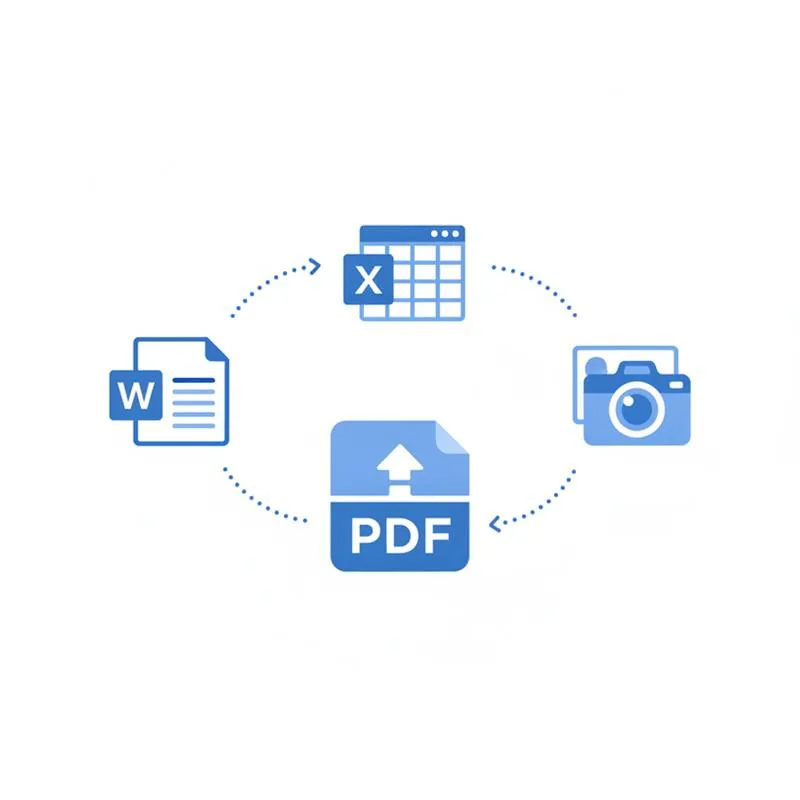
Sending multiple attachments forces the reader to open each one individually, switch between applications, and mentally sequence them. A single PDF:
- Opens in any browser, phone, or PDF viewer without special software.
- Preserves your intended reading order - Cover page, then CV, then supporting docs.
- Cannot be accidentally reordered or partially forwarded.
- Has a consistent look: fonts, page size, and spacing all held together.
- Is far easier to print in one go.
For job applications, client proposals, and government tender submissions, a single PDF signals professionalism. Reviewers processing hundreds of applications genuinely notice the difference.
Step 1 - Convert Your Word Document to PDF
Go to PDFBEAR Word to PDF. Upload your .doc or .docx file. The conversion engine honours your fonts, tables, headers, footers, and page breaks exactly as Word laid them out - No re-formatting required. Download the resulting PDF.
A few things to check before you upload:
- Embedded fonts. If you used a non-standard font, embed it in the Word file before converting (File → Options → Save → Embed fonts). Otherwise the converter substitutes a fallback and the spacing shifts.
- Track changes. Accept or reject all tracked changes before converting. Revisions in the Word file do not appear in the PDF, but accepting them ensures the layout is final.
- Page size. Decide now whether your packet will be A4 or US Letter. Set the Word page size to match, and use the same standard for every document in the set. Mixing sizes creates awkward white strips when the merged PDF is printed.
If you have a presentation (PowerPoint) rather than a Word doc, use PPT to PDF instead - Same idea, same workflow.
Step 2 - Convert Your Excel Sheet (and Images) to PDF
Excel spreadsheets need their own conversion pass. Use PDFBEAR Excel to PDF. Before uploading:
- Set your print area in Excel (Page Layout → Print Area → Set Print Area) so only the relevant cells are included.
- Scale the sheet to fit a set number of pages (Page Layout → Scale to Fit) - "1 page wide by X pages tall" is usually the right choice for a quote table.
- Choose the same page orientation (portrait or landscape) as the rest of your packet, or accept that one landscape page will appear rotated in the merged file.
For images - JPGs, PNGs, or scans - Use JPG to PDF. You can upload multiple images at once and the tool will place each one on its own PDF page. Set the output page size to match the rest of your document set (A4 or Letter) so the images sit centred with consistent margins rather than filling odd-sized pages.
Step 3 - Merge Everything Into One PDF
Once you have individual PDFs for each source file, go to PDFBEAR Merge PDF. Upload all your PDFs at once. The tool shows them as a drag-and-drop list so you can reorder them before merging.
File order matters enormously. A standard professional packet runs:
- Cover page or title sheet (the first thing the reader sees)
- Primary document (CV, proposal, main report)
- Supporting financials or data (the Excel-derived PDF)
- Appendices and images (scans, certificates, portfolio shots)
Drag the tiles into that sequence, then click Merge PDF. Download the combined file. The result is a single, correctly ordered, consistently sized PDF - Exactly what a recruiter, client, or procurement officer expects to receive.
Comparison: File Types and Their Conversion Path
Real-World Scenarios: When This Workflow Shines
Job Applications
Many applicant-tracking systems accept only a single PDF upload. A combined packet containing your CV (Word→PDF), your cover letter (Word→PDF), and a scanned reference letter (JPG→PDF) satisfies that requirement cleanly. Recruiters can forward the one file to a hiring manager without anything getting lost.
Client Proposals
A consulting proposal typically has a Word narrative, an Excel cost table, and a PNG with your firm's logo on a title page. Converting each to PDF and merging gives the client a single scrollable document. You can also add page numbers to the merged file afterward for a final professional touch.
Tender and Grant Submissions
Government tenders and grant applications often have strict requirements: one PDF, named specifically, with sections in a defined order. Building the packet with PDFBEAR lets you control every detail of that order before submitting. If the submission portal has a size limit, run the merged PDF through Compress PDF to reduce the file size without visible quality loss.
Academic Submissions
Thesis appendices, research datasets as Excel, and scanned signed declaration forms can all be assembled into one submission PDF. If any part of the packet needs a signature, eSign PDF lets you add it digitally before merging.
Tips for a Consistent, Professional Result
| Issue | Fix |
|---|---|
| Mixed A4 and Letter pages | Standardise all source docs to one size before converting |
| Excel sheet too wide for page | Set Scale to Fit: 1 page wide in Page Layout before converting |
| Image appears tiny with huge white border | Crop the image before uploading, or use Crop PDF after |
| Merged PDF too large to email | Run through Compress PDF after merging |
| Pages in wrong order after merge | Re-upload to Merge PDF and drag tiles into correct sequence |
| Need a signature on the final packet | Use eSign PDF on the merged file |
The whole process - Convert Word, convert Excel, convert images, merge - Typically takes under five minutes for a typical professional packet. All files are transferred over HTTPS and removed from the server after 14 days (or while your Premium subscription is active). Premium costs $13.99/month or $99.99/year and includes a 7-day free trial if you need higher file limits or batch processing.
Ready to build your packet? Start with Word to PDF, then JPG to PDF, and finish at Merge PDF. One file, done right.
Compare PDF tools
 Continue with Google