Use Extract Pages from PDF when you need specific scattered pages (pages 3, 7, 12) and Split PDF when you want to divide a document at regular intervals or into equal chunks.
- Extract Pages lets you pick any combination of pages - Non-consecutive pages work fine.
- Split PDF divides by every N pages, by file size, or at specific page numbers.
- Both tools output new PDF files without modifying the original.
- For extracting one section from a large report, Extract Pages is faster; for batch-splitting a scanned book, Split PDF is better.
Extract Pages for cherry-picked pages, Split PDF for systematic division - Pick the right tool and you get exactly the subset you need in one download.
When You Need Only a Subset of a PDF
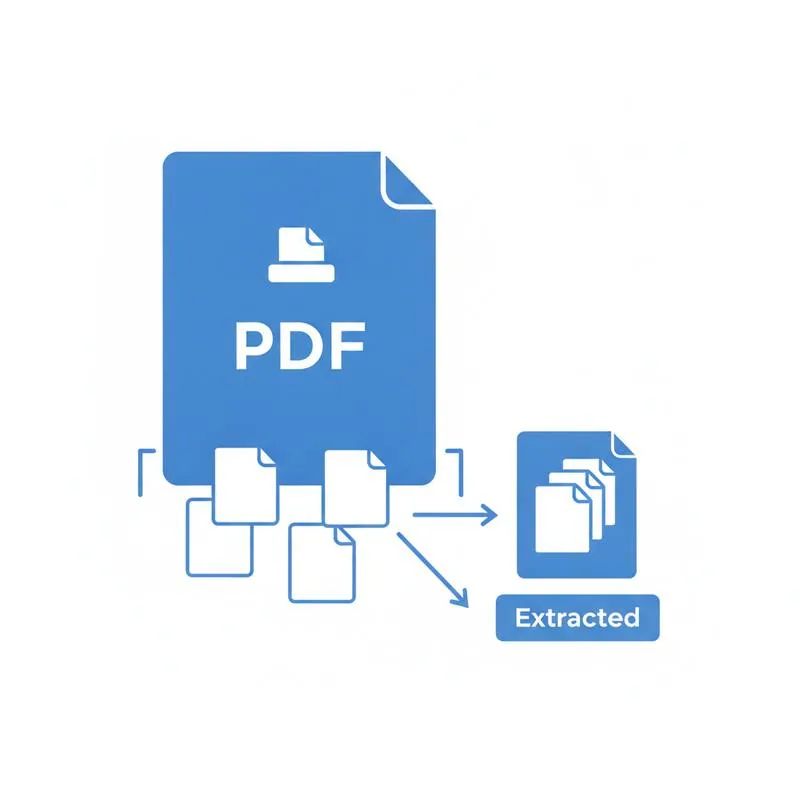
Large PDFs are common: a 200-page company manual, a scanned book chapter, a quarterly report with appendices, a combined invoice archive with every invoice from the past year in one file. Usually you only need a small part of one of these files for a given task - The product specification on page 43, the financial tables on pages 78–82, the two invoices from March. Emailing the entire 200-page file when only three pages are relevant wastes the recipient's time and bandwidth, and many email servers reject attachments over a certain size.
PDFBEAR offers two complementary tools for these situations. Extract Pages from PDF lets you specify exactly which pages you want, in any combination, and produces a new PDF containing just those pages. Split PDF takes a systematic approach: divide every N pages, divide at specific page numbers you mark as split points, or produce files of approximately equal size. Understanding the distinction helps you choose the right tool instantly rather than experimenting.
Extract Pages: Cherry-Pick Any Combination
Go to Extract Pages from PDF and upload your large PDF. The interface lets you specify pages in a flexible notation. You can enter individual page numbers separated by commas: "3, 7, 12" extracts exactly those three pages. You can enter ranges: "5-9" extracts pages 5, 6, 7, 8, and 9. You can combine both: "3, 5-9, 12, 15-17" extracts that entire set in document order. The output is a single new PDF containing the specified pages in the same order they appear in the original document - You cannot reorder via this interface (for reordering use Organize PDF on the extracted file afterward).
Extract Pages is ideal for use cases such as: pulling the executive summary from a board report; extracting a specific chapter from a scanned book; taking the two relevant invoice pages out of a 50-invoice archive; sharing just the section of a lease that covers the rental amount; or producing a "highlights" PDF from a longer research paper for a colleague who only needs the key figures.
Split PDF: Systematic Division by Rules
Go to Split PDF and upload your document. Unlike Extract Pages, Split PDF is rule-based: you define how to divide the document and the tool applies that rule consistently across the entire file. Common split modes include:
- Split every N pages: Divide the document into chunks of equal size. A 100-page document split every 25 pages produces four 25-page PDFs. Useful for distributing large documents to multiple reviewers, each responsible for their section.
- Split at page numbers: Specify the exact page numbers where new files should start. Splitting a 50-page report at pages 1, 12, 28, and 45 produces four files corresponding to defined sections. Useful when sections are not equal in length.
- Extract every page as a separate file: Each page becomes its own PDF. Useful for digitised archives where each page is a standalone document (individual receipts, individual letters).
Choosing Between the Two Tools
| Scenario | Best Tool | Input | Output |
|---|---|---|---|
| Need pages 3, 7, and 12 from a report | Extract Pages | Page numbers: 3,7,12 | 1 PDF with 3 pages |
| Need pages 45–68 from a manual | Extract Pages | Range: 45-68 | 1 PDF with 24 pages |
| Divide 200-page book into chapters | Split PDF | Split at chapter-start page numbers | Multiple PDFs |
| Create equal chunks for distribution | Split PDF | Every N pages | Multiple equal PDFs |
| Separate individual receipts from archive | Split PDF | Every 1 page | One PDF per receipt |
Extracting Pages and Then Organising the Result
Extract Pages preserves the original document order of the pages you select - You cannot reorder them during extraction. If you need the extracted pages in a different order, extract them first, then open the resulting PDF in Organize PDF to rearrange the thumbnails into your desired sequence before downloading the final version. This two-step approach gives you the flexibility of picking any pages from any positions in a large document and then presenting them in any order you choose.
Similarly, if you want to extract pages from multiple different large PDFs and combine them into one coherent document, extract from each source document separately, then combine all the resulting small PDFs with Merge PDF. This pattern is common when producing briefing packs, evidence bundles, or curated collections from multiple source documents.
File Size Considerations After Extraction
Extracting a few pages from a large PDF does not always produce a proportionally small output file. PDF internals sometimes include fonts, images, and embedded assets that are referenced by multiple pages - When you extract just a few pages, the output file may still include the full embedded asset even if only a small part of it is visible on the extracted pages. In practice, extracting 5 pages from a 100-page document produces a file that might be 30–40% of the original rather than the expected 5%.
If file size is a concern after extraction, run the output through Compress PDF. This re-optimises the embedded assets for the subset of content actually present in the extracted pages, removing references to fonts and images from the pages you excluded. The result is typically a significantly smaller file without any visible quality change at normal viewing sizes.
Working With Large PDFs on Free Accounts
PDFBEAR's free plan allows uploads up to 50 MB, which covers most typical PDF documents. Very large source files - A 500-page scanned book, a high-resolution image archive - May exceed this limit. If you hit the size cap, consider upgrading to PDFBEAR Premium ($13.99/month or $99.99/year, with a 7-day free trial) for larger file limits, or compress the source PDF first using Compress PDF to bring it within the free limit before running the extract or split operation.
Compare PDF tools
 Continue with Google