- Cropping removes blank border space without changing the actual PDF page size stored internally.
- Academic papers and ebook PDFs often carry 25–40 mm of margin that wastes paper when printed.
- Use PDFBEAR Crop PDF - Free, browser-based, no watermark, no install needed.
- You can set custom margins or let the tool auto-detect the tightest crop around real content.
- Cropped PDFs are smaller on-screen and fit tablets and e-readers far better.
You open a journal article, hit Print, and a quarter of every sheet comes out blank. Or you load a programming ebook on your tablet and spend half the time pinching in because the publisher left enormous gutters on all four sides. Margin waste is one of the most common PDF frustrations - And cropping is the fix most people never discover.
This guide explains exactly what PDF cropping does, how it differs from resizing, when to use each approach, and how to get a clean result in minutes using PDFBEAR's free Crop PDF tool.
What PDF Cropping Actually Does (and Does Not Do)
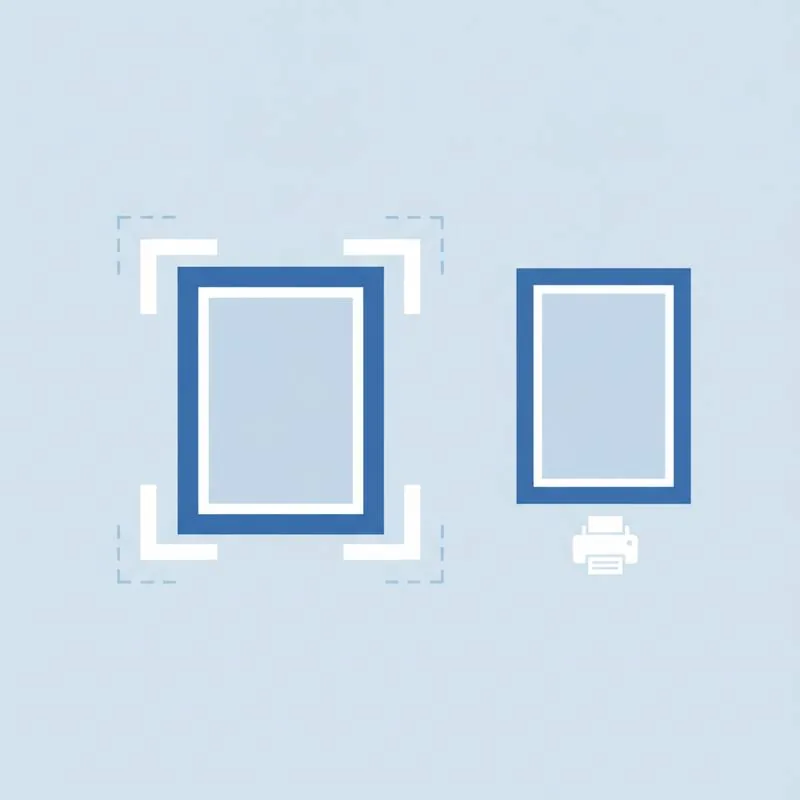
A PDF page has multiple "boxes" defined in its spec: the MediaBox (the full physical page), the CropBox (the visible area shown to viewers), the BleedBox, TrimBox, and ArtBox. When you crop a PDF you are adjusting the CropBox - You are telling viewers "only show this rectangle." The underlying MediaBox data is untouched.
This matters for a few reasons:
- Non-destructive by default. Many PDF viewers and printers honour the CropBox, so the output is clean. But the hidden data is still there, meaning sensitive content in the cropped-out margin could technically be recovered if someone opens the file in a viewer that ignores the CropBox.
- File size barely changes. Because the data is not removed, the file size stays almost the same - Unlike compression, which genuinely reduces bytes.
- Print scaling is unaffected. The crop just removes empty space; the text and images stay at their original resolution and scale.
If you need to permanently delete hidden content, you would use redaction instead. But for printing and reading purposes, cropping the CropBox is exactly right.
Cropping vs. Resizing - What Is the Difference?
People sometimes confuse cropping with resizing (or re-paging). They sound similar but do very different things:
If your goal is to print a US Letter PDF on A4 paper without black borders, you want Resize PDF. If your goal is to strip the blank margin so the actual content fills the print area, you want Crop PDF. Most printing problems caused by big margins are best solved with cropping.
How the PDFBEAR Crop PDF Tool Works
PDFBEAR's Crop PDF is entirely browser-based - Upload the file over HTTPS, set your crop, download the result. No software to install, no account required for free use, and no watermark added to your output. Files are deleted from the server after 14 days (sooner for free users who are inactive).
The tool offers two modes:
- Auto-detect. The tool analyses each page and calculates the tightest rectangle that still contains all visible content. Ideal for academic papers where the margin is consistently blank.
- Custom margins. You type in the exact millimetres (or inches) to remove from each side - Top, bottom, left, right. Useful when auto-detect is slightly too aggressive and clips a header or page number.
You can also choose whether to apply the crop to all pages, a page range, or odd/even pages separately - Handy for two-sided documents where binding gutters differ by side.
Common Use Cases: When Cropping Makes a Real Difference
Academic Papers
Many journal PDFs are laid out for double-column print with 25–35 mm margins on all sides. When you print at home on standard A4 or Letter, that margin eats into the usable area. Crop those margins away and you can often print at a larger font size or fit more content per sheet. Pair it with Compress PDF afterward if you are emailing the file.
Ebook and Reference PDFs
Programming books, legal texts, and manuals distributed as PDFs are frequently formatted for a wide desktop screen. On a 10-inch tablet they appear tiny with grey borders dominating the display. Cropping tightens the view so the text fills the screen naturally. After cropping, run the file through PDF to Word if you want to reflow the text for a smaller device.
Presentation Slides
Exported PowerPoint or Keynote slides often carry a white border around the slide area. Cropping produces cleaner thumbnails when you embed slides in a proposal or share a PDF deck with a client. You can then merge the cropped slide PDF with other documents into a single polished packet.
Scanned Documents
Flatbed scans frequently include a black or grey border where the scanner lid met the glass. Cropping removes that border without affecting the scanned text. If the scanned document is not yet searchable, run it through OCR PDF first, then crop.
Step-by-Step: Crop a PDF in PDFBEAR
- Go to pdfbear.com/crop-pdf.
- Click Select PDF file (or drag and drop). Files up to 50 MB are free.
- A page preview loads. Choose Auto-detect margins or switch to Custom and type your values.
- Select which pages to crop - All pages is the default.
- Click Crop PDF and wait a moment while the server processes your file.
- Click Download to save the cropped PDF.
If you need to do more with the file - Rotate a page, add a page number, or sign it - PDFBEAR offers a full suite of tools you can chain together without re-uploading from scratch.
Tips for the Best Results
| Situation | Recommended setting |
|---|---|
| Uniform blank margins on all pages | Auto-detect, apply to all pages |
| Document has a cover page with different layout | Crop pages 2–end, leave page 1 uncropped |
| Two-sided print with binding gutter | Custom: larger inside margin, smaller outside |
| Page numbers sit close to the edge | Add 5 mm buffer to the bottom crop value |
| Scanned PDF with dark scanner border | Custom: crop 8–12 mm from each side |
One more tip: if you are cropping to prepare a PDF for tablet reading, consider also rotating pages that are landscape in a portrait document before you crop - It prevents the auto-detect from calculating an overly conservative boundary.
Frequently Asked Questions
Will cropping affect print quality? No. The text, images, and vector graphics inside the content area are untouched. Cropping only adjusts which part of the page is shown.
Can I undo a crop? If you kept the original file, yes - Just re-upload and set wider margins. If the PDF was saved with a hard trim (some export tools do this), you cannot recover the hidden area. Always keep a backup of the original.
Does it work on password-protected PDFs? Only if the PDF allows modifications. If the file is locked, you would need to unlock it first.
Is there a page limit? Free users can process PDFs up to 50 MB. Premium users ($13.99/month or $99.99/year, with a 7-day free trial) get higher limits and priority processing.
Cropping margins off a PDF takes under a minute and can save meaningful paper, improve readability on small screens, and make your documents look far more professional. Head to Crop PDF and clean up those borders today.
Compare PDF tools
 Continue with Google