Extracting images from a PDF pulls out the original embedded graphics at their original resolution - Completely different from converting PDF pages to images, which renders the whole page as a flat image at screen resolution.
- "Extract images" pulls out individual embedded graphics - Photos, logos, diagrams - At their original quality
- "PDF to image" renders whole pages as flat raster images - Useful but lower quality than the originals
- PDFBEAR's Extract Images from PDF recovers embedded images without quality loss
- Common use cases: reusing product photos from a catalogue, recovering logos from brand documents
Extract original embedded images from any PDF at full resolution using PDFBEAR - No quality loss, no screenshotting, no software needed.
The Difference Between Extracting and Converting
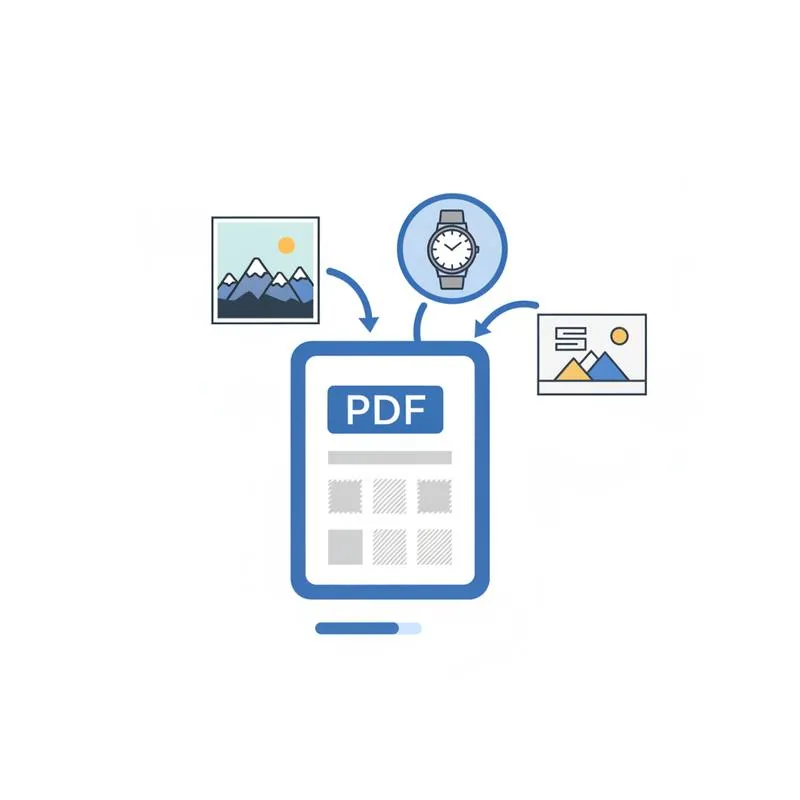
People often confuse two very different operations when they want to get images out of a PDF:
Converting a PDF page to an image (using tools like PDF to JPG or PDF to PNG) takes the entire rendered page and turns it into a raster image. The output is a flat image of the whole page - Text, background, graphics, and all - At whatever resolution you specify. This is useful for creating page thumbnails and slide previews, but the image quality is limited by the rendering resolution (usually 72–300 DPI), not by the quality of the original embedded images.
Extracting embedded images (using Extract Images from PDF) is fundamentally different. PDF files internally contain image objects - JPEGs, PNGs, and other image data embedded in the PDF's file structure. Extraction pulls these original image objects out directly, at their original resolution, in their original format. If a product catalogue PDF contains 5 megapixel product photos embedded in it, you get those 5 megapixel photos back - Not a lower-resolution rendering of the page they appeared on.
When You Should Extract Rather Than Convert
The quality difference becomes critical in several scenarios:
- Product catalogues: Suppliers and brands often share product catalogues as PDFs. The product photos inside are usually high-resolution originals. If you screenshot or convert the page, you get a downscaled, compressed version. Extracting gives you the original photo ready for your own website or marketing materials.
- Brand assets: A company's brand guide PDF contains the official logo in vector or high-resolution format. Extracting it gives you the original file. Taking a screenshot gives you a blurry, low-resolution approximation.
- Infographics and diagrams: Reports and whitepapers often embed high-resolution infographics. Extracting the image objects recovers these at original quality, suitable for reprinting or reuse in presentations.
- Recovering lost originals: If the original image files were lost but the PDF remains, extraction can recover them at or close to original quality.
- Legal and forensic purposes: Original embedded image data may be needed for evidence, audit trails, or authentication purposes where a page render would be insufficient.
How to Extract Images From a PDF With PDFBEAR
PDFBEAR's Extract Images from PDF tool works on the internal image objects in the PDF file:
- Upload your PDF. Go to the Extract Images from PDF tool and drag your PDF onto the page or use the file picker.
- Click Extract. PDFBEAR scans the PDF's internal structure and identifies all embedded image objects.
- Download the ZIP. All extracted images are packaged into a single ZIP file. Images are named sequentially (image1.jpg, image2.png, etc.) in the order they appear in the PDF's internal structure.
There is no quality loss in this process - The images are extracted exactly as they were stored in the PDF. If a JPEG was embedded, you get the JPEG back. If a PNG was embedded, you get the PNG.
| Use case | Best tool | Why |
|---|---|---|
| Get a page as an image (thumbnail) | PDF to JPG | Renders entire page including text, background |
| Recover original embedded photos | Extract Images from PDF | Gets originals at full resolution |
| Get all slide images from a presentation PDF | PDF to PNG | Renders each slide as an image |
| Recover a logo from a brand document | Extract Images from PDF | Gets original graphic asset, not a screenshot |
What Types of Images Can Be Extracted?
PDF files support several image types internally:
- JPEG/JFIF: The most common embedded image type in PDF, especially for photographs. Extraction recovers the original JPEG compression with no additional loss.
- PNG: Lossless images embedded in PDFs are often recovered as PNG on extraction.
- TIFF: Some scanned PDFs embed raw TIFF images, particularly in professional scanning workflows. These are extracted at full scan resolution.
- Vector graphics (SVG/EPS): Vector images in PDFs are usually embedded as part of the page content stream rather than as discrete image objects, so they may not be extractable as standalone vector files via image extraction - For these, you may need a PDF-to-SVG converter.
Raster images - JPEGs and PNGs - Are extracted reliably. Vector elements embedded in the content stream may not appear as separate images in the extraction output.
When Extraction Returns Unexpected Results
A few edge cases worth knowing:
- Scanned PDFs: A scanned PDF embeds the scan as one large image per page (the entire page is one image). Extraction will return these full-page scans as individual image files, which is actually very useful - You get each scan at its original scan resolution.
- PDFs with many small images: Complex PDFs (like magazines) might have dozens of small image objects per page - Decorative borders, icons, background textures, and photos. Extraction will return all of them, which might be more files than you expected. Sort by file size to find the main content images.
- Password-protected PDFs: If the PDF has permissions set that restrict copying, extraction may be blocked. You would need to unlock the PDF first using PDFBEAR's Unlock PDF tool (assuming you have the password and the right to do so).
- No embedded images: Text-only PDFs with no embedded graphics will produce an empty ZIP - There is nothing to extract. For text-only PDFs where you want a page image, use PDF to JPG instead.
PDFBEAR's Extract Images from PDF tool processes your file on secure servers (HTTPS, no human review) and your file is deleted after 14 days from last activity. No account is required to use the free tier.
Compare PDF tools
 Continue with Google