Organize PDF is PDFBEAR's all-in-one page management tool - Drag to reorder, click to rotate individual pages, and delete unwanted pages all from the same interface, then download one clean PDF.
- Organize PDF lets you reorder, rotate, and delete pages without ever leaving the interface.
- Rotate PDF and Delete Pages are separate tools useful for focused single-task edits.
- Drag-and-drop reordering works on page thumbnails - Move multiple pages by selecting them first.
- Changes are not applied until you click Download - You can undo in the interface before that.
Organize PDF is your one-stop page manager - Reorder by dragging, rotate with a click, delete with a tap, and download a perfectly structured PDF in minutes.
Why You Need Page Management Tools
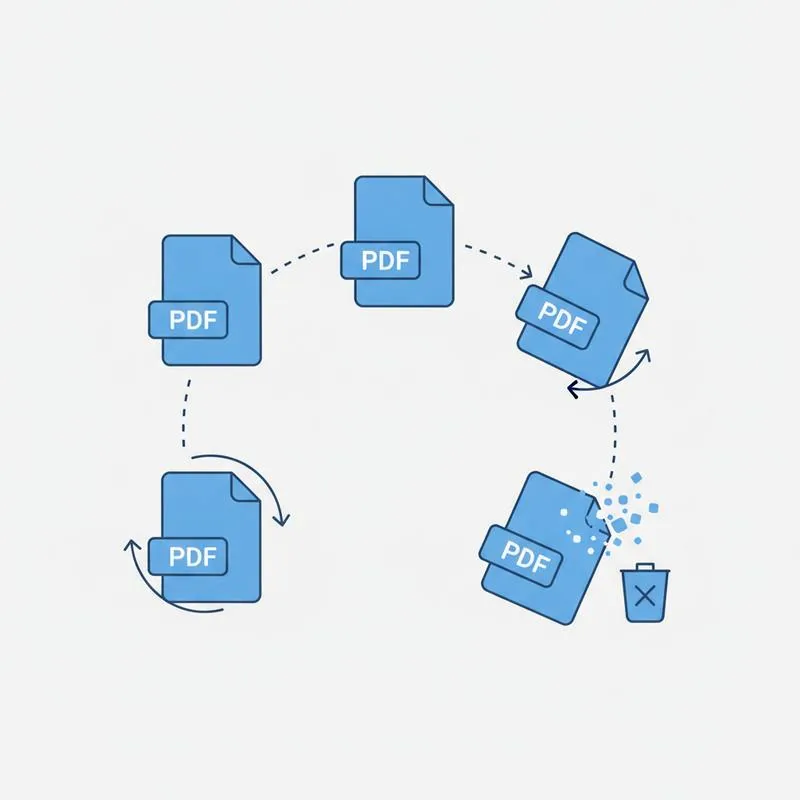
PDF page management needs arise constantly: a scanned multi-page document where the pages came through in the wrong order; a report where two pages accidentally appear twice; a presentation where slide 7 is landscape while all others are portrait; a combined PDF where the cover page somehow ended up on page 3. These scenarios all require the same basic operations - Reordering, rotating, and deleting pages - And doing them efficiently without print-and-rescan cycles saves significant time.
PDFBEAR offers this capability in two ways. Organize PDF is the command centre: a visual interface where you see all pages as thumbnails and perform all three operations without switching tools. Alternatively, you can use the dedicated single-purpose tools - Rotate PDF, Delete Pages from PDF - For focused edits when you only need to do one thing. Understanding when to use each approach saves time and reduces the chance of errors.
Reordering Pages by Dragging
Open Organize PDF and upload your document. The interface displays all pages as numbered thumbnail images arranged in a grid or list. To move a page, click and hold the thumbnail, then drag it to the new position. A visual indicator shows where the page will land when you release. Other thumbnails shift to make room. Release the mouse button (or lift your finger on touch devices) to drop the page in its new position. The page numbers update automatically to reflect the new order.
For large documents where you need to move a page across many positions, it can be faster to use the numeric input field that many page management tools offer - Type the target page number and press Enter to jump the page to that position. If you need to move a contiguous block of pages (say, pages 5 through 8 should come before page 3), select all four thumbnails by clicking the first, then Shift-clicking the last, and then dragging the group as a unit.
Rotating Individual Pages
Each page thumbnail in the Organize PDF interface has a small rotation button - Typically an arrow curving in a circle - Visible either always or when you hover over the thumbnail. Click this button to rotate that specific page 90 degrees clockwise. Click it again for 180 degrees, again for 270 degrees, once more to return to the original orientation. This lets you fix the common case where a landscape-oriented figure or table page was scanned in portrait orientation, without affecting any other pages in the document.
This is the key advantage of Organize PDF over the standalone Rotate PDF tool: you can rotate individual pages while simultaneously reordering and deleting - All in a single session. With the standalone Rotate PDF tool, you would need to save, then separately open Organize PDF. For combined multi-operation edits, staying in Organize PDF the whole time is faster.
Deleting Unwanted Pages
Each thumbnail also has a delete control - Usually an "X" button or a trash icon. Clicking it marks the page for deletion. In most implementations, deleted pages remain visible but are dimmed or crossed out until you confirm by clicking Download - Meaning you can restore a page if you change your mind before the final step. This safety mechanism prevents accidental permanent deletion of pages from valuable documents.
Use the delete feature to remove: blank pages that the scanner captured at the end of the document; duplicate pages created by a double-feed during scanning; cover or separator sheets that were needed for the scanning process but are not part of the content; and confidential pages that should not be included in the shared version. For the last use case, always verify the page count in the downloaded file before sending.
When to Use the Separate Tools Instead
Organize PDF is the most efficient choice when you need to do more than one type of page operation in a single session. Use the dedicated tools when you have a single focused task:
| Task | Best Tool | Why |
|---|---|---|
| Reorder + rotate + delete | Organize PDF | All operations in one interface |
| Rotate all pages the same way | Rotate PDF | Batch rotate is faster here |
| Delete specific page numbers | Delete Pages from PDF | Type page numbers directly |
| Extract a range of pages | Extract Pages from PDF | Dedicated extraction interface |
| Split into separate files | Split PDF | Outputs multiple files |
Practical Workflow: Fixing a Scanned Multi-Page Report
Here is a typical scenario: you have scanned a 10-page report and the resulting PDF has page 7 in landscape orientation, pages 5 and 6 are in the wrong order (6 comes before 5), and page 8 is a blank sheet that the scanner picked up accidentally. Open Organize PDF and upload the file. First, rotate page 7 by clicking its rotation button once (90° clockwise assuming it is rotated left). Second, drag page 6 after page 5 to restore the correct order. Third, click the delete button on page 8 (now page 7 after reordering) to mark it for removal. Review all thumbnails one final time to confirm the order and orientations look correct, then click Download. The downloaded PDF is 9 pages, correctly ordered, all portrait orientation, no blank page. Total time: under two minutes.
If you later realise you deleted the wrong page - Say it was page 9 that was blank, not page 8 - Go back to the original uploaded file (which PDFBEAR keeps for up to 14 days), re-run the Organize PDF operation with the correct deletion, and download again. PDFBEAR's file retention means you are not locked out if you need to redo a step.
Compare PDF tools
 Continue with Google