- Split any PDF into equal chunks (e.g. every 10 pages) in seconds - No software to install.
- Use fixed-interval splitting for chapters, invoices, or email attachments.
- Need custom ranges? Switch to Extract Pages instead.
- Files are deleted after 14 days (free) or kept while you're subscribed to Premium.
- Works on any browser - Windows, Mac, Linux, Chromebook.
You have a 200-page PDF - Maybe a quarterly report, a batch of scanned invoices, or a textbook - And you need to break it into smaller pieces. Emailing a 60 MB file is impractical. Sharing individual chapters is far more useful than one enormous document. The good news: Split PDF on PDFBEAR lets you divide any document by a fixed page interval automatically, no manual selection required.
This guide walks through every splitting scenario: fixed-interval chunks, custom page ranges, and how to decide which PDFBEAR tool to use for each job.
Why Splitting a PDF Automatically Saves Time
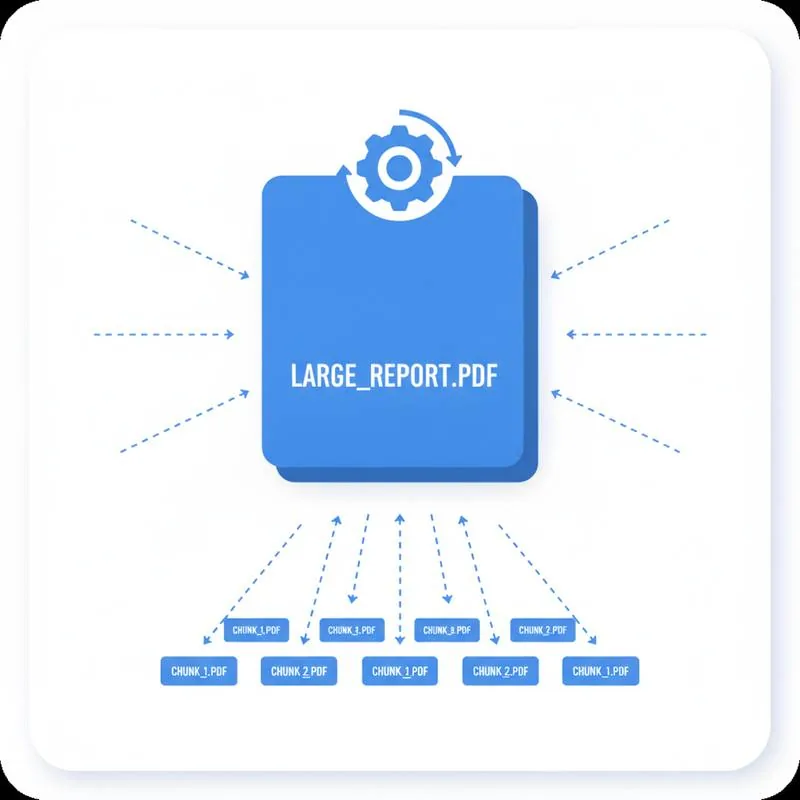
Manual splitting - Opening a PDF editor, selecting a range, saving, repeating - Takes minutes per split. For a 200-page document broken into 20-page chapters that is ten separate operations. Automatic splitting by interval does all of them in one pass.
Common reasons people split PDFs:
- Chapter distribution: Share individual chapters of a manual or e-book without giving away the whole file.
- Email attachment limits: Most email providers cap attachments at 25 MB. Splitting a large PDF into smaller parts clears that ceiling.
- Invoices from batch statements: Accounting software often exports all monthly invoices in one PDF. Each client needs their own file.
- Printing in sections: Large print runs are easier to manage in smaller stacks.
- Archiving by date or category: A year of scanned receipts split by month is far easier to retrieve.
Fixed Interval vs Custom Page Ranges: Which to Use
PDFBEAR offers two approaches to breaking up a PDF. Understanding which one fits your situation avoids extra steps.
Fixed interval splitting (via Split PDF) is the right choice when your chunks need to be the same size - Every 5, 10, or 25 pages. You enter one number and PDFBEAR generates all the output files at once.
Custom range extraction (via Extract Pages from PDF) is better when each section has a different length - Perhaps the introduction is 4 pages, chapter 1 is 18 pages, and chapter 2 is 22 pages. You define each range manually.
Step-by-Step: Split a 50-Page PDF into 10-Page Chapters
This example walks through splitting a 50-page document into five 10-page files.
- Go to pdfbear.com/split-pdf.
- Click Choose File (or drag your PDF onto the drop zone). Files up to 50 MB upload free; Premium subscribers have no size cap.
- Once the document is processed, you will see the splitting options panel. Select Split every N pages.
- Enter 10 in the interval field.
- Click Split PDF. PDFBEAR will produce five files: pages 1–10, 11–20, 21–30, 31–40, and 41–50.
- Download each file individually or use the Download All button to get a ZIP archive.
The entire process takes under a minute for most documents. PDFBEAR processes files in the browser session and does not require an account for basic use.
Split PDF vs Extract Pages from PDF: A Full Comparison
Both tools reduce a large PDF to smaller ones, but they serve different workflows. Here is how they compare side by side:
| Feature | Split PDF | Extract Pages |
|---|---|---|
| Best for | Equal-size chunks | Variable-length ranges |
| Input | One interval number | Custom page ranges |
| Output | Multiple files (ZIP) | One or more files |
| Requires page knowledge | No | Yes |
| Best use case | Invoice batches, chapters | Reports with uneven sections |
| Watermark | None | None |
Practical Use Cases With Specific Intervals
Separating Invoices from a Batch Statement
Many accounting platforms export a month's worth of invoices as a single PDF - One invoice per page. If you have 120 invoices in one file, use Split PDF with an interval of 1 to generate 120 individual invoice files. Each client receives only their own document.
Breaking a Report into Chapters for Review
Technical reports often have chapters of roughly equal length. Split every 15 or 20 pages and send each reviewer only the section relevant to them. This speeds up feedback cycles and avoids comments on the wrong section.
Chunking Large PDFs for Email
A 60 MB PDF will bounce off most email servers. Splitting into three 20 MB parts clears Gmail's 25 MB limit. Number each part clearly in the filename ("Report-Part-1-of-3.pdf") so the recipient knows they have the complete set.
Archiving Scanned Documents by Date
If you scan a year's worth of receipts into a single PDF (roughly 365 pages for daily receipts), splitting every 30 or 31 pages gives you monthly archives that are easy to search and attach to expense reports.
Tips for Cleaner Splits
- Check the page count first: Open your PDF and note the total pages before choosing an interval. An interval that does not divide evenly creates one smaller remainder file - That is expected behaviour.
- Use Compress PDF before splitting: If the original file is very large, compressing it first reduces upload and download time.
- Rename output files immediately: PDFBEAR names output files sequentially (document-part-1.pdf, etc.). Rename them to match your content before sharing.
- Need to reorder pages first? Use Organize PDF to rearrange pages before splitting, so each chunk starts at the right content boundary.
- Combine later if needed: If you split and then realise you cut at the wrong point, use Merge PDF to recombine selected files and try again.
Privacy and File Retention
All uploads to PDFBEAR are transferred over HTTPS. Free accounts retain files for 14 days of inactivity; Premium subscribers keep files for the duration of their subscription plus a 30-day grace period. No watermarks are added to any output file, free or Premium.
Premium is $13.99/month or $99.99/year, with a 7-day free trial - No credit card required upfront. Premium removes file-size caps and adds batch processing for heavy workflows.
Ready to split? Go to pdfbear.com/split-pdf and upload your file. The whole process takes under a minute.
Compare PDF tools
 Continue with Google