PNG is lossless and supports transparency - Best for text-heavy images and diagrams going into PDFs. JPG is lossy but much smaller - Best for photos and content where file size matters more than pixel-perfect sharpness.
- PNG is lossless: every pixel saved exactly - Great for text, logos, charts, and screenshots
- JPG is lossy: some quality traded for smaller file size - Ideal for photos
- PNG supports transparency; JPG does not (fills with white or other matte colour)
- Use PNG to PDF or JPG to PDF based on your image type, not habit
Choose PNG for crisp text and graphics, JPG for photos - The right format makes your PDFs sharper, smaller, and more professional.
The Core Difference: Lossless vs Lossy Compression
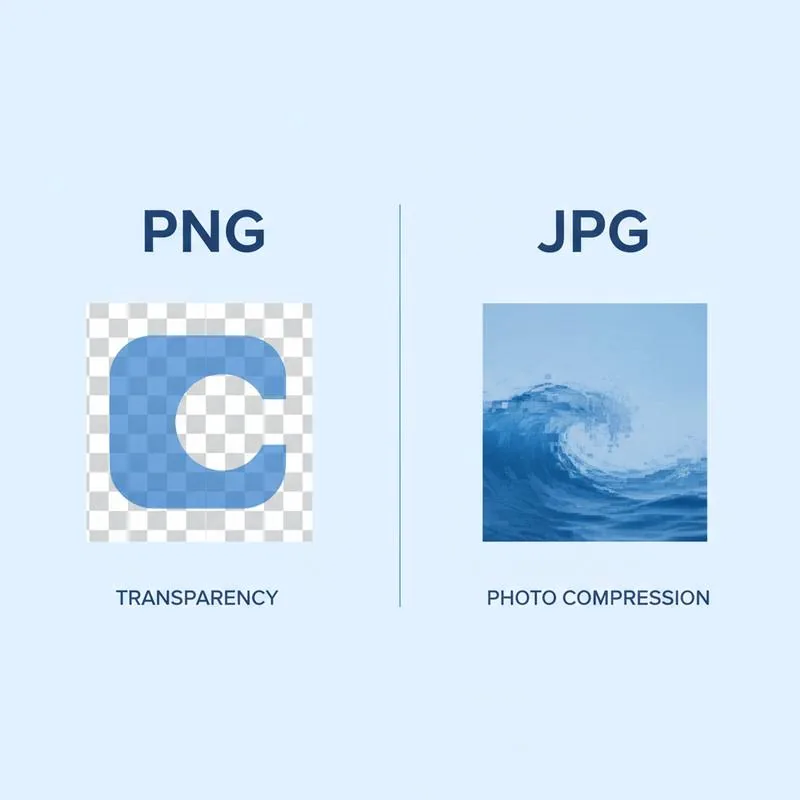
PNG and JPG take fundamentally different approaches to storing image data, and that difference has real consequences when those images end up in PDFs.
PNG (Portable Network Graphics) uses lossless compression. Every pixel value in the original image is preserved exactly when the file is saved. No image data is discarded. When you save a text screenshot as a PNG and open it later, every letter edge is exactly as sharp as the original. You can save a PNG repeatedly without any degradation.
JPG (also written JPEG) uses lossy compression. The algorithm discards pixel data that human perception is unlikely to notice, particularly subtle colour variations in areas of similar colour. This produces much smaller files - Typically 60–80% smaller than a PNG of the same image - But introduces visible artefacts if you look closely, especially around sharp edges like text characters. Each time you re-save a JPG, the compression runs again and quality degrades further (this is called "generation loss").
For PDF creation, this matters because the image you convert to PDF will be seen at various zoom levels. A blurry letter edge in a JPG is barely noticeable on screen but becomes clearly visible when someone zooms in or prints at high resolution.
When to Choose PNG for PDF Conversion
PNG is the right choice when your images have any of these characteristics:
- Text in the image: Screenshots of software, computer interfaces, code snippets, or any image where text legibility matters. JPG compression creates visible halos and blurriness around text characters at typical compression levels.
- Line art and diagrams: Technical drawings, flowcharts, org charts, architectural diagrams, and any image with hard edges between different-coloured areas. JPG smears these boundaries; PNG keeps them sharp.
- Logos and icons: Logos rely on exact colours and sharp edges. JPG compression shifts colours and softens edges. PNG - Especially with transparency - Preserves the exact visual of the logo.
- Transparency required: Logos with transparent backgrounds, watermarks, decorative elements that should blend with the page background - Only PNG supports true transparency. When you embed a JPG, transparent areas become white (or whatever matte colour the tool uses).
- Images that need further editing: If you might edit and re-save the image in the future, start with PNG to avoid generation loss. Convert to JPG only as a final step if file size is a concern.
Use PDFBEAR's PNG to PDF tool to convert PNG images to PDF pages while preserving all this lossless quality.
When to Choose JPG for PDF Conversion
JPG is the better choice in these situations:
- Photographs: Real-world photos have no sharp text edges or hard colour boundaries, so JPG compression artefacts are virtually invisible. A photo saved as JPG at 85% quality looks identical to PNG at normal viewing distances but is dramatically smaller.
- File size is a priority: If you are emailing a PDF or uploading it to a platform with file size limits, JPG images in the PDF will keep the total size manageable. A PDF full of uncompressed PNGs can grow very large very quickly.
- Large image dimensions: High-resolution photos (4000+ pixels wide) need enormous file sizes as PNG. JPG compression makes them practical to store and share.
- Scanned document photos: Photos taken of physical documents are best stored as JPG - The content is photo-like (varying brightness, paper texture, imperfect lighting) rather than text-on-white, so JPG handles it well.
Use PDFBEAR's JPG to PDF tool to convert JPG images into PDF pages efficiently.
| Image type | Best format | Reason |
|---|---|---|
| Screenshot of software/UI | PNG | Text sharpness, exact colours |
| Photograph (people, products, nature) | JPG | Lossy compression invisible on photos |
| Logo with transparent background | PNG | Transparency support |
| Flowchart or diagram | PNG | Sharp edges on lines and text |
| Scanned physical document (photo-like) | JPG | Photo-like content suits lossy compression |
| Infographic with text + charts | PNG | Mixed content - Text needs lossless |
| Product catalogue photo | JPG | Photo content, file size matters |
Does the Choice Affect the PDF Quality?
Yes, in two important ways. First, when you embed a JPG into a PDF (using JPG to PDF), the JPG compression artefacts that were already in the file are baked into the PDF. The PDF reader cannot undo the lossy compression that happened when the JPG was created. Second, PDF itself uses compression for its content streams, and how well image data compresses within a PDF depends partly on the image format.
The practical takeaway: if your image was originally created as a PNG (a screenshot, a diagram exported from design software), keep it as PNG through the entire workflow. Only convert to JPG if you need to reduce file size and the image content is photo-like. If you receive a JPG image for PDF conversion, convert it directly as JPG - Do not convert it to PNG first in hopes of recovering quality. The quality loss from JPG compression is already baked in; converting to PNG just makes the file larger without adding quality.
Quick Decision Guide
When you are about to convert an image to PDF, ask these two questions:
- Does the image contain any text, sharp lines, or hard edges? If yes, use PNG to PDF. These elements look significantly worse in JPG at typical compression levels.
- Is the image a photograph without transparency? If yes, use JPG to PDF. You will get a much smaller output file with no noticeable quality difference for photographic content.
If you are unsure, PNG is the safer choice. The output file will be larger, but you will never have visible compression artefacts in your PDF. You can always compress the finished PDF using PDFBEAR's Compress PDF tool afterwards if file size becomes a concern.
Compare PDF tools
 Continue with Google