Repair PDF is the right move when you have a corrupted file but no original source. If you still have the Word, Excel, or PowerPoint file, re-converting is faster and produces a cleaner result.
- Repair PDF fixes corrupted downloads, broken cross-reference tables, and invalid headers
- Re-converting from the source file always produces a higher-quality PDF than repairing
- Signs a file is repairable: it opens but shows errors, or opens partially
- Signs a file is too damaged: zero bytes, completely blank, or unrecognised file format
When in doubt, try Repair PDF first - It takes seconds and costs nothing to attempt.
Two Ways to Rescue a Broken PDF
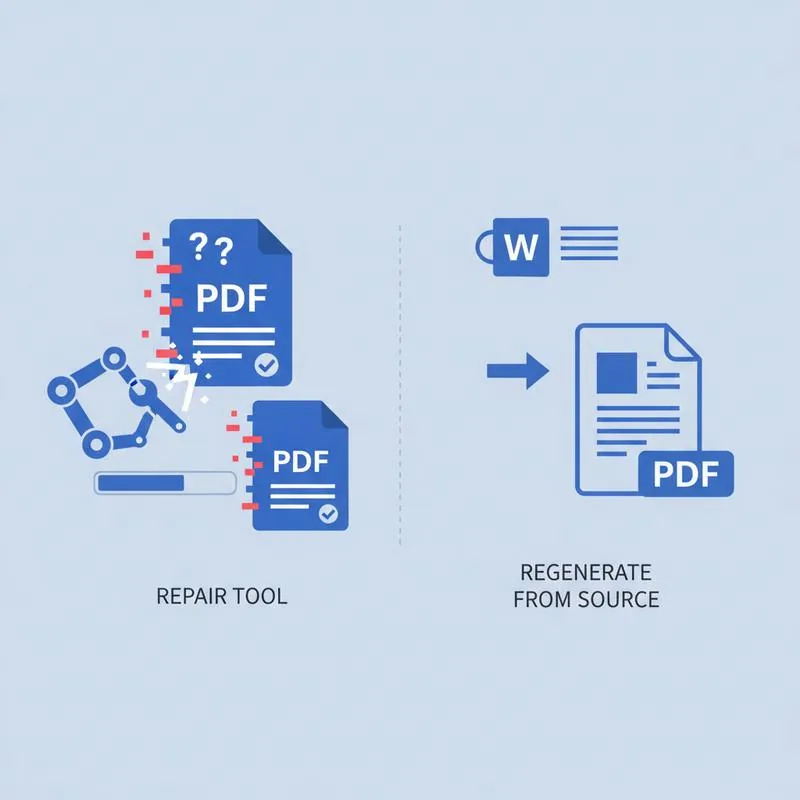
A PDF that won't open is one of the most frustrating file problems you can encounter - Especially when it contains something important. The good news is there are two recovery paths, and choosing the right one saves you time and produces a better result.
Path 1 - Repair the PDF: Use PDFBEAR's Repair PDF tool to reconstruct the broken file without needing any source document.
Path 2 - Re-convert from source: Go back to the original Word, Excel, or PowerPoint file and use PDFBEAR's PDF Converter to generate a fresh PDF.
The second path always produces a better PDF - It's essentially creating the file new rather than patching a broken one. But it requires that you still have the source file. When you don't, Repair PDF is your only option.
What Does PDF Corruption Actually Look Like?
PDF corruption isn't one thing - It's a category of problems with different causes and severities. Understanding the type of damage helps you predict whether repair will work.
| Corruption Type | Cause | Symptom | Repairable? |
|---|---|---|---|
| Truncated file | Download interrupted mid-transfer | Opens but cuts off partway through | Usually yes |
| Broken cross-reference table | Saving interrupted, storage failure | "Failed to load PDF document" error | Often yes |
| Invalid header | File renamed from another format, wrong MIME type | Not recognised as PDF | Sometimes |
| Overwritten sectors | Hard drive failure, bit rot | Pages open blank or with visual artifacts | Partially |
| Zero-byte file | Failed save, full disk during export | File exists but is empty | No |
| Encrypted and key lost | Password forgotten | Password prompt, no way in | No (use Unlock PDF first) |
When to Use Repair PDF
PDFBEAR's Repair PDF tool works best in these situations:
- Corrupted download: You downloaded a PDF from the internet or an email attachment and it won't open. The file was probably truncated mid-transfer - Repair PDF can often recover the content that made it through.
- Broken cross-reference table: PDFs use an internal index (xref table) to locate page content. If saving was interrupted, this index can become inconsistent. The error message is usually "Cannot open PDF" or "File is damaged." Repair rebuilds this index.
- Network interruption during save: Saving from a cloud drive or network share that dropped mid-save often produces a partial file that Repair PDF can reconstruct.
- You don't have the source: If the PDF was created by someone else or from a system you no longer have access to, repair is your only option.
When Re-Converting From the Source Is Better
If you still have the original file - A Word document, Excel spreadsheet, PowerPoint deck, or image - Re-converting it produces a cleaner, more reliable PDF than any repair process can. Here's why: repair tools work on what's left of the broken file. Re-conversion starts fresh from clean data.
Use PDFBEAR's PDF Converter to go from:
- Word (.docx, .doc) → PDF
- Excel (.xlsx) → PDF
- PowerPoint (.pptx) → PDF
- Images (JPG, PNG) → PDF
The resulting PDF will have proper fonts, correct metadata, and a valid structure - None of which are guaranteed when repairing a damaged file.
Signs Your PDF Is Repairable (vs. Too Damaged)
Before attempting repair, these indicators help set expectations:
Good signs (likely repairable):
- The file has a reasonable size (not 0 bytes or suspiciously small)
- It opens but shows an error message, or loads only partially
- Some pages display correctly but others are blank or cut off
- The file header starts with
%PDF-(you can check this by opening in a text editor)
Bad signs (probably not repairable):
- File size is 0 bytes
- The file extension is .pdf but it's actually a renamed image or ZIP file
- Every single page is blank - The content layer may be gone entirely
- The file was stored on a failing drive that is now unreadable
The Recommended Workflow
Here's the decision process we recommend:
- Check if you have the source file (Word, Excel, etc.). If yes, re-convert with PDF Converter - Done.
- If no source file, check the file size. If it's 0 bytes, unfortunately the file is gone.
- If the file has content (even partial), try Repair PDF. It takes under a minute and is non-destructive - Your original file is not modified.
- If repair produces a partial result, you can attempt to recover visible pages by printing them to a new PDF.
Both tools are free to use with no watermarks, and neither requires creating an account.
Compare PDF tools
 Continue with Google