There are three separate reasons you can't copy text from a PDF - And they each require a completely different fix. Identify which one you have before wasting time on the wrong solution.
- If you can't select text at all, the PDF is image-only - Use OCR PDF to create a text layer
- If you can select text but copy is greyed out, copy permissions are locked - Use Unlock PDF
- DRM and certified PDFs cannot have copy unlocked without the owner's consent
- The one-second test: try clicking and dragging to select a word - That tells you which problem you have
One test, 30 seconds, and you'll know exactly which fix you need.
The Three Reasons You Can't Copy PDF Text
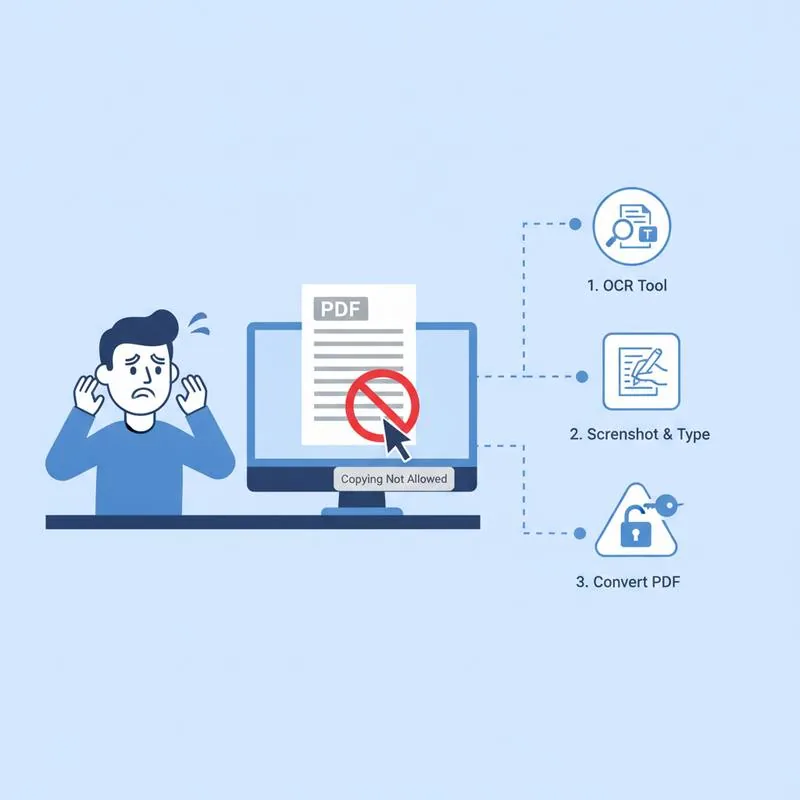
Copy-paste not working in a PDF is one of the most common PDF frustrations - And one of the most misdiagnosed. People reach for "unlock" tools when they actually have a scanned image, or try OCR when the PDF is locked. Here's how to tell which situation you're in.
Reason 1: The PDF Is Image-Only (No Text Layer)
Scanned documents - Physical pages photographed or photocopied and saved as PDF - Contain images of text, not actual text. When you try to click on a word, nothing highlights because there's no text to select. The page is essentially a photograph.
This is by far the most common reason copy-paste doesn't work. It's not a permission issue, and unlocking the PDF will not fix it.
How to confirm: Try clicking and dragging across a line of text. If you can't select anything at all - No blue highlight appears - You're dealing with an image-only PDF.
Fix: PDFBEAR's OCR PDF tool (Optical Character Recognition) analyses the images in your PDF and generates a real text layer underneath. After processing, you can select, copy, and search the text just like any other PDF. The original visual appearance is preserved - OCR adds the text layer on top of the existing images.
OCR works best when:
- The scan is reasonably clear (at least 150 DPI)
- The document is in a supported language
- The text is printed (not handwritten)
Reason 2: Copy Permissions Are Locked
PDF supports a "permissions password" system that lets document owners restrict what recipients can do with a file - Including disabling copying, printing, and editing. The document opens and you can read it, but right-clicking shows "Copy" greyed out, and Ctrl+C does nothing.
This is a deliberate choice by whoever created the PDF, often applied to:
- Legal documents where copying might be a concern
- Reports, ebooks, or publications protecting their content
- Forms where the creator doesn't want the text extracted
How to confirm: You can visually select text (it highlights blue) but copying fails or is greyed out. The Document Properties panel in your reader may show "Copying: Not Allowed."
Fix: PDFBEAR's Unlock PDF tool removes permissions restrictions from PDFs that you own or have legitimate access to. After unlocking, you can copy, edit, and print freely.
Reason 3: DRM or Certified PDF (Rare - Can't Be Removed)
Some PDFs - Particularly commercially distributed ebooks, government documents, and Adobe-certified PDFs - Use Digital Rights Management (DRM) that goes beyond standard permissions. These files are cryptographically tied to the owner's credentials and cannot be unlocked without the owner's private key.
Signs you're dealing with DRM:
- The file only opens inside a specific app (Kindle, Adobe Digital Editions, etc.)
- Moving the file to another device or account causes it to fail
- Unlock tools report "security is certified and cannot be changed"
Fix: There is no legitimate automated fix for DRM-protected PDFs. You would need to contact the document owner or the platform that distributed it. This is a feature, not a bug - DRM exists to protect licensed content.
Decision Table
| What You Observe | Cause | Fix | PDFBEAR Tool |
|---|---|---|---|
| Can't select text at all (no highlight) | Image-only / scanned PDF | Add text layer via OCR | OCR PDF |
| Text highlights but Copy is greyed out | Permissions password locked | Remove permissions | Unlock PDF |
| Copy works but pastes garbled text | Encoding error | Use PDF Reader or re-create | PDF Reader |
| Only opens in one specific app | DRM protection | Contact document owner | N/A |
| "Certified" error when unlocking | Adobe-certified signature | Contact document owner | N/A |
The One-Second Diagnostic
Before reaching for any tool, do this: click inside the PDF and drag your mouse across a line of text.
- Nothing highlights = image PDF → use OCR PDF
- Text highlights but won't copy = permissions locked → use Unlock PDF
- Text highlights and copies but pastes wrong characters = encoding problem → use PDF Reader to view, or re-create from source
That single test eliminates two of the three possible causes immediately, so you go straight to the right fix without trial and error.
Compare PDF tools
 Continue with Google