A PDF that won't open has one of five fixable causes. Identify which one you're dealing with and you can almost always get your file back in under five minutes.
- Most won't-open errors are caused by corrupted downloads or wrong file extensions
- Password-protected PDFs need unlocking before they can be opened or repaired
- Outdated PDF readers reject newer PDF versions - PDFBEAR PDF Reader handles all versions
- Genuinely damaged files can often be recovered with PDFBEAR Repair PDF
Don't delete that PDF - Work through the five causes first and you'll usually get it back.
Five Reasons a PDF Won't Open
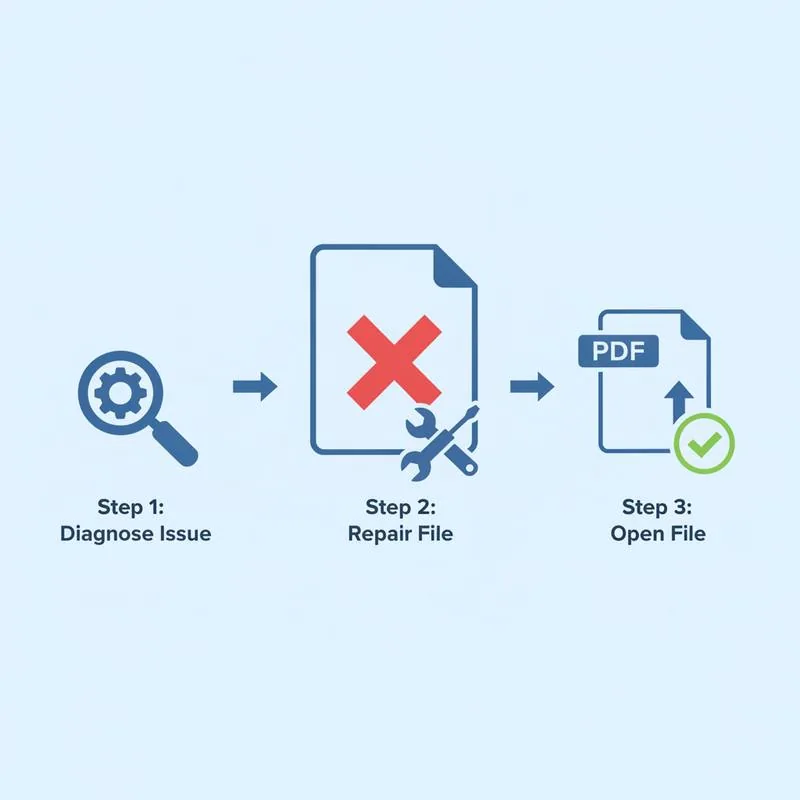
When a PDF refuses to open, the error message is rarely helpful - "file is damaged," "not a supported file type," or just a spinning progress bar that never resolves. The fix depends on the actual cause, not the generic error.
Here are the five most common causes, in order of how frequently they occur:
Cause 1: Corrupted or Incomplete Download
This is the most common cause. The download looked successful, but the connection dropped or the server hiccupped mid-transfer, leaving you with a partial file. Your PDF reader tries to parse an incomplete structure and fails.
How to tell: The file downloads quickly (suspiciously fast for its supposed size), or the file size is much smaller than expected.
Fix 1 (easiest): Re-download the file. If the source is still available, a fresh download usually solves it.
Fix 2 (when re-download isn't possible): Use PDFBEAR's Repair PDF tool. Upload the partial file and the tool will attempt to reconstruct the internal structure from whatever data survived the broken transfer.
Cause 2: Wrong File Extension
A file named document.pdf is not necessarily a PDF. Files get renamed accidentally, downloaded from email with wrong extensions, or are actually HTML/ZIP/XML files that someone renamed to .pdf.
How to tell: Open the file in a text editor (Notepad on Windows, TextEdit on Mac). Look at the very first line. A real PDF file always starts with: %PDF-1. or %PDF-2.. If you see HTML, XML, "PK" (which is ZIP), or random binary characters, it's not a PDF.
Fix: If it's HTML, rename to .html and open in a browser, then print to PDF using PDFBEAR's PDF Converter. If it's a ZIP file, rename to .zip and extract it - The actual PDF is likely inside.
Cause 3: Password-Protected PDF
PDFs can be locked with an owner password that prevents opening entirely, or a permissions password that allows viewing but not editing. If you're seeing a password prompt (or a message saying the file is encrypted), the file itself is fine - It's just locked.
How to tell: Your reader shows a password dialog, or an error like "This document is secured and cannot be opened."
Fix: If you know the password, enter it. If you don't have the password and the document belongs to you, use PDFBEAR's Unlock PDF tool to remove the password restriction.
Cause 4: PDF Version Too New for Your Reader
PDF has version numbers (1.0 through 2.0). Older PDF readers - Including some built-in OS viewers - Do not support features introduced in newer PDF versions. You'll typically see an error like "The document was created with a newer version of Acrobat."
How to tell: The error specifically mentions version incompatibility, or the file opens on one device but not another.
Fix: Use PDFBEAR's PDF Reader, which renders PDFs using an up-to-date engine that supports all current PDF specifications. No download, no installation - Open it directly in your browser.
Cause 5: Genuinely Damaged File
Storage failure, bit rot on an old drive, or a software crash during save can produce a file that is structurally broken beyond what a simple re-download fixes. The cross-reference table (the PDF's internal index) may be corrupted, or page content streams may be damaged.
How to tell: The file has content (non-zero size), starts with %PDF-, but every reader reports it as damaged and it has been this way since before you tried to open it the first time.
Fix: Upload to Repair PDF. The tool rebuilds the internal structure from the data that remains intact.
Diagnostic Flowchart
| Symptom | Likely Cause | Fix |
|---|---|---|
| File size is 0 bytes | Failed download / empty save | Re-download the file |
| File size is oddly small | Incomplete download | Re-download or Repair PDF |
| Password dialog appears | Password-protected | Enter password or Unlock PDF |
| First bytes are not %PDF- | Wrong file type | Identify real type, rename |
| Version incompatibility error | PDF version too new | Open with PDFBEAR PDF Reader |
| "File damaged" - Always was | Genuine corruption | Repair PDF |
| Opens on one device, not another | Reader incompatibility | Use PDFBEAR PDF Reader |
A Note on "File Damaged" Error Messages
PDF readers tend to display "file damaged" for almost any structural error - Including version mismatches and incomplete downloads. Don't let that message lead you straight to assuming the file is unrecoverable. Work through the causes above in order. In our experience, the majority of "damaged" PDFs are actually just incomplete downloads that repair in seconds.
PDFBEAR's Repair PDF and PDF Reader are both free, require no account, and process files without storing them longer than necessary. They're the fastest first steps to take before concluding a file is permanently lost.
Compare PDF tools
 Continue with Google