Blank prints and cut-off edges are different problems with different fixes. Blank output is usually a driver issue; cut-off edges mean a page size or margin mismatch that Crop PDF can solve.
- "Print as image" mode in your printer driver fixes most blank-page printing issues
- A4 content printed on Letter paper (or vice versa) is the most common cause of cut edges
- Crop PDF trims the PDF to the printable area before sending it to the printer
- Content-layer corruption causing blank prints can be fixed by Repair PDF
Fix the print issue first at the driver level - Only reach for PDF tools if the driver fix doesn't work.
Two Very Different Printing Problems
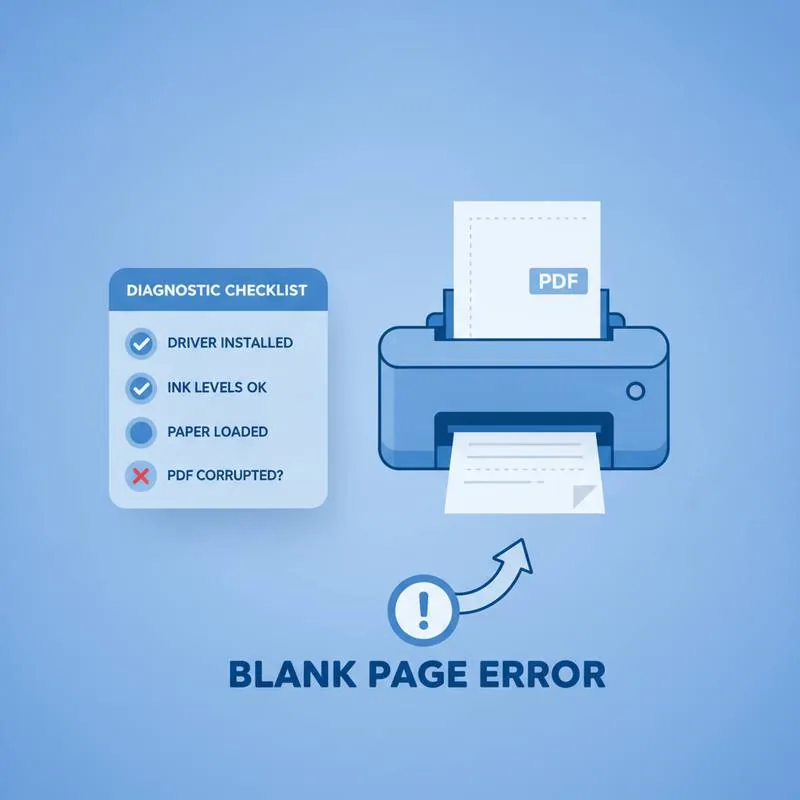
When a PDF doesn't print correctly, it's almost always one of two issues: the pages come out completely blank, or content is visually cut off at one or more edges. These sound similar but have entirely different root causes and fixes.
Problem 1: Pages Print Completely Blank
This is counter-intuitive - The PDF looks fine on screen, but the printer produces blank pages. The ink or toner is fine (check with a test page), but your document produces nothing.
Most common cause: PDF rendering mode conflict. Many PDF readers send PDF content to the printer as vector graphics. Some printer drivers can't handle complex vector PDF content and simply skip it, leaving blank pages. This is a driver bug, not a PDF problem.
Fix 1: Print as Image Mode (Works 90% of the time)
In your PDF reader's print dialog, look for an "Advanced" button or a "Print as Image" option. Enabling this rasterises the PDF page into a bitmap before sending it to the printer. The driver receives a simple image instead of complex PDF content, and it prints correctly.
In Adobe Reader: Print → Advanced → "Print As Image" checkbox.
In Chrome's built-in PDF viewer: use a different reader - Chrome lacks this option.
Fix 2: Repair the Content Layer
If "print as image" doesn't work, the content layer itself may be corrupted. A PDF whose content streams are damaged will display correctly using the cached render but fail when the reader re-parses the file for printing. Use PDFBEAR's Repair PDF to rebuild the file structure, then try printing again.
Fix 3: Try a Different PDF Reader
Open the PDF in PDFBEAR's PDF Reader and use the browser's built-in print function. Browser-based printing uses a different rendering pipeline than desktop PDF readers and often bypasses driver compatibility issues entirely.
Problem 2: Content Is Cut Off at the Edges
If the PDF prints but chunks of content are missing at one or more edges - Text cut in half, images truncated, a column missing on the right - This is almost always a page size or margin problem.
Cause A: A4 vs Letter Mismatch
The world has two dominant paper standards: A4 (used almost everywhere) and US Letter (used in North America). They are close in size but not identical. A4 is slightly narrower and taller than Letter (210×297mm vs 216×279mm). A PDF designed for A4 printed on Letter paper will have its bottom clipped. A PDF designed for Letter printed on A4 will have its right edge clipped.
Fix: The cleanest fix is to resize the PDF to A4 (or Letter) so the page matches your paper. If only the margins are the problem, use PDFBEAR's Crop PDF to trim the PDF page to the printable area of your paper before printing. Alternatively, in the print dialog, enable "Fit to page" or "Shrink to printable area" - This scales the PDF down slightly to fit within your paper's margins.
Cause B: Printer Crop Marks or Bleed Areas
PDFs created for professional printing often include crop marks, bleed areas, and registration marks outside the actual page content. When printed on a home or office printer, these marks fall outside the printable area - But they also push the actual content too close to the edge, causing it to be clipped.
Fix: Use Crop PDF to trim the document to the content area only, removing the bleed and crop mark zones before printing.
Cause C: Oversized Content Area
Some PDFs are designed for a media box larger than standard paper - For example, a wide-format poster designed for A1 or 24×36 inch paper. When printed on A4/Letter, most of the content is cut off.
Fix: In the print dialog, select "Fit to page" to scale the PDF to your paper size. If the result is too small to read, Crop PDF lets you select just the section you want to print.
Diagnostic Table
| Symptom | Likely Cause | Fix |
|---|---|---|
| Entirely blank pages - All pages | Driver rendering conflict | Print as Image mode |
| Blank pages - Some pages only | Corrupted content on those pages | Repair PDF |
| Content cut off at bottom | A4 PDF on Letter paper | Crop PDF or Fit to page |
| Content cut off on right | Letter PDF on A4 paper | Crop PDF or Fit to page |
| Narrow strip of content cut off all sides | Bleed / crop mark areas included | Crop PDF to content area |
| Most content missing (tiny island) | Poster/large-format PDF on small paper | Fit to page in print dialog |
One More Thing: Margins
Printers have a non-printable zone around the edges - Typically 4–10mm. If a PDF has content right up to the page edge (zero margins), that content will always be clipped regardless of paper size. Use Crop PDF to define a crop box that accounts for your printer's non-printable zone, ensuring all content lands in the printable area before you send the job.
Compare PDF tools
 Continue with Google