Boxes instead of text means missing fonts. Garbled characters like é mean encoding errors. These are two distinct problems with different fixes - Knowing which one you have points you straight to the solution.
- Small squares or rectangles where letters should be = missing or unembedded font
- Garbled characters (é, ’, etc.) = incorrect character encoding or Unicode mapping
- Repair PDF can re-embed fonts that weren't included when the PDF was created
- PDFBEAR PDF Reader uses its own rendering engine and bypasses both problems
Two different symptoms, two different fixes - Identify which one you're dealing with first.
Why PDF Text Looks Wrong: Two Completely Different Problems
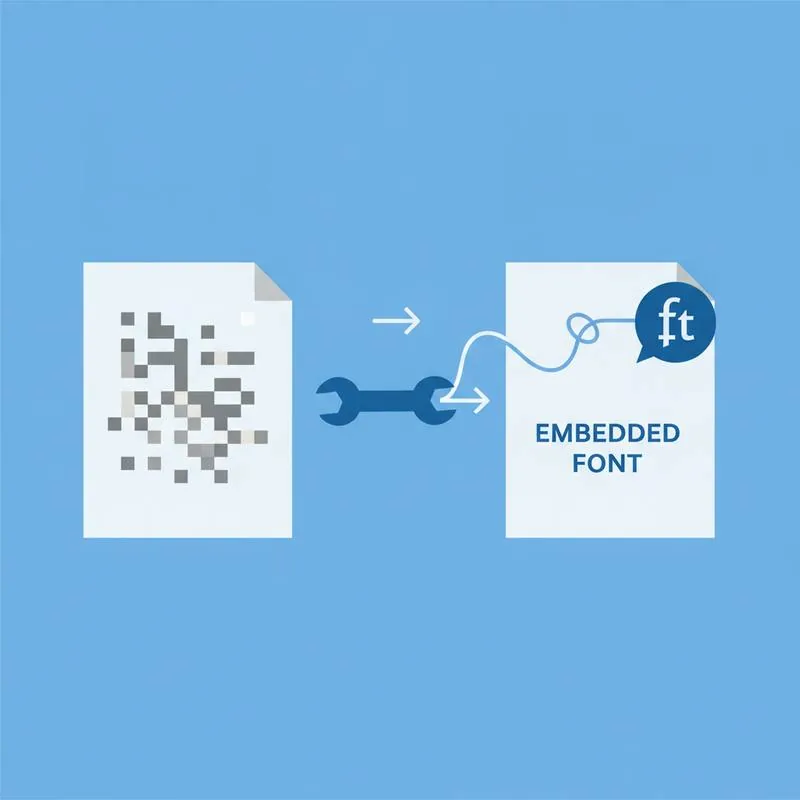
If the text in your PDF looks wrong, it almost certainly falls into one of two categories. They look superficially similar - Both make the text unreadable - But they have different causes and different solutions. Mixing them up wastes time.
The key diagnostic question is: are you seeing empty boxes, or are you seeing the wrong characters?
Problem 1: Missing Fonts (The Box Problem)
Every character in a PDF is rendered using a specific font. When you see a row of small squares or rectangles where letters should be, it means the PDF is referencing a font that doesn't exist in your environment - And your PDF reader has no fallback for it.
There are two ways fonts end up missing:
- The font was not embedded: The person who created the PDF assumed you'd have the font installed on your computer. If you don't - Especially for specialist typefaces, foreign-script fonts, or corporate brand fonts - Your reader draws a box instead. This is the most common cause.
- The embedded font is corrupted: The font data was included in the PDF but got damaged. This is less common but can happen with partially corrupted files.
Fix: Use PDFBEAR's Repair PDF tool. The repair process attempts to substitute or re-embed font data so that text renders with a standard fallback font. You may not get the original typeface, but you'll get readable text. Alternatively, PDFBEAR PDF Reader uses its own font rendering engine which handles missing system fonts more gracefully than most desktop PDF readers.
Problem 2: Encoding Errors (The Garbled Character Problem)
If you're seeing text that looks like Héllo Wörld instead of Héllo Wörld, or characters like ’ where you'd expect a curly apostrophe, this is an encoding mismatch - Not a font problem.
Encoding tells the PDF reader how to translate raw byte values into characters. When the encoding declared in the PDF doesn't match the encoding the text was actually saved in, characters get misread. This most commonly happens with:
- PDFs created from older software that defaulted to Latin-1 or Windows-1252 encoding
- PDFs containing accented characters (é, ü, ñ, etc.) or typographic punctuation (curly quotes, em dashes)
- PDFs converted from web pages where the HTML encoding wasn't explicitly declared
- Multi-language PDFs where encoding assumptions differ between sections
Fix: Try opening the PDF in PDFBEAR PDF Reader, which uses a modern rendering engine with explicit encoding detection. If the issue persists and you have the source document, re-generating the PDF with correct UTF-8 encoding settings is the most reliable fix. No source file? If only a few words are affected, edit the PDF online for free: cover the garbled word and type the correct one on top.
Comparison: Symptoms and Solutions
| What You See | Root Cause | Recommended Fix |
|---|---|---|
| Rows of empty squares/boxes | Font not embedded or missing from system | Repair PDF → re-embeds fonts |
| Different font than expected | Font substituted by reader | Repair PDF or PDF Reader |
| é instead of é | UTF-8 text read as Latin-1 | PDFBEAR PDF Reader |
| ’ instead of apostrophe | Windows-1252 vs UTF-8 mismatch | PDFBEAR PDF Reader |
| Completely blank text areas | Invisible white text on white background | Select all text - If it selects, colour issue |
| Question marks instead of characters | Font missing, reader substituting ? | Repair PDF |
How to Confirm Which Problem You Have
Here's a reliable diagnostic you can do in under 30 seconds:
- Try to copy a word that appears as boxes or garbled characters.
- Paste it into a plain text editor (Notepad, TextEdit).
- If you see the correct text (e.g., you paste "Hello" even though it showed as boxes): this is a font display problem. The text layer is correct; only the visual rendering is broken. PDFBEAR PDF Reader will display it correctly.
- If you see garbled characters (e.g., you paste "Héllo"): this is an encoding problem. The text itself is stored incorrectly in the file.
- If you can't select or copy text at all: the document may be a scanned image with no text layer. Use OCR PDF to create a searchable text layer.
Preventing Font and Encoding Problems When Creating PDFs
If you're the one creating PDFs, you can eliminate these problems for your recipients:
- Always embed fonts when exporting to PDF from Word, InDesign, or any design tool. In Word, this is under Options → Save → "Embed fonts in the file."
- Use PDF/A format for archival documents - The PDF/A standard requires font embedding by specification.
- Stick to common fonts (Arial, Times New Roman, Helvetica, Georgia) for documents shared externally - Every reader has fallbacks for these.
- Use PDFBEAR's PDF Converter when creating PDFs from Office documents - It handles font embedding automatically.
Compare PDF tools
 Continue with Google