Converting a regular PDF to PDF/A embeds fonts, adds color profiles, and strips features like encryption and JavaScript that can break over time. PDFBEAR handles the conversion automatically - Just upload, convert, and download.
- PDF/A conversion embeds fonts, attaches ICC color profiles, and writes required XMP metadata.
- Encrypted PDFs must be unlocked before conversion - PDF/A prohibits encryption by definition.
- JavaScript, external links, and unsupported multimedia are stripped automatically.
- Use PDFBEAR PDF to PDF/A for a fast, browser-based conversion with no software install.
Converting to PDF/A is a one-click step with PDFBEAR - And it future-proofs every important document you archive.
Why Convert Rather Than Just Save as PDF/A?
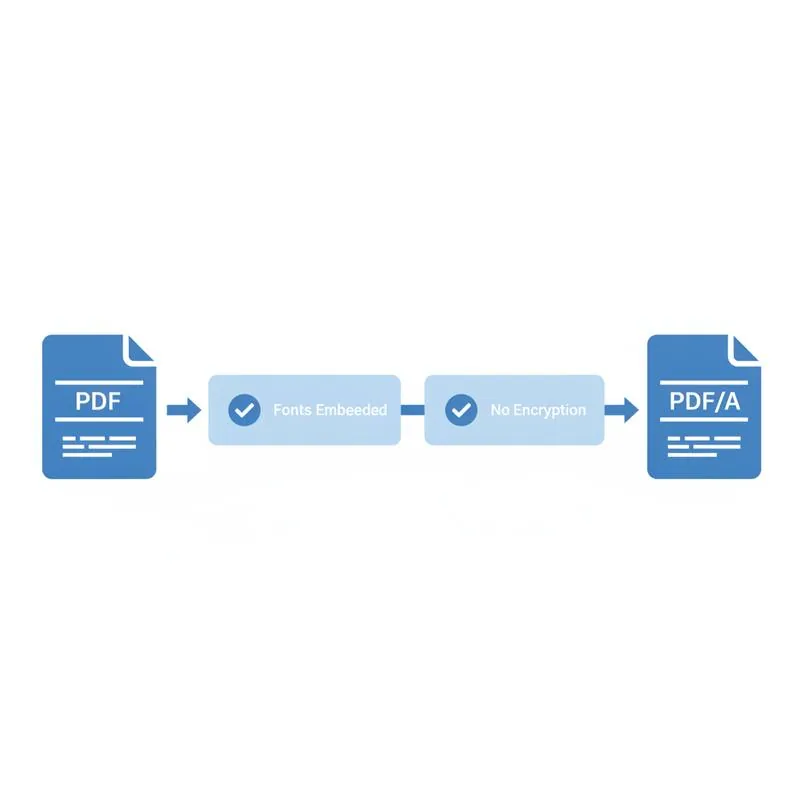
If you created a document years ago and saved it as a standard PDF, that file may not meet PDF/A requirements - Even if it looks fine today. Common problems include fonts that are referenced but not embedded (relying on system fonts that may not be installed in the future), RGB colors without ICC profiles (leading to unpredictable color rendering), missing or malformed XMP metadata, and encryption that prevents automated archival systems from reading the file.
Converting an existing PDF to PDF/A with PDFBEAR's PDF to PDF/A tool addresses all of these issues automatically. The converter analyses the source file, embeds any missing font subsets, attaches the required color profile, strips prohibited features, and rewrites the document's internal structure to conform to the ISO 19005 standard.
What Changes During PDF to PDF/A Conversion
Understanding what the converter actually does helps you anticipate the output and troubleshoot any issues.
| What Changes | What Happens | Effect on File |
|---|---|---|
| Font embedding | Missing font subsets are embedded from system or substitution fonts | File size may increase; text rendering guaranteed |
| Color spaces | RGB/CMYK colors tagged with ICC profile (sRGB or ISOCoated) | Colors reproduced accurately on any device |
| XMP metadata | PDF/A conformance marker written into document metadata | Archival systems can verify compliance |
| JavaScript | All JS removed | Interactive scripts no longer function |
| Encryption | Removed (must unlock first) | File opens without password |
| External URLs in actions | URL-launch actions stripped | Clickable web links in the file may be disabled |
| Transparency flattening | Live transparency flattened to static rendering (A-1 only) | Visual result preserved; layers merged |
Step-by-Step: Converting with PDFBEAR
Converting a PDF to PDF/A with PDFBEAR PDF to PDF/A takes under a minute for most documents. Here is the complete process:
Step 1 - Upload your PDF. Open the PDF to PDF/A tool and drag your file onto the upload zone, or click to browse. PDFBEAR transfers your file over an encrypted HTTPS connection and does not share it with third parties.
Step 2 - Choose the conformance level. Select PDF/A-1b for maximum compatibility with court filing systems and older archival software. Choose PDF/A-2b if you need JPEG2000 compression for image-heavy documents, or if you want to preserve optional content layers. PDF/A-3b is the choice if you need to bundle an XML invoice or other attachment alongside the visual document.
Step 3 - Convert and download. Click the convert button. PDFBEAR processes the file server-side and returns a download link. For most documents the conversion completes in seconds. Large files with many images may take slightly longer.
Step 4 - Verify compliance. Download the converted file and optionally verify it with a PDF/A validator such as veraPDF (free, open source) or Adobe Acrobat's Preflight tool. Look for zero errors and the correct conformance level in the verification report.
When Conversion Will Fail - And How to Fix It
Some PDFs cannot be converted to PDF/A without preparation. Knowing the common failure causes saves time:
Encrypted or password-protected PDFs. PDF/A prohibits encryption. If your source file is password-protected, use PDFBEAR Unlock PDF to remove the password first, then re-upload to the PDF/A converter. Note that you will need the current password to unlock it - PDFBEAR cannot bypass encryption on files you do not own.
Missing font data. If the original PDF references a font that is not installed on the conversion server and has no embedded subset, the converter must substitute a similar font. The visual result should be close, but may not be pixel-perfect. Where exact font reproduction matters (legal documents, official forms), generate the PDF/A directly from the source application using "Save as PDF/A" before fonts are discarded.
Unsupported color spaces. Exotic color spaces (Pantone spot colors, DeviceN) may be converted to CMYK or RGB approximations. For print-critical documents, work with your printer or designer to produce a PDF/A directly from the print workflow.
Corrupt or malformed PDFs. PDFs with internal structural errors may fail conversion entirely. Use PDFBEAR Repair PDF to fix structural problems before attempting the PDF/A conversion.
Checking File Size After Conversion
Font embedding and ICC color profiles add data to the file. A document that relied on system fonts with no embedding may grow by 10–30% after PDF/A conversion. Documents that were already well-formed (fonts already embedded, colors already profiled) will see minimal size increases.
If your PDF/A output is very large, compress it first using PDFBEAR Compress PDF - The compressor works on PDF/A files and preserves conformance in most cases. Always re-verify with a validator after compressing to confirm conformance is maintained.
Compare PDF tools
Verify the PDF/A Result
Conversion and validation are separate steps. Convert with PDF to PDF/A, then use the PDF/A Checker to pre-check fonts, encryption, metadata and other common archival requirements. See why official filing systems require PDF/A when the document is headed to a court or public archive.
 Continue with Google