A WCAG 2.1 AA compliant PDF needs a text layer, tagged structure, alt text, correct heading hierarchy, sufficient color contrast, table headers, a language declaration, and no flicker. Here is the full checklist.
- ADA Section 508 and WCAG 2.1 AA both apply to PDFs published by government agencies, educational institutions, and many businesses.
- Scanned image-only PDFs fail the very first checklist item - Use OCR PDF before everything else.
- Color contrast ratio must be at least 4.5:1 for normal text, 3:1 for large text.
- NVDA (free screen reader for Windows) lets you test PDF accessibility without specialized software.
Run through this checklist before publishing any PDF to ensure it meets both ADA and WCAG 2.1 AA standards.
Who Needs to Meet ADA and WCAG PDF Standards
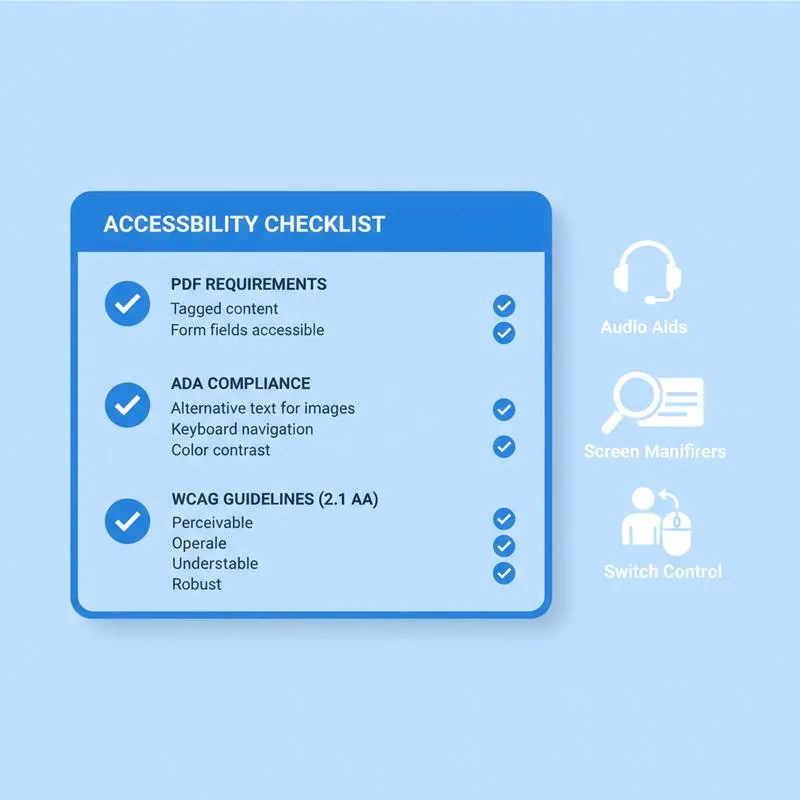
The Americans with Disabilities Act (ADA) and the Web Content Accessibility Guidelines (WCAG) both apply to digital documents, including PDFs. The requirements affect:
- Federal agencies - Section 508 of the Rehabilitation Act mandates accessible electronic documents. This was updated in 2017 to align with WCAG 2.0 Level AA.
- State and local government - ADA Title II applies; recent DOJ guidance (2024) confirms WCAG 2.1 AA as the standard for state and local government digital content.
- Businesses open to the public - ADA Title III has been applied to websites and digital documents by courts in multiple rulings. Organizations publishing PDFs for customers are exposed.
- Educational institutions - IDEA and Section 504 require accessible materials for students with disabilities.
Non-compliance can result in ADA demand letters, DOJ investigations, and litigation. The cost of retrofitting a large document library is significant - Accessibility is far cheaper built in from the start.
The PDF Accessibility Checklist
| # | Checklist item | Standard | How to fix with PDFBEAR |
|---|---|---|---|
| 1 | Document has a searchable text layer (not image-only) | WCAG 1.4.5 / Section 508 | OCR PDF to add text layer to scanned docs |
| 2 | PDF is tagged with logical structure tree | WCAG 1.3.1 / PDF/UA | Re-export from source with tagging enabled |
| 3 | Heading hierarchy is correct (H1 → H2 → H3) | WCAG 1.3.1, 2.4.6 | Fix in source document before exporting to PDF |
| 4 | All meaningful images have descriptive alt text | WCAG 1.1.1 | Edit PDF to add alt text properties |
| 5 | Decorative images are marked as artifacts | WCAG 1.1.1 | Tag as Artifact in PDF editor |
| 6 | Table headers are properly marked (<TH> tags) | WCAG 1.3.1 | Fix in source document; use table header row option |
| 7 | Reading order matches visual order | WCAG 1.3.2 | Check in PDF editor; re-export with correct column order |
| 8 | Document language is declared | WCAG 3.1.1 | Set in document properties in source application |
| 9 | Color contrast: 4.5:1 for normal text, 3:1 for large text | WCAG 1.4.3 | Adjust in source document; use contrast checker tool |
| 10 | Information is not conveyed by color alone | WCAG 1.4.1 | Add patterns, labels, or text alongside color coding |
| 11 | No content flashes more than 3 times per second | WCAG 2.3.1 | Remove animated content from PDF |
| 12 | Form fields have visible labels and tooltips | WCAG 1.3.1, 3.3.2 | Add field descriptions in source; export with field metadata |
| 13 | Links have descriptive text (not "click here") | WCAG 2.4.4 | Edit PDF to update link display text |
| 14 | Document title is set in metadata | WCAG 2.4.2 | Set document properties title field in source application |
Color Contrast Explained
Color contrast is measured as a ratio between the luminance of the foreground (text) and background colors. The WCAG 2.1 AA requirement is 4.5:1 for normal-sized text and 3:1 for large text (18 point or 14 point bold). Check contrast with WebAIM's free contrast checker at webaim.org/resources/contrastchecker - Input your hex color codes and it calculates the ratio instantly.
Common failures include: light grey text on white backgrounds, yellow text on white, and blue links on dark blue backgrounds. If your PDF was designed by someone optimizing for aesthetics over function, these failures are common.
ADA Section 508 vs WCAG 2.1 AA: Are They the Same?
Section 508 was updated in 2017 to incorporate WCAG 2.0 Level AA by reference. This means federal agencies must meet WCAG 2.0 AA as a floor. Many agencies have voluntarily adopted WCAG 2.1 AA (released in 2018), which adds several additional success criteria relevant to mobile users and people with cognitive disabilities.
For practical purposes, if your PDF meets WCAG 2.1 AA, it meets Section 508. The two standards diverge slightly for PDFs in that Section 508 references ISO 32000 (the PDF standard) and PDF/UA (ISO 14289), while WCAG focuses on abstract principles. Achieving both requires meeting the checklist above plus ensuring the document is a tagged PDF per PDF/UA.
How to Test with a Free Screen Reader
NVDA (NonVisual Desktop Access) is a free, open-source screen reader for Windows that screen reader users actually use. To test your PDF:
- Download NVDA from nvaccess.org (free)
- Open your PDF in a browser (Chrome, Edge, or Firefox)
- Start NVDA and press NVDA + Space to enter browse mode
- Press H to jump between headings - Check they are in correct order
- Press T to jump between tables - Check headers are announced
- Press G to jump between graphics - Check alt text is read aloud
- Press Down Arrow to read through the full document - Check nothing is skipped or read out of order
PDFBEAR Tools That Support Accessibility
Compare PDF tools
Check the PDF Before You Publish It
Run the finished document through the free PDF Accessibility Checker to catch missing tags, document language, title metadata, unlabelled links, unembedded fonts and scanned pages without selectable text. Then compare the results with what screen readers need from an accessible PDF.
 Continue with Google