When a PDF refuses to let you type in it, the form is either flattened into an image or a static design - Not a true interactive form. There are reliable workarounds for both cases.
- Flat/image PDFs look like forms but have no real input fields - The layout is just a picture.
- Locked interactive PDFs have real fields that are restricted by a permissions password.
- PDFBEAR’s Edit PDF lets you type text over any PDF, including flat or image-based forms.
- PDFBEAR’s PDF Forms tool handles true interactive PDF forms with fillable fields.
Whatever is blocking your typing, PDFBEAR has a tool that works around it in under two minutes.
Why You Cannot Type in Some PDFs
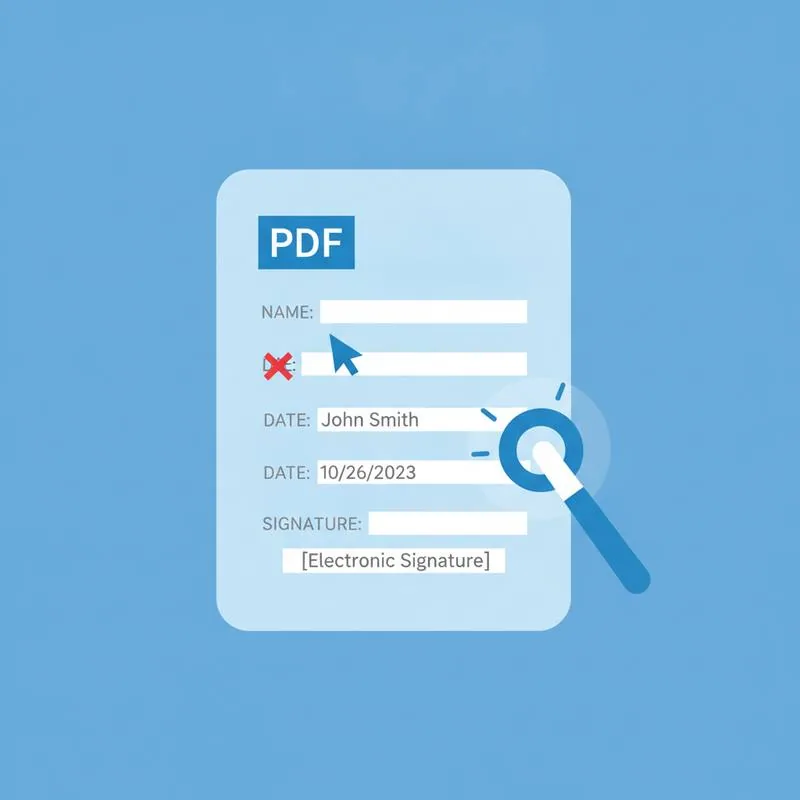
Most people assume a PDF that looks like a form is a form - That is, it has interactive fields where you can click and type. In reality, a large proportion of form-looking PDFs are simply flat documents. Whoever created them designed the layout in Word, printed it to PDF, or scanned a paper form. The result is a visual that looks like a form but is, technically speaking, a static image or a set of text and boxes with no interactive layer underneath.
There is a second category: true interactive PDFs that have real input fields, but where the creator locked those fields using a permissions password. In this case the file has the interactive layer, but an owner password is blocking you from using it.
Diagnosing which situation you are in takes about 10 seconds:
- Click on what looks like an empty field. If nothing happens - No cursor, no highlight - The form is flat or image-based.
- If a text cursor appears but immediately disappears, or if you see a lock icon, the fields are restricted.
- If Acrobat or your PDF reader says “this document has restricted editing,” an owner password is blocking field access.
Understanding the cause points you directly to the right fix.
Situation 1: Flat or Image-Based PDFs
Flat PDFs are the most common reason a form refuses to let you type. The fix is to use a text overlay tool - Something that lets you place text on top of the document anywhere you like, regardless of whether real form fields exist underneath.
PDFBEAR’s Edit PDF tool does exactly this. It opens the PDF in a browser-based editor where you can:
- Click anywhere on the page to place a text block.
- Type your response, resize the text, and reposition it to align with the printed label or blank line below.
- Add checkmarks, dates, or signatures as needed.
- Save and download a new PDF that looks like it was filled in natively.
This approach works for scanned forms, government PDFs, templates designed without interactive fields, and any flat document where the “form” is purely visual. No installation required - Everything happens in your browser over a secure HTTPS connection.
Situation 2: Locked Interactive Forms
If the PDF does have real interactive fields but they are locked by a permissions password, the workaround is different. You need to remove the owner-level restriction first, then fill the form normally.
Two-step process:
- Use Unlock PDF to strip the owner password and restore field access.
- Then open the unlocked file in PDF Forms to fill in the interactive fields properly.
PDFBEAR’s PDF Forms tool is purpose-built for interactive PDFs. It detects fillable fields automatically and presents them for input without requiring you to manually position text boxes. When a form has dropdowns, checkboxes, radio buttons, or signature fields, this is the right tool - Not the general-purpose editor.
Situation 3: Scanned Paper Forms
Some of the most stubborn “forms that won’t let you type” are scans of paper documents. Everything in the file is a raster image - The lines, the labels, the blank spaces. There are literally no text objects, no fields, nothing but pixels.
For these, the Edit PDF text overlay approach still works: you position text blocks visually over the image. If the scan is rotated or the quality is low, you might need to straighten it first. PDFBEAR’s Rotate PDF tool can fix orientation, and the editor handles the rest.
PDF Type Comparison and Which Tool to Use
Choosing Your Workaround
Step-by-Step: Using Edit PDF to Fill a Flat Form
Here is the full process for filling a flat or scanned PDF form using PDFBEAR’s Edit PDF tool:
- Go to PDFBEAR Edit PDF and upload your document.
- The editor loads your PDF exactly as it appears. Navigate to the first blank field you need to fill.
- Click the Text tool in the toolbar, then click on the area of the page where you want to place your text.
- Type your response. Use the size, font, and color controls to match the surrounding text as closely as possible.
- Drag the text block to position it precisely within the blank line or box.
- Repeat for every field on the form.
- Click Apply or Finish, then download your completed PDF.
The downloaded file is a standard PDF with your typed text embedded as a real text layer - Not another image. This means the recipient can search the text, copy it, and print it cleanly.
Step-by-Step: Using PDF Forms for Interactive Fields
When the form has real interactive fields (they highlight when clicked), the PDF Forms tool gives you a cleaner experience:
- If the form is locked, first run it through Unlock PDF and download the unlocked copy.
- Upload the (now-unlocked) PDF to PDF Forms.
- PDFBEAR automatically detects all fillable fields: text inputs, checkboxes, radio buttons, dropdowns.
- Click each field and enter your information.
- When all fields are complete, click Download to save the filled form.
Tips for Getting the Best Results
| Challenge | Solution |
|---|---|
| Text is too large for the field space | Reduce font size in the Edit PDF toolbar to match the available area |
| Scanned form is skewed or rotated | Use Rotate PDF to fix orientation before editing |
| Form has a digital signature field | Use eSign PDF to add a legally binding signature instead of typing a name |
| Form has a locked checkbox you cannot tick | Place a small “X” or checkmark glyph using Edit PDF text overlay |
| Need to send the completed form to multiple people | Compress with Compress PDF first to reduce file size for emailing |
The most important thing to remember is that a PDF form that “won’t let you type” is almost never a dead end. In most cases, the right PDFBEAR tool applied to the right type of PDF gets you to a completed, downloadable form in well under two minutes - No printer, scanner, or software installation required.
Compare PDF tools
 Continue with Google